

A USB that stops at MOK Management has reached a Secure Boot trust check. For a Ventoy stick, enroll Ventoy's key from the USB; for an Ubuntu driver request, enroll the key created during installation with the password you chose then.
Those are different jobs, even though the blue screens look similar. Match the request to the software you put on the stick before accepting a key or changing the PC's firmware settings.
In this guide
1. Identify which MOK request is on the screen
MOK means Machine Owner Key. It lets the computer trust a signing key used by software that starts before the operating system or by certain Linux drivers. The menu belongs to the boot process, not to Windows account recovery.
An error such as Verification failed: (0x1A) Security Violation, followed by Shim UEFI key management, can appear on a Ventoy USB's first start. Ventoy needs its own key enrolled before its boot menu can load.
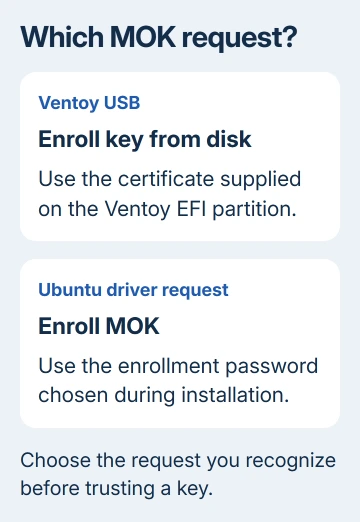
An Enroll MOK request after installing Ubuntu with third-party drivers is for a key created during setup. Confirm it with the enrollment password chosen then, rather than your Microsoft account password.
I'd check how the USB was made before changing anything. If someone else made the stick, ask them what they used. Only enroll a certificate when you recognize the software and trust its source.
If the USB never reaches a blue MOK screen and Windows simply starts again, use the USB boot-menu and media checks. That failure happens earlier than key enrollment.
2. Enroll the Ventoy key from the stick
Use this route for a USB prepared with Ventoy. The Ventoy Secure Boot instructions describe first-boot enrollment and note that a newer key is needed with Ventoy 1.1.13 and later for UEFI CA 2023.
- Dismiss the verification message and press a key when the shim screen offers MOK management.
- Choose Enroll key from disk. This opens the device's files so you can choose a certificate, rather than approve an Ubuntu enrollment request.
- Select the Ventoy EFI partition, often labeled VTOYEFI, and choose its supplied enrollment certificate. Older sticks use ENROLL_THIS_KEY_IN_MOKMANAGER.cer; match the certificate to your Ventoy release.
- Follow the certificate review and confirmation screens, then choose Reboot.
- Open the PC's boot menu again and select the USB's UEFI entry.
Ventoy's list of disk images should now appear without another verification failure. Select your image there. Ventoy can now start, though the operating system you select still has its own requirements.
Enrollment normally needs doing once per computer, rather than for every image on the stick. Moving it to another PC can bring up the enrollment screen again because that computer keeps its own list of trusted keys.
If the certificate isn't present, don't select a random file from the Windows partition. Check the Ventoy version and preparation on another working computer, then update the stick using the matching official release if needed.
3. Complete an Ubuntu driver enrollment request
Choose this route when Ubuntu installation or a driver update asked you to set a Secure Boot password. Third-party drivers can be signed with a new key that you need to accept when the computer next starts.
Select Enroll MOK, review the certificate and continue through confirmation. Enter the password created for that enrollment, then restart when prompted. Screens vary with your version of shim, the Linux startup software handling this check.
This password confirms that you approve the new key. Your normal Linux login password isn't automatically the right one, even if both prompts appeared during the same installation. Use the enrollment password you actually set.
After restarting, check the feature that needed the driver, such as the graphics driver. Accepting the key lets drivers signed with it load, but it doesn't install a missing driver package.
For an unexpected request, stop and check the distribution's installation instructions. Ventoy's disk-certificate route and Ubuntu's generated-key route aren't interchangeable. Repeating the wrong one won't complete enrollment.
4. Check firmware trust when enrollment won't start
Some PCs require Allow Microsoft 3rd Part UEFI CA, or a similarly named firmware option for third-party certificates. Check the model's firmware manual for its wording.
Before changing firmware security settings on an encrypted Windows PC, keep the BitLocker recovery key within reach. A firmware security change can lead to a recovery-key request on the next Windows start.
On Windows 11, the firmware access steps start at Settings > System > Recovery > Advanced startup > Restart now.
On Windows 10, open Settings > Update & Security > Recovery, then Restart now under Advanced startup. From the recovery menu, use Troubleshoot > Advanced options > UEFI Firmware Settings > Restart when available.
Keep the machine in UEFI mode for this check. Switching to Legacy or CSM changes the boot method and doesn't accept the missing MOK certificate. That can create another problem for an installed UEFI system.
Write down any error that appears before MOK management opens. Ventoy notes its Secure Boot method doesn't work on every machine. Write the current Linux installer directly to a USB instead of using a tool that holds several installers.
5. Use fresh media when the old trust path fails
An old USB image might not meet your current firmware's Secure Boot requirements. Download a current installer from the operating system's maker and recreate the USB with that maker's recommended method.
Back up files from the USB first because writing an installer can erase it. Test the newly made stick from the one-time boot menu, using its UEFI entry. Compare the resulting error with the original message.
Ventoy's default Secure Boot policy allows EFI files, programs used at startup, to run without checking each one. Enrollment doesn't mean every image copied onto that stick has been verified. Keep the images themselves from trusted sources.
If Windows Setup loads and then fails later, the Windows preparation error guide addresses that separate stage. Returning to MOK management won't fix a later Setup error.
If a current trusted installer still fails, ask the PC maker about third-party UEFI CA support and firmware updates. Give them your model, firmware and USB tool versions, the exact security message and whether MOK management opens.
The Short Version
Match the request: Ventoy uses its disk certificate; Ubuntu driver enrollment uses Enroll MOK and the setup password. When enrollment won't open, check firmware trust or try fresh direct-written installation media.
Checked November 13, 2026.
 If you have any business, I can build it online






