

Check the startup screen before reinstalling Windows on an HP laptop that powers on but won't boot. Remove extra USB storage and restart once; an HP logo, Boot Device Not Found and Windows repair screen need different fixes.
A laptop with no power light or fan has a separate power problem. The steps here are for a laptop that turns on, then gets stuck before the Windows desktop.
In this guide
1. Disconnect extra devices and retry startup
Turn off the laptop, remove flash drives, memory cards, docks and external drives, then connect its normal AC adapter. Start it with only the equipment it needs. Extra storage can make it try to start from the wrong device.
Watch where it stops. An HP logo means the laptop is displaying its early startup screen. A spinning Windows indicator or Automatic Repair message shows it has reached a later stage. Write down the full wording of any error.
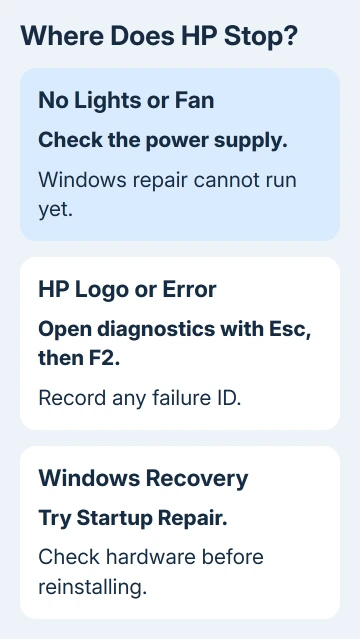
If it now reaches the desktop, reconnect accessories separately during normal use. A problem that returns only with a particular dock or drive gives you something specific to take to that device's support team.
For no lights, no fan and no screen, use the HP power checks. Windows recovery can't run until the laptop stays powered long enough to display startup choices.
If the display stays blank but lights blink or the laptop beeps, record the pattern, including long and short flashes. Give HP the exact model and sequence. That failure happens before the Windows tools described later can help.
2. Open HP's built-in hardware diagnostics
Begin with the laptop switched off. Press Power, then tap Esc about once per second. At the Startup Menu, press F2 for System Diagnostics. Some models also accept repeated F2 presses directly at startup.
These hardware tests run without opening Windows. If you can reach this menu, you can check the hardware even when Windows won't start. You don't need to reinstall or reset the computer first.
Choose System Tests > Fast Test > Run once if those options are present. HP's startup instructions describe a first and second pass. When the first pass succeeds, choose Continue > Run once to complete the second.
The screen shows progress and each component's result. If a test fails, write down its 24-digit failure ID and the product ID for support. The result is also available in Test Logs in the main diagnostics menu.
If the storage test fails, deal with the drive before trying to repair Windows. Reinstalling Windows on a failing drive risks another failed startup and fewer opportunities to copy important files.
If the diagnostics aren't installed or F2 can't load them, tell HP what happens at Esc and F2. The maker supplies a USB version of its diagnostics; follow its instructions for your model instead of choosing an unrelated BIOS download.
3. Take a missing-drive message to the storage checks
Boot Device Not Found or Hard Disk (3F0) means the laptop hasn't found the expected bootable operating system. The drive could have failed, or the information Windows needs to start could be damaged.
Follow the HP Boot Device Not Found procedure for the storage test and its results. A missing drive, a failed drive test and a detected drive that passes are different outcomes.
Keep a photo of that screen and the diagnostic result. Don't change the storage controller mode or randomly switch Legacy and UEFI settings. Those settings can create another startup problem on a working Windows installation.
If storage fails or disappears from the diagnostics, ask HP to assess the drive and preserve the data before replacement. If the drive stays listed and passes its test, try Windows recovery next.
4. Run Startup Repair when Windows recovery opens
Windows can enter its recovery environment automatically after repeated failed starts. On an Automatic Repair screen, choose Advanced options, then Troubleshoot > Advanced options > Startup Repair. Choose Restart if the screen asks for it.
Microsoft's Startup Repair instructions cover damaged system files and startup configuration. The tool attempts repairs and then either starts Windows or reports that it couldn't repair the PC.
If your drive is encrypted, get its BitLocker recovery key before starting. The recovery screen can ask for it before accessing the Windows installation. An account password and the long recovery key aren't the same thing.
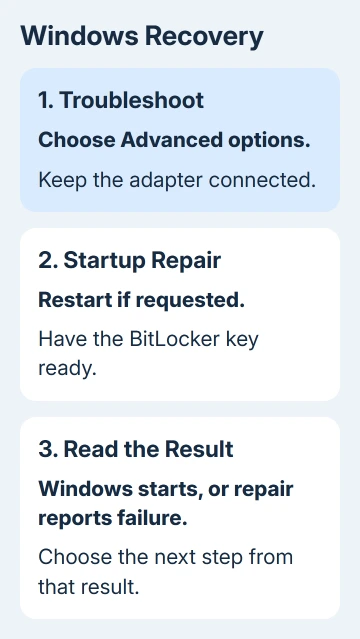
Leave the adapter connected while repair runs. If the desktop opens afterward, save important files before installing optional software or reconnecting every accessory. The first successful startup is a good chance to make that copy.
If Windows reports it couldn't repair the PC, keep that message. Running the same unsuccessful repair repeatedly doesn't change the hardware test result. Choose the next recovery option based on what changed just before startup failed.
5. Undo a recent change with the right recovery tool
In Troubleshoot > Advanced options, Uninstall Updates offers recovery options for a recent Windows update. Match the recovery choice to the change: a quality update is different from a feature-version upgrade.
If a driver or installed app preceded the failure, System Restore can return system files and settings to an earlier restore point. Select an available point dated before startup failed. You'll need an available restore point to use it.
System Restore can remove newer apps or drivers. It doesn't replace a backup. Read the screen's affected-program information before confirming. A missing restore point means this route isn't available, not that the drive failed.
On Windows 11, recovery can also offer Quick machine recovery for certain widespread startup failures. Follow its network and repair prompts if it appears. It isn't available on every build, and Windows 10 lacks this option.
I'd use the repair or rollback that matches the last change before choosing a reset. Undoing a known change is a smaller job than replacing the whole Windows installation.
6. Arrange data recovery or HP service when startup stays broken
If Esc never opens, the hardware test fails, or the laptop repeatedly loses its drive, contact HP Support with the product number and recorded results. Ask for a hardware assessment and explain whether unbacked-up files must be preserved.
If hardware passes but recovery tools can't restore startup, get help saving your files before resetting Windows or installing it from scratch. Keep my files still removes apps and settings. You still need a separate file backup.
HP recovery can offer factory recovery as well as repair tools. Read the description before confirming anything that says it removes data. Tell the technician whether you have the encryption recovery key before approving work.
The Short Version
Disconnect extra storage, record where startup stops, then use Esc and F2 to check hardware. A missing drive needs storage help. A drive that passes can move to Startup Repair and a suitable rollback before reset or service.
Checked November 13, 2026.
 If you have any business, I can build it online






