A stuck Windows Explorer process can stop desktop clicks in Windows 11 while the pointer still moves. Restart Explorer from Task Manager first if open apps still accept clicks; for clicks failing everywhere, check the mouse and frozen apps.
Missing desktop icons are another case: a desktop with hidden icons has nothing to open. Start by checking which situation you have before considering a Windows reset.
In this guide
1. Restart Windows Explorer using the keyboard
Press Ctrl+Shift+Esc to open Task Manager. If that shortcut doesn't respond, press Ctrl+Alt+Delete, use Tab to reach Task Manager, then press Enter. A working security screen shows Windows is still accepting keyboard input.
In Task Manager, select Processes. Navigate controls with Tab; once you reach a list, use the direction keys to move through it. Find Windows Explorer. Press Shift+F10 for its context menu and select Restart.
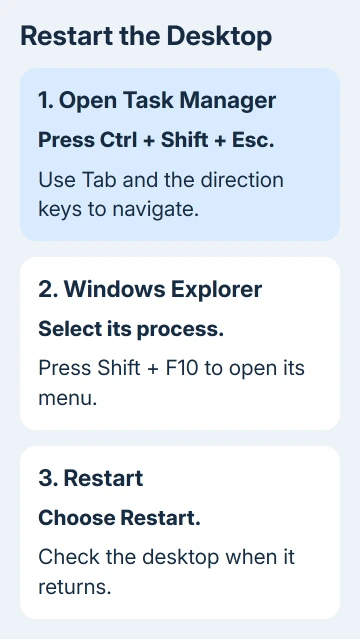
On versions with a search field, filter the process list for Windows Explorer first. Keyboard focus can start in a different place depending on the Task Manager version, so follow the highlighted control rather than counting Tab presses.
The desktop and taskbar can briefly disappear, then return. Check whether an icon can be selected and opened again. Explorer controls the desktop, so this refreshes that interface; it doesn't require closing every running app.
Microsoft recommends Task Manager for an Explorer restart. If Windows Explorer isn't listed, choose Run new task, type explorer.exe, and press Enter.
Let any file copy finish before restarting Explorer, since its windows and file operations can be interrupted. If the desktop immediately stops responding again, continue with the app and startup checks rather than repeatedly restarting it.
2. Check whether icons are hidden or just not opening
Press Windows+D to show the desktop. If the desktop responds to a right-click but its icons are missing, choose View > Show desktop icons so that the option is checked. Hiding icons doesn't delete their files.
If an icon becomes selected with one click but doesn't open, double-click it. Selecting and opening are different actions with the normal desktop setting. Try selecting the icon and pressing Enter as a comparison.
Press Windows+E and open Desktop from File Explorer's navigation pane. If the same shortcut opens there, its target is available. The desktop is then the part to check, rather than a missing app or file.
If only one shortcut fails in both places, try opening its application from Start. A removed app or broken shortcut needs its own repair; restarting Explorer won't restore a program that has been uninstalled.
When every icon ignores selection but another app still accepts clicks, check for a covering window next. If clicks work in another app, the mouse button is still sending clicks. The problem appears to be with the desktop.
3. Close a window that is covering the desktop
Press Alt+Tab and look for a recently opened launcher, wallpaper app, game overlay or utility. A window can cover desktop space without looking like an ordinary app. Select that window, then use Alt+F4 to close it.
Save its work first if it contains something important. If it won't close, return to Task Manager, select that app and choose End task. Avoid ending unfamiliar system processes while looking for the one app causing trouble.
Test the same desktop area after that app closes. If clicks return, update or disable that app's desktop feature before opening it again. If opening that utility makes the problem return, tell its developer exactly what happens.
If clicks fail in only a rectangle while the rest of the display works, use the partial-screen click checks. That pattern is more specific than an entire desktop that stopped responding.
If the keyboard security screen also fails, give a busy operation time to finish. A forced power-off is a last resort because unsaved work can be lost. After restarting, note which apps were running when the freeze occurred.
4. Compare the mouse outside the desktop
Click inside an already open app, then try the mouse on the Ctrl+Alt+Delete screen. Mouse movement can work even with a failed button. Movement and button presses can fail separately.
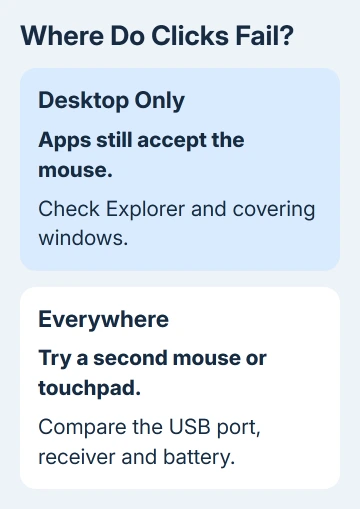
For a USB mouse, unplug it briefly, then use another port directly on the computer. Use the computer's own USB port for this check, bypassing any hub or dock. For a wireless receiver, reconnect it and check the mouse battery or charge.
Try a second mouse, or the laptop's built-in touchpad, if available. If the replacement can click in the same app and on the desktop, check the original mouse, its receiver and its driver software.
The mouse left-button checks cover a button that also fails away from the desktop. Testing the same mouse on another computer helps confirm whether the failure follows that device.
When both pointing devices work in apps but fail only on the desktop, continue with startup software. Replacing batteries again won't explain why Windows accepts the same click in one window but not its desktop.
5. Check whether startup software brings the fault back
Open Task Manager's Startup apps section. Record which entries are enabled, then disable a suspected desktop utility and restart Windows. Disabling its startup entry stops automatic launching; it doesn't uninstall the app.
When no particular app stands out, use the clean-boot procedure. Run msconfig, open Services, check Hide all Microsoft services, then disable the remaining services and apply.
In Task Manager, disable the enabled startup apps you recorded, then restart. Leave System Configuration's advanced boot options alone. A clean boot lets you test with fewer programs running in the background. It's a temporary setup.
If clicks return, re-enable the disabled non-Microsoft services and startup apps in groups, restarting between comparisons. When clicks fail again, test smaller groups to find the app or service responsible. Restore the other items.
If the desktop still won't respond, restore your recorded startup settings, then continue. I'd check startup utilities before a Windows reinstall, especially when a desktop customization app was recently added.
6. Repair Windows files when Explorer keeps failing
Apply pending Windows updates and finish their restart first. If Explorer still fails, open an administrator Command Prompt. Use Windows+R, type cmd, press Ctrl+Shift+Enter, then approve the administrator prompt using the keyboard.
Run DISM.exe /Online /Cleanup-image /Restorehealth. After it reports successful completion, run sfc /scannow. Wait for verification to finish, then read the result and restart the PC.
If files were repaired, try the desktop again before changing more settings. If repairs fail or Explorer repeatedly crashes, give Microsoft Support or your workplace IT the exact message, Windows build and clean-boot result.
Ask for help with a recurring desktop-shell failure, including whether another mouse works in apps. With those details, support can decide whether Explorer needs repair or your user account or device driver needs attention.
The Short Version
Restart Windows Explorer when only the desktop is stuck. Check hidden icons, covering windows and the mouse before testing startup software. Use Windows file repairs for continuing Explorer failures, then take the results to support.
Checked November 13, 2026.