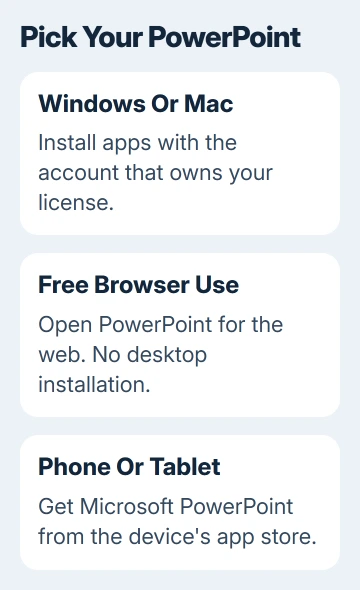
Get desktop PowerPoint from the account with your Microsoft 365, Office, or standalone license. PowerPoint for the web is free to use in a browser, but it doesn't include a desktop license.
The right download depends on whether you're installing on Windows, Mac, or a phone. If the Install button is missing, check your account and license before looking for another download site.
In this guide
Choose the version your account includes
PowerPoint can be part of a Microsoft 365 subscription, a one-time Office purchase, or a standalone app purchase. Sign in with the account used for that product. A work or school account needs a license that includes desktop apps.
An account that opens PowerPoint in a browser doesn't necessarily include the Windows or Mac application. Check which product your account owns before paying for another copy or reinstalling the one you have.
I'd check Start on Windows or Applications on Mac before downloading. Search for PowerPoint and open it if it's already there. If only the shortcut is missing, you don't need to install the app again.
If the app opens and asks for activation, use the account that owns the license. Downloading the installer again won't move your purchase to a different email address.
For a retail product key that hasn't been redeemed, follow the setup address supplied with the purchase. Redeem it to the account you'll keep using, then return to the installation page with that same account.
Download and install PowerPoint on Windows
Microsoft says to open m365.cloud.microsoft/apps in its Office installation instructions. Sign in using the account attached to your product.
- Select Install apps. Organization accounts may need to choose Apps in the left navigation first.
- Choose the installation option offered for your product. Personal and organization accounts can show different choices.
- Open the downloaded setup file from your browser's downloads or File Explorer's Downloads folder.
- Approve the Windows permission prompt for the Microsoft installer and allow installation to finish.
- Search Start for PowerPoint, open it, and complete any sign-in or license agreement prompts.
An Office suite installer normally adds the included apps together. A PowerPoint-only checkbox isn't offered by every subscription installer. For a standalone purchase, choose that product's installation option.
Once installation finishes, check that the app works. Open PowerPoint and start a blank presentation. On Windows, File > Account shows the signed-in account and product information, which helps explain an activation prompt.
If a file downloads but nothing happens, open your browser's download list and select the completed file. If the download was canceled or failed, finish downloading the file before trying to run it.
Avoid running a second installer while the first is still working. For an installation error, keep its exact message and use the setup help linked from the installation instructions.
Install the Mac application
On the Mac, use the same account and Install apps route. Once the download finishes, open Finder > Downloads and open the Microsoft Office .pkg installer. Its full filename can vary.
Select Continue, review the license, and select Agree when you accept it. Continue through the installation choices, then choose Install. Enter your Mac login password if requested to allow the installation.
The Mac installer has a Customize option for choosing specific applications when available. If you only need PowerPoint, review that list before starting the installation rather than deleting other apps afterward.
When installation completes, choose Close. Open PowerPoint from Applications or Launchpad and activate it using the licensed account. The password requested by the installer is for the Mac, not your Microsoft account.
If installation fails, follow the Mac troubleshooting links in the installation instructions. A Windows executable can't install on macOS. Renaming it doesn't produce a Mac installation package.
Once PowerPoint opens, the first presentation steps explain slide layouts, notes and presenting. Get PowerPoint opening successfully first; then it's easier to separate setup trouble from problems editing slides.
Use the free browser version when you don't need an installer
For free access, open the Microsoft 365 web apps and choose the PowerPoint option. Use your Microsoft account to sign in, then create or open a presentation in the browser.
This version runs in the browser and saves through the online service. It doesn't add a desktop app to Start or Applications. Check which version an assignment needs, especially for desktop-only features.
A Chromebook can use PowerPoint for the web. Don't download the Windows installer onto ChromeOS expecting it to open as a normal Chromebook application.
Before using the web version for an important deck, check which features it needs. Web and desktop apps have different capabilities, so a file can open successfully even if the web app lacks an editing feature you need.
Get PowerPoint on iPhone, iPad, or Android
Open the App Store on iPhone or iPad, or Google Play Store on Android. Search for Microsoft PowerPoint and confirm that Microsoft is the publisher before selecting Get or Install.
Open the app after installation and sign in. A free download doesn't mean every editing feature is free on every device. The app can ask for a qualifying subscription for particular features or device sizes.
Check the store's compatibility and purchase details for your device. A phone app and a desktop installer are different products, so transferring an .exe or .pkg file to a phone won't install the mobile version.
If you're preparing slides for another person, sharing a presentation for editing may be more useful than sending them an installer. Each person still needs access to a version that supports the work they need to do.
Resolve a missing Install option or activation request
Switch to the account used for your purchase first. Work and personal accounts can use similar addresses but have different licenses. Check the receipt or ask your organization which account was assigned the desktop apps.
For a managed PC, ask IT whether installation comes through a company portal or another approved method. Products licensed for a whole organization can have different installation steps from a personal purchase.
If your personal account has no eligible product, contact support through the installation page's Need help? section. Share the product name, purchase details and error, and ask whether your license includes installation.
The Short Version
Use the licensed account's Install apps option for Windows or Mac, the device's app store for mobile, or PowerPoint for the web for free browser access. Check the license when installation or activation is missing.
Checked November 13, 2026.
 If you have any business, I can build it online