Spatial Audio needs compatible AirPods, a supported playback device and suitable content. On a supported setup, check Mono Audio first when the control is unavailable: it prevents Spatial Audio and head tracking from working.
If Personalized Spatial Audio setup is missing, check it separately from the playback controls. Creating your personal profile needs an iPhone with a TrueDepth camera, but ordinary Spatial Audio works without that scan.
In this guide
1. Turn off Mono Audio if you don't need it
On iPhone or iPad, open Settings > Accessibility > Audio & Visual and check Mono Audio. Turn it off to use Spatial Audio, then return to the app and resume playback through your AirPods.
Mono Audio sends the same content to both ears. Apple's mono playback instructions confirm that Spatial Audio and head tracking can't be used while it's enabled.
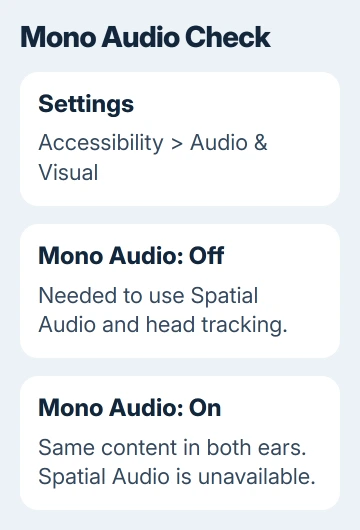
On Mac, open System Settings > Accessibility > Audio and turn off Play stereo audio as mono for this check. Older macOS releases place accessibility controls in System Preferences instead.
If mono playback helps you hear content, keep that need in mind before changing it. Spatial Audio is an alternative listening mode, not a reason to remove an accessibility setting that works better for you.
If the control becomes available, you have your answer. If it stays unavailable, check the AirPods model and playback device next instead of toggling mono repeatedly.
2. Confirm the AirPods and the device support it
The current supported AirPods list includes AirPods 3, AirPods 4, AirPods 5, AirPods Pro and AirPods Max. AirPods 1 and AirPods 2 don't gain this feature through an iPhone setting or a charging-case change.
With the AirPods connected, open Settings > Bluetooth and use their information button to read the model details. Use the model information, since the name you gave the headphones doesn't tell you which model they are.
Wear the AirPods and select them as the audio destination. If the phone's speakers keep playing, those controls aren't managing the headphones. The AirPods output checks cover that connection problem.
On Mac, Spatial Audio with head tracking requires Apple silicon and macOS 12.3 or later. Open Apple menu > About This Mac to read the chip name and installed macOS version. An Intel Mac isn't supported for this feature.
For wired Spatial Audio on USB-C AirPods Max 1 or Max 2, the connected device needs iOS or iPadOS 18.4 or later, or macOS 15.4 or later. An older system can work over Bluetooth without supporting Spatial Audio through the cable.
Pairing AirPods over Bluetooth with Android or Windows doesn't provide Apple's Spatial Audio controls. Test this feature on a supported Apple playback device before treating their absence on another platform as an AirPods fault.
3. Try supported playback and open its controls
Start a supported show, movie, song, game or FaceTime call. Playing ordinary audio in one app won't tell you whether another app and its content support Spatial Audio. Check while something is playing, with the AirPods connected and worn.
Open Control Center: on Face ID iPhones and iPads, swipe downward starting at the screen's top-right corner. For an iPhone with the Home button, swipe upward beginning at the screen's bottom edge.
Press and hold volume to expand its controls, then tap Spatial Audio. Choose Fixed to enable the effect without head tracking, or Head Tracked to enable both. Off disables both.
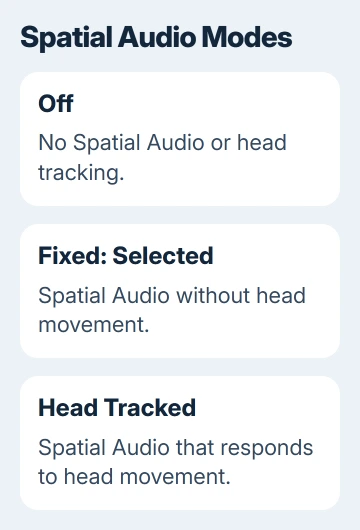
The Spatial Audio controls save the choice for each supported app. Another app can keep a different choice even when this one has Spatial Audio enabled.
I'd choose Fixed first when checking whether the feature works. That lets you hear the surround effect without head tracking. Otherwise, sound staying centered could leave you thinking the whole feature isn't working.
For a built-in demonstration, open Settings > your AirPods name and select See & Hear How It Works under Spatial Audio. Open Audio & Routing first if that option is inside the submenu on your version.
If the effect works in a supported app but not in the original app or recording, keep the AirPods connected and check that app's content support. Re-pairing the headphones won't add a playback feature to unsupported content.
On a supported Mac, use the AirPods icon in the menu bar during playback and choose Fixed or Head Tracked. If only head movement seems wrong, the sound shifting between ears explanation covers that separate behavior.
On Apple TV 4K, open Control Center while playing content, select the AirPods icon, then Spatial Audio. The guide requires tvOS 15.1 or later for these controls, and content support still matters.
4. Treat a missing personal profile separately
Personalized Spatial Audio adjusts the effect using a scan of your head and ears. Creating the profile needs an iPhone with a TrueDepth camera and iOS 16 or later. An iPhone without that camera can't perform this setup.
With supported AirPods connected, select their name in Settings. Open Audio & Routing > Personalized Spatial Audio > Personalize Spatial Audio, then follow the on-screen scan instructions for the front of your head and your ears.
On older software, Personalized Spatial Audio can appear directly in the AirPods settings. Use the label shown by your installed version rather than looking for a submenu that isn't present there.
The profile syncs between supported devices using one Apple Account. That lets a compatible Mac or iPad use the profile after the iPhone creates it; it doesn't let those devices perform the iPhone camera scan themselves.
To use the profile, your device needs iOS 16, iPadOS 16.1, macOS 13 or tvOS 16, or a later version of its system. Those requirements differ from ordinary Spatial Audio playback without the personal profile.
For a playback check, use the normal Fixed or Head Tracked control first. A failed personal scan doesn't mean ordinary Spatial Audio won't work on compatible hardware.
5. Update a supported setup before requesting service
Install the current supported iOS, iPadOS or macOS update for the playback device. Then check the AirPods firmware version in Settings > Bluetooth > information button > About on iPhone or iPad.
For earbuds, charge the case with both AirPods inside and its lid closed. Keep the paired, Wi-Fi-connected iPhone, iPad or Mac within Bluetooth range. Wait at least 30 minutes, reconnect and check the version.
For AirPods Max, connect the charging cable to the bottom-right earphone and a power source. Keep the headphones near the paired, Wi-Fi-connected Apple device for at least 30 minutes, then reconnect and check again.
Use the current version listed in the firmware update instructions for your model. Different AirPods generations can have different firmware numbers, so comparing yours with a different model can give the wrong answer.
If Mono Audio is off and compatible devices still lack a working control, tell Apple Support your model, firmware and app. Say whether Fixed or the demo works, and ask about service if supported playback keeps failing.
The Short Version
Disable Mono Audio for Spatial Audio, confirm compatible hardware, and test supported content using Fixed. Handle the personal camera scan separately. Update the device and AirPods before asking support to check a persistent failure.
Checked November 13, 2026.
 If you have any business, I can build it online