

After a BIOS update, a blank ASUS ROG screen can mean memory training rather than a failed flash. Keep the power adapter connected and let that hardware check finish before starting recovery.
An interrupted update, a recovery-file prompt and a firmware warning inside Windows need different repairs. Follow the steps for what's on your screen.
In this guide
1. Leave an active BIOS update connected to power
The BIOS is firmware that starts the laptop before Windows loads. An update can restart the machine or leave the display blank temporarily. A restart during the update doesn't mean the laptop has failed.
Look for an update progress screen, a recovery message, or instructions to keep power connected. If progress is continuing, let it finish. Don't hold the power button just because the machine has restarted during the update.
With no progress screen after a BIOS change, allow 5-10 minutes for memory training. That hardware check can keep the display dark. Some compatible configurations show Working on Memory Training.
Leave the adapter connected during that wait. A blank display is expected while the memory check runs. If it stays stuck after that wait, choose the recovery steps for what the screen and power light are doing.
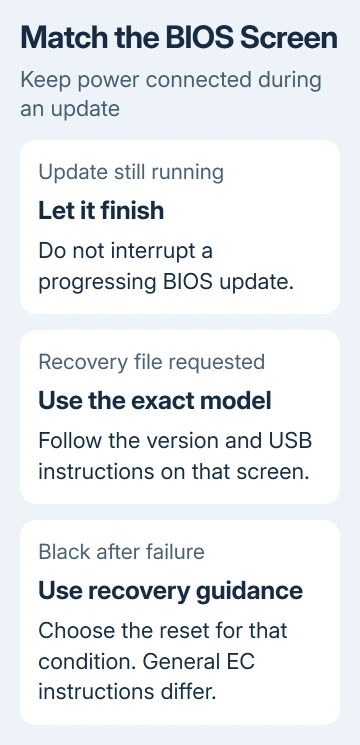
ASUS describes a recovery screen that resumes an interrupted update after 60 seconds, or when you select Yes. That wait applies to that particular prompt. That isn't a time limit for every ROG black screen.
After recovery completes, the laptop should restart into Windows. Check whether the failure has stopped before changing firmware again. If that recovery prompt reappears, copy its message and use the procedure for that screen.
2. Match the failure to the laptop's exact model
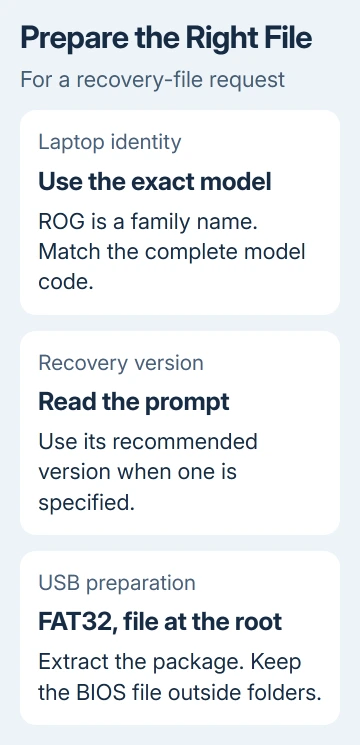
Choosing a BIOS file takes more than the ROG name. Read the model from the label on the laptop, its packaging or MyASUS if Windows still opens. Firmware for a similar model won't do.
If Windows works, press Windows key + R, enter msinfo32, and press Enter. Record System Model and BIOS Version/Date. With those details, support can compare your installed firmware against the release for your laptop.
Before changing firmware settings, have your BitLocker recovery key available if encryption is enabled. A firmware change can cause Windows to ask for it at startup.
For a BIOS recovery message requesting a file, open the ASUS Download Center on another working computer. Select the exact laptop model and its BIOS download section. Follow any recovery-version instruction shown on the affected laptop.
If the requested model or BIOS version isn't listed, pause the download and ask support for the matching recovery file. Don't try another ROG model's download on a laptop that already can't start.
3. Follow the recovery-file prompt when one appears
The interrupted BIOS update instructions give different steps for a recovery-file request and a laptop with a blank screen. Use the file procedure when your screen actually asks for recovery media.
Download the BIOS for the exact model on the working computer. Extract the downloaded package and put the required BIOS file in the root directory of a FAT32 USB drive, meaning outside any folder on that drive.
Choose the recovery version specified on the screen, or the latest version when none is specified. Follow any file-naming directions in the model's package. Don't invent a recovery filename.
For this recovery-media procedure, hold power for 15 seconds to shut the affected laptop down. Its power light should go out. Connect the prepared USB drive and the AC adapter, then start the computer as directed.
During recovery, leave the adapter and USB drive connected. A completed BIOS update should end with a restart. If the file is rejected, tell support the model, filename and error instead of trying other laptops' downloads.
4. Reset the controller for a black screen after failure
The embedded controller, or EC, is the part that manages power and other hardware functions. Resetting it can help with certain power or startup problems. It isn't the same operation as reinstalling Windows or erasing your personal files.
I'd follow the model's recovery instructions before trying a remembered power-button trick. The general EC reset and the failed-update reset have different power-adapter steps because they address different problems.
If an update failed, the screen stays blank and the power light remains lit, use these interrupted-update steps:
- Disconnect AC power and remove the battery only if it's an externally removable type.
- Press Power for a continuous 40 seconds.
- Reconnect the adapter and any removed battery.
- Start the laptop. The BIOS recovery should resume automatically; leave power connected while it completes and restarts.
On TP420IA and UX425IA, AC power stays connected for this reset. Those exceptions aren't ROG models, but they matter if you're following the procedure on another ASUS laptop.
For a power problem that didn't follow a failed BIOS update, the general EC reset instead removes accessories, shuts down the device and connects AC before its 40-second hold. Follow that complete method for that situation.
Some models use a 20-second EC design. Their indicator flashes after about 15 seconds, continues for 3-5 seconds, then stops. Release the button after that flashing ends. Use those timings for that EC reset, not for BIOS recovery.
A built-in battery isn't externally removable. Don't open the laptop to imitate a removable-battery step. If the matching reset doesn't restore a display or recovery screen, arrange service.
5. Keep Windows firmware warnings on their own path
If Windows opens, right-click Start, choose Device Manager, and expand Firmware. Open the affected item's Properties and read Device status. Record the exact name and code before uninstalling anything.
An entry named ASUS Component Firmware Update, a System Firmware warning, and a BIOS recovery screen aren't the same failure. The ASUSTeK BIOS update guide covers the Windows update methods and their warning-specific repairs.
If Windows starts normally and the warning is the only symptom, follow the repairs for that Windows warning. A laptop whose BIOS already starts the operating system doesn't need USB recovery media for that warning.
If neither recovery nor Windows appears, contact ASUS through the model's support page. Request BIOS recovery or service after a failed update, giving the model, known BIOS version, power-light behavior and recovery message.
The Short Version
Let an active flash finish. Match a recovery-file request to the exact model, and a failed-update black screen to its reset procedure. For a firmware warning inside Windows, read the device-status error first.
Checked November 13, 2026.
 If you have any business, I can build it online






