

A monitor screen showing No Signal usually needs the correct input or a working video connection. Cracks or spreading dark patches need a repair assessment. Open the monitor menu first to separate signal trouble from a damaged display.
Blur, flicker and a completely unlit screen take different routes. Work through the checks for the symptom you actually see rather than changing drivers for every kind of screen problem.
In this guide
1. Check power and the monitor's own menu
Press the monitor's power button and look for its indicator light. If nothing lights up, check the wall socket, power cable and any external power adapter. A desktop computer being on doesn't mean the separate monitor has power.
Open the display's on-screen menu with its joystick or control buttons. A readable menu means the screen can display its own controls, even if the computer's picture is missing. Look for Input, Input Source or a similar setting.
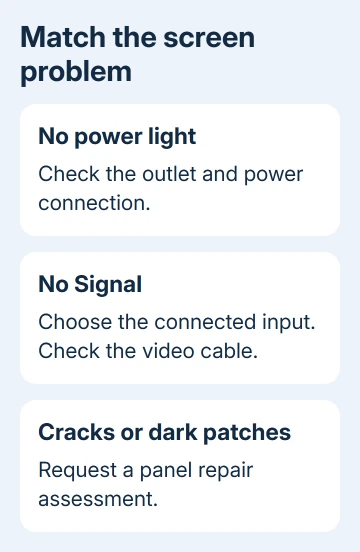
Choose the port the cable actually uses, such as HDMI 1, HDMI 2 or DisplayPort. Selecting HDMI 1 leaves a cable plugged into HDMI 2 without a picture. Check the label beside the socket rather than guessing from the cable's appearance.
If lines or dark patches appear in both the menu and computer picture, try the hardware test. If the menu looks normal but the computer image is missing, check the cable. That distinction helps you choose which device to work on.
2. Restore the video connection
Turn off the computer and monitor. Remove each video-cable plug, look for connector damage, then reconnect it firmly. Restart both devices afterward.
Bypass any dock, adapter or splitter and connect the computer straight to the display. That checks whether an extra device is interrupting the picture. Microsoft recommends bypassing extra accessories in its external-monitor instructions.
Try a known working cable if the screen still reports No Signal. Use a cable suitable for the ports and display mode rather than another adapter chain. I'd try that before buying a new monitor; it's a simple way to compare the connection.
For a USB-C connection, confirm that the computer's port and the cable support video. Some USB-C ports and cables provide charging or data without a display connection. Charging alone doesn't confirm a video connection.
Compare the monitor on a second working computer if available. Also connect a different screen to the original computer. Note each result so support can see which combination fails and avoid repeating a connection you've already checked.
3. Enable the external display in Windows
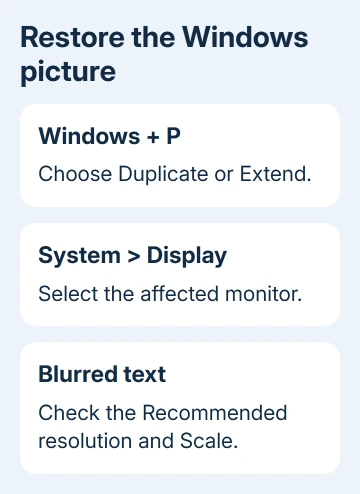
On Windows 10 or 11, press Windows + P and choose Duplicate or Extend for how you want to use the screens. Duplicate mirrors one desktop across the displays; Extend adds desktop space. PC screen only can leave an external display unused.
Open Settings > System > Display on a working screen. Expand Multiple displays if needed and use Detect for a connected display that hasn't appeared. Once detected, select its numbered display before changing its settings.
For a sudden blank screen, press Windows + Ctrl + Shift + B once. Windows tries to reset the graphics driver. You may hear a beep and see the screen flicker briefly. If the picture returns, check whether it stays on as you use the computer.
Restart Windows if that shortcut doesn't restore the picture. Tell support if the picture disappears only when Windows loads. That differs from a display that stays blank through startup and can't show its menu.
For a Mac-specific detection problem, use the Mac external-display checks. Windows projection shortcuts don't apply to macOS, and the supported display count depends on the Mac model.
4. Correct blur or flicker after the picture returns
For wrongly sized text, select the affected monitor in Settings > System > Display. Choose the Recommended Display resolution first. Use Scale for larger text while keeping the recommended resolution.
Make these changes for the affected screen, especially in a two-monitor setup. A high-resolution laptop and a separate monitor can need different scaling. Changing the wrong numbered display can leave the actual problem untouched.
If the recommended resolution isn't available, use the missing native-resolution steps. That calls for checking the connection and display information, rather than choosing whichever resolution happens to fill the screen.
For flicker following a graphics update, try a driver rollback. In Device Manager > Display adapters, open the adapter's Properties > Driver > Roll Back Driver if available. Restart, then check the monitor picture.
When rollback is unavailable, get a suitable graphics driver from the PC maker or Windows Update. Keep your model and adapter name handy. After each adjustment, compare the picture before trying another.
5. Decide when the panel needs service
A Windows reset can't repair cracked glass or impact damage. Stop pressing or rubbing the affected area. Ask for a quote including the panel and labor, then compare that cost with replacing the display.
For unexplained lines or color faults, run the monitor's own built-in diagnostics if its manual provides them. The button sequence varies by model. Follow that monitor's manual rather than using another model's joystick combination.
A fault in the monitor's own test picture points to its hardware. If that picture looks normal, check the cable, computer output and display mode next. The monitor's test can't fully check those other parts.
Send the monitor maker its model, serial number, a fault photo and your cable/computer comparisons. Ask about diagnostics and repair. If only one computer produces the fault, give its support team the same results.
The Short Version
Check power, the monitor menu and input first. Compare cables and computers for No Signal; check resolution and scaling for blur. A damaged panel or a defect in the monitor's own test needs hardware service.
Checked November 13, 2026.
 If you have any business, I can build it online






