

Several iOS 26 known issues have fixes, including dropped connections, blank tinted icons and camera artifacts. Check your version, then use Settings to install the offered update. The bug you're reading about may already be fixed.
Post-update battery drain, stalled cellular updates and work apps failing offline need different next steps. Match the symptom and version first. A security update doesn't necessarily fix every fault owners have reported.
In this guide
1. Read the installed version and affected model
Open Settings > General > About and read iOS Version. Note the iPhone model too. A bug limited to iPhone 17 models doesn't automatically explain the same symptom on an older iPhone.
Apple's iOS 26 update notes list what individual releases changed. The latest entry is iOS 26.7.3, described as providing security fixes.
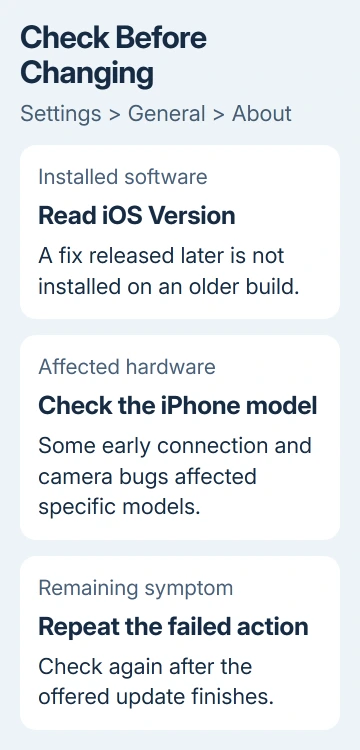
Back up the iPhone and open Settings > General > Software Update. Choose the update intended for your device. If both appear, check whether you're choosing an iOS 26 maintenance update or an upgrade to a newer major version.
After installation, reopen About and confirm the new version. Repeat the action that failed. If you need to report the problem, say whether that action works now, not just whether the phone restarted.
I'd record the exact symptom before changing settings. For example, losing Wi-Fi while Bluetooth also disconnects tells a different story from a phone that stays connected to Wi-Fi but can't load one website.
2. Treat the original connection bugs as patched issues
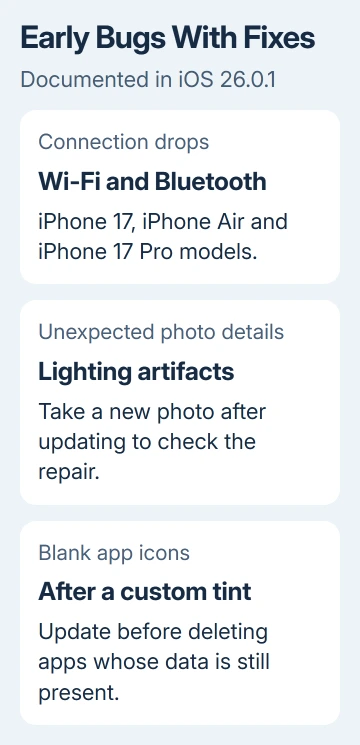
iOS 26.0.1 addressed occasional Wi-Fi and Bluetooth disconnections on iPhone 17, iPhone Air and iPhone 17 Pro models. It also fixed an initial-update cellular connection fault that affected a small number of users.
If your phone still runs the original iOS 26 release, updating is the direct repair for those documented faults. Try the update before removing and pairing all your accessories again.
On later software, compare networks. Try the iPhone on another Wi-Fi network and another device on the original one. Those results help separate an iPhone fault from a router or internet-service problem.
The iOS 26 Wi-Fi guide covers connection failures in more detail. If the internet works but an accessory keeps dropping, use the iPhone Bluetooth troubleshooting steps instead.
Don't reset every network setting as a first reaction to a list of old bugs. Choose the Wi-Fi, cellular or Bluetooth path that matches the fault still present on your updated phone.
3. Separate camera artifacts, blank icons and VoiceOver
Version 26.0.1 also fixed lighting-related photo artifacts affecting the iPhone 17 family and iPhone Air. That means unwanted details in saved pictures, rather than every black preview or blurry photo.
After updating, take a new picture under the conditions that caused the artifact. Existing saved photos aren't a reliable check of a camera fix: inspect a newly captured image instead of expecting an old image to change.
Blank app icons after applying a custom tint were another listed fix. If that's your symptom on an early version, update before rearranging the Home Screen or deleting apps whose names and data still exist.
It also fixed VoiceOver becoming disabled after updating. If the phone speaks screen items and responds differently to touch, describe that instead. Active VoiceOver is a different state from disabled VoiceOver.
If one of these symptoms remains after a current update, include the new version in your support report. Saying only that the problem began with iOS 26 leaves out whether the documented repair is already installed.
4. Use Wi-Fi when a cellular software update won't proceed
The enterprise release notes identify a software-update problem fixed in iOS 26.6.2: updates performed over cellular wouldn't proceed. Affected devices need to install the repair through Wi-Fi or a computer.
Connect to working Wi-Fi, reopen Settings > General > Software Update, and try the offered update. Without Wi-Fi, use a cable and computer. Choose Finder in macOS or Apple Devices in Windows, then check for an iPhone update.
This fix is for iOS updates that stall over cellular. It won't explain every slow connection inside an app. Use Wi-Fi or a computer to install it instead of retrying the same stalled cellular download.
For a managed work phone, ask IT whether an update deadline or policy controls the installation. They can compare the installed build with the fixed version without removing the management profile or your work account.
5. Give post-update battery work time to finish
Some tasks continue after a system update and temporarily affect battery use or temperature. Open Settings > Battery and check for an insight such as Ongoing iOS Update, rather than assuming all extra drain is a permanent defect.
The battery guidance advises allowing a few days for post-update work before judging battery life. Check app activity too: heavy use by one app needs a different response from unfinished system tasks.
If the drain continues, record the apps using power and whether you mainly used Wi-Fi or cellular. Include that record and your iOS version in the support request before deciding to erase the phone for a bug you haven't pinned down.
6. Escalate work-app and persistent failures precisely
iOS 26.4 resolved an issue preventing enterprise apps from launching without internet access after an update to iOS 26.0 or later. If a company app fails only offline, ask IT about it, especially if your phone hasn't received that repair.
For a continuing fault, choose the affected feature in the Apple Support app. Give the model, version, error and a repeatable example. Ask whether that symptom has a current repair or requires device diagnostics.
The Short Version
Get the offered update, then check the remaining symptom and model. Early connection, camera and icon bugs have fixes. Use Wi-Fi or a computer for stalled cellular updates, and let post-update battery work finish.
Checked November 13, 2026.
 If you have any business, I can build it online






