
A webcam that shows backward writing usually has a mirrored preview, while an upside-down picture needs rotation. Turn off the app's preview mirroring for the first problem; use a rotation control for the second.
Check what another person actually receives before changing the camera itself.
The distinction matters during a presentation. A backward shirt logo in your own tile doesn't automatically mean the class sees backward writing, and flipping the outgoing video can create the problem you were trying to fix.
In this guide
1. Check whether the picture is mirrored or upside down
Hold a piece of paper with a short word in front of the webcam. Keep the paper upright and read the letters rather than judging the picture by your cheeks or hair. Familiarity with a mirror can make a normal picture feel wrong.
If the letters read backward but their tops point upward, the picture is mirrored horizontally. If the letters and your head are upside down, the picture is rotated. A sideways picture needs a quarter turn rather than a horizontal flip.
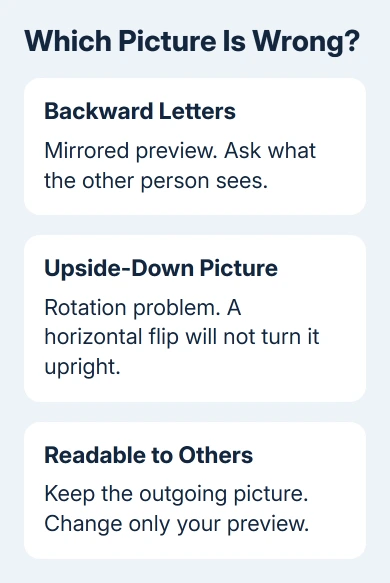
Ask someone in the call whether the word reads normally on their screen. For a recording, play a short saved clip. That shows what the camera actually sent, which can differ from the preview you used to frame the shot.
I'd do this before installing camera software. If the other person can read the word normally, your video is already the right way around. Change only the local preview if seeing it backward makes teaching or pointing difficult.
If the camera has no picture at all, start with the webcam access checks. Mirror and rotation controls can't repair a covered lens, denied camera permission or a missing device.
2. Turn off mirroring in the app's own preview
In the Zoom Workplace desktop app, open Settings, select Video & effects, and look for Mirror my video preview. Clear that checkbox to make writing read normally in your own tile.
You'll find this desktop setting on Windows, macOS and Linux. Look for the mirroring label rather than a setting that switches between front and rear cameras. Those controls do different jobs.
An iPhone call has fewer preview options, so use the FaceTime inversion guide when those desktop controls aren't available.
Keep the paper in view while changing the option. The letters in your preview should change direction immediately. Compare with the other participant again so you know whether the change affected only your view.
For Microsoft Teams Free on desktop, select Settings and more beside your profile, then Settings > Devices. Under the video settings, change Mirror my video.
Microsoft's device settings instructions confirm that this changes only your view.
During a Teams Free meeting, you'll find these controls under More > Video effects and settings > Settings.
The work or school Teams app can show different controls, so don't expect every account to have the personal app's exact layout.
A browser meeting can also mirror its own preview. When its settings don't offer a preview switch, use the received picture to decide whether anything needs correction.
If the other person sees your video correctly, leave the outgoing picture alone even if you can't change your preview.
3. Correct an upside-down USB camera in Windows 11
For a physically rotated external webcam, open Settings > Bluetooth & devices > Cameras. Select the camera under Connected cameras, then find Video rotation. Choose the rotation that makes the preview upright.
The available choices are No rotation, Right 90 degrees, Left 90 degrees, and 180 degrees. Use 180 degrees for an upside-down mount. Choose a quarter turn only when the camera is mounted on its side.
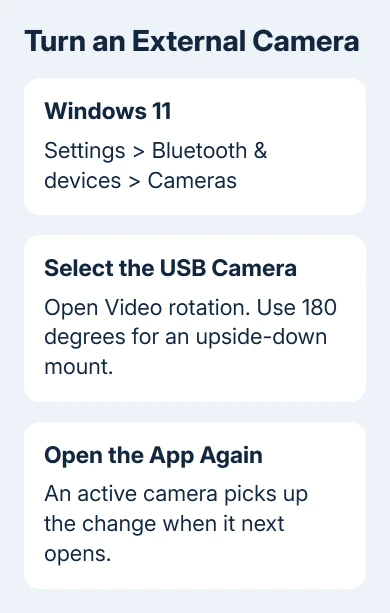
The Windows control applies to external cameras, not built-in laptop cameras. Some specialized camera sources don't appear on this page either. A missing rotation menu on an internal camera doesn't mean you missed a driver download.
Close the calling app and reopen it after changing rotation. If the camera was already in use, the picture will rotate the next time the app opens the camera. Check the selected camera again when the app starts.
Rotation can stop older camera software from working because Windows changes the video formats it sends to the app.
If the image disappears after this change, restore No rotation and use a supported rotation option in the camera maker's app instead.
4. Check the source when other people see backward writing
If another participant also sees reversed letters, check which camera is selected in the meeting app's Camera list. The list might include your laptop lens, a USB device and a virtual camera, each showing the same desk.
A virtual camera is video supplied by another program. Select your actual webcam to compare the picture. If the writing becomes readable, the extra program is changing the image before the calling app receives it.
Open that program's camera or transform settings and check for a horizontal flip or mirror effect. Change one control, reopen the meeting preview, and have the other participant read the paper again.
Avoid applying a second flip in a different program.
When recording rather than calling, check both the camera source and the finished file. The webcam recording guide explains where Windows Camera and Clipchamp save or export the result.
5. Get help for a camera that stays rotated
For a built-in camera that stays upside down across apps, give the laptop manufacturer your model number and Windows build.
Ask for the supported camera driver and orientation fix for that model, rather than installing a driver offered for another laptop.
For a USB camera, give its maker the model, connection method and results from the direct-camera comparison. Tell them whether other people see the problem or it appears only in your preview.
That tells support which part actually needs changing.
The Short Version
Backward writing in your own tile usually needs a preview-mirroring change. Upside-down video needs rotation.
Check the received picture first, then adjust the app, Windows external-camera rotation, or the program supplying a virtual camera.
Checked November 13, 2026.






