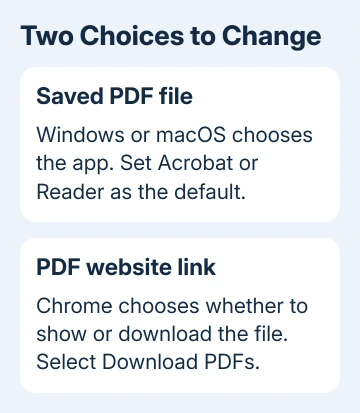
PDFs keep opening in Chrome because the browser handles web links separately from your computer's default PDF app. To open PDFs in Adobe instead, choose Download PDFs in Chrome and set Acrobat or Reader as the default for saved PDF files.
Start with a PDF already in Downloads. If that opens in Adobe but a website's PDF opens in Chrome, your computer's file setting is already right. Only the browser behavior needs changing.
In this guide
1. Open one saved PDF in Adobe first
On Windows, find a trusted PDF using File Explorer. On Mac, find it using Finder. Right-click it and choose Open with, then select Adobe Acrobat or Adobe Acrobat Reader. On Mac, Control-click offers the same menu.
If the document opens, the installed Adobe app can read it. You can change the default app without changing the file itself. Close the document before continuing.
If Adobe isn't listed, open Acrobat or Reader from the Start menu or Applications folder and use File > Open. Having an Adobe browser extension doesn't necessarily mean the desktop reader is installed.
A readable PDF that Office 2010 fails to open after saving can need Reader setup repaired even when double-clicking works.
If just that file fails, try another trusted PDF. A damaged file, a password prompt, or a document needing a particular reader feature needs attention to that particular file, rather than repeated changes to Chrome's defaults.
For a blank browser viewer or a document that won't load at all, use the Chrome PDF loading guide. This procedure is for choosing the app when the document itself opens normally.
2. Make Adobe the default for saved PDFs
On Windows 11, open Settings > Apps > Default apps. Search for .pdf, select the file-type result, choose Acrobat or Reader, and confirm with Set default or the confirmation button Windows presents.
On Windows 10, open Settings > Apps > Default apps > Choose default apps by file type. Find .pdf, click its current app, and choose the installed Adobe reader.
The Windows default-app instructions explain how file-type choices work. Changing the default browser is a separate choice; Chrome can stay your browser while Adobe handles saved PDFs.
On Mac, select a saved PDF in Finder and choose File > Get Info. Expand Open with, choose the installed Adobe app, then click Change All and confirm. Close Get Info when you've finished.
Double-click the same PDF again. It should now open in the Adobe desktop app without using Open with. If it still launches Chrome, check the default for .pdf again, rather than changing the setting for a different file extension.
The Windows 11 default-app guide covers that selection in more detail. On a managed computer, IT may need to check a default that changes back at sign-in.
Choosing Adobe doesn't set up PDF text indexing in Windows; missing content results need a separate folder and filter check.
3. Change Chrome's handling of PDF links
In Chrome's address bar, enter chrome://settings/content/pdfDocuments and press Enter. Select Download PDFs. The other choice, Open PDFs in Chrome, keeps ordinary PDF links in Chrome's built-in viewer.
The menu route is Settings > Privacy and security > Site settings > Additional content settings > PDF documents. Google's download instructions describe the two PDF choices.
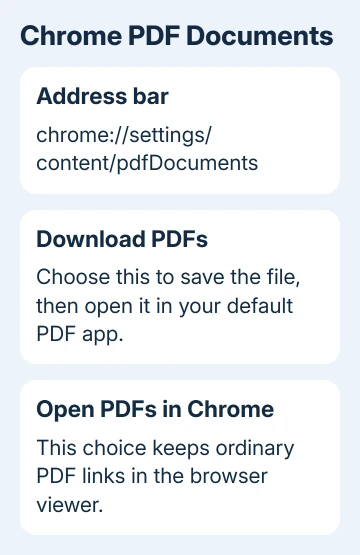
Open a new, trusted PDF link to check the result. Chrome should download the file instead of using its built-in viewer. A PDF already open in a browser tab won't turn into a desktop document just because you changed this option.
Open the downloaded file from Chrome's downloads list or your Downloads folder. It should use the PDF app you selected in the previous step. These two settings work together: Chrome saves the file, then the computer chooses its reader.
Selecting Download PDFs doesn't always make Adobe launch immediately. That's why I'd get the saved-file default working first. It makes the result predictable even if you prefer to open each download yourself.
4. Choose whether downloaded PDFs open automatically
Press Ctrl + J on Windows or Command + Shift + J on Mac to open Chrome's downloads page. Find the trusted PDF you just downloaded and open its menu if one is available.
In some Chrome versions, a completed download's menu offers Always open for that file type. Select it if future PDF downloads should launch in your system's PDF reader. Available menu choices differ between versions.
If that choice isn't present, open the download manually. The important result is that it opens in Adobe. A missing automatic-opening option doesn't mean the Download PDFs setting or the computer's default app has failed.
Automatic opening applies to future downloads, so use it only when it fits the way you handle files. With automatic opening off, you can review the filename and sender first.
5. Check extensions and locked settings
An Adobe panel inside a Chrome tab is still running in the browser. If the goal is the separate desktop app, open your downloaded PDF and check which app handles it rather than assuming the panel is your desktop copy of Acrobat.
Open Chrome menu > Extensions > Manage extensions and review any PDF-related extension. Temporarily turn off the one handling PDFs, then open another trusted PDF link to see whether Chrome follows its normal download setting.
If turning off the extension changes the result, decide whether you prefer its browser tools or the separate desktop app. Don't remove unrelated extensions to solve a PDF setting that already works without that one.
For a grayed-out setting, enter chrome://policy and look for AlwaysOpenPdfExternally. That policy controls whether Chrome downloads PDFs rather than opening them internally. It doesn't choose Adobe as the computer's default reader.
For an organization-owned computer, ask IT which PDF or default-app policies they manage. Send the policy name and explain whether the problem affects web links, saved files, or both.
When one website still behaves differently
A website can display a document inside its own viewer or require a download. Use that viewer's Download control for the actual PDF, then open the saved file. Printing the webpage may produce a different document.
If the download opens in Adobe, your computer's settings are working. Ask the website's support team for a downloadable PDF if its viewer lacks one. For an Adobe opening error, send Adobe support the exact message and app version.
The Short Version
Set Adobe as the default for .pdf files, then select Download PDFs in Chrome. Reopen a saved PDF to verify the result. Automatic opening is optional, and a browser extension can still provide a separate PDF viewer.
Checked November 13, 2026.