

The fix for a Windows 11 24H2 problem depends on the symptom and installed update. November 2026 patches fix the listed USB audio and Remote Desktop faults; an October update fixes the specified virtual-desktop black screen.
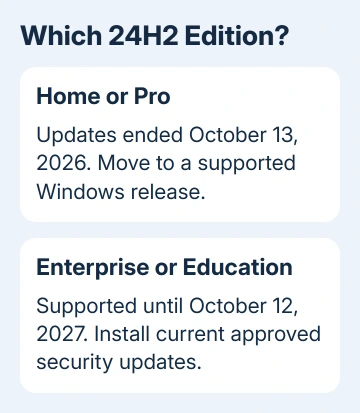
Edition matters too: 24H2 Home and Pro stopped receiving updates on October 13, 2026. Those PCs need a supported Windows release, while Enterprise and Education remain supported until October 12, 2027.
In this guide
1. Check the edition, build, and matching issue
Open Settings > System > About and read Windows specifications. Record the edition, version, and OS build. Then open Settings > Windows Update > Update history and copy the KB number of the recent update.
Microsoft's 24H2 release-health page lists affected platforms, symptoms, and resolutions. Search it for your error or device type, then read the whole matching entry.
Resolved means a fix is available; Mitigated means a workaround reduces the problem until a repair arrives. Check the date too, since an old workaround can remain online after its replacement ships.
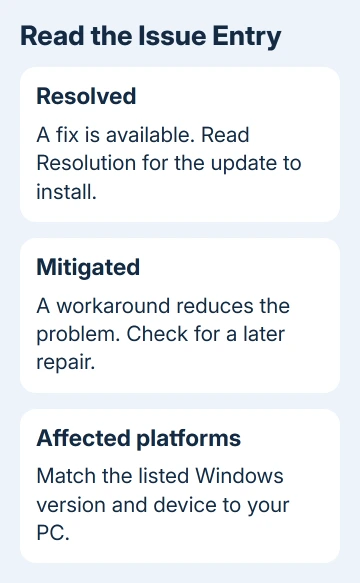
Check which devices the notice covers. A notice about a managed remote desktop, one USB audio class, or a server workload won't necessarily apply to your home laptop, even if it runs the same Windows release.
2. Move Home or Pro to a supported release
Copy your important files to a backup location before upgrading Windows. On a 24H2 Home or Pro computer, open Settings > Windows Update and select Check for updates. Use the supported feature update Windows offers for that device.
The current notice recommends moving to 26H2 or 25H2. When the upgrade is offered, select Download & install, follow the prompts, and save your work before the required restart.
After installation, check System > About again. The version should show the release you installed. That confirms the upgrade finished, even if an earlier update-history entry still says 24H2.
If no feature update appears, record the message. Organization policy or a compatibility hold can affect the offer. Ask IT or your PC maker about the stated reason before choosing another installation method.
The 24H2 end-of-updates guide explains the edition deadlines. Enterprise and Education users should follow their organization's supported update plan rather than treating the Home deadline as their own.
3. Fix affected USB audio with the current update
One recorded issue followed KB5124008, released September 8, 2026. It affects some USB Audio Class 1.0 devices. Symptoms include no sound, volume stuck at zero, or This device cannot start (Code 10) in Device Manager.
The repair arrived in stages. The September 14 out-of-band update addressed the documented eight-channel or 3D audio symptoms. The remaining symptoms were resolved by KB5132061, released November 10, 2026, and later updates.
On a supported 24H2 edition, install the current security update through Windows Update and restart. On Home or Pro, move to a supported release and install its current updates because those editions no longer receive 24H2 updates.
Then select the USB device under Settings > System > Sound and play audio. If Code 10 was present, check that device in Device Manager too. Working sound and a cleared device error are the results you're checking for.
The USB audio failure guide covers the original incident. Read its early workarounds alongside the November fix so you don't mistake an older workaround for the current repair.
If the matching update is installed and the device still fails, give the device maker the hardware model, driver version, and Device Manager message. Other USB and sound faults need their own checks.
4. Check the Remote Desktop error and host update
The listed Remote Desktop issue affects non-admin users connecting to remote computers with Administrator protection enabled. The connection can fail with 0xC000000D after KB5124010 or later affected updates.
This is more specific than a connection timeout or incorrect password. The release-health entry also describes an invalid-token message. Check the exact code before changing credentials or repeatedly rebuilding a remote connection profile.
The issue was resolved by KB5132061 on November 10, 2026, and later updates. Ask the administrator to update the remote computer, called the host. Updating only the laptop you connect from won't fix a host that's missing the update.
An earlier mitigation turned off Administrator protection through managed policy. Once the fix is installed, that workaround is no longer needed. Leave changes to your organization's security policy to its administrator.
Retry the non-admin account after the host restarts. If it still fails, report the build, error, account type, and Administrator protection status. Those details help support check whether it's the same Remote Desktop problem.
5. Restore the desktop for the matching black-screen issue
Another notice describes a black screen after sign-in, primarily in Azure Virtual Desktop environments with FSLogix profile management. Some affected users could sign in but their desktop didn't load.
That issue was resolved by KB5127648, released October 13, 2026, and later updates. Updating the affected host fixes the underlying problem. A black screen on an ordinary laptop isn't automatically this particular incident.
For an affected session awaiting its update, press Ctrl + Shift + Esc to open Task Manager. Select Run new task, enter explorer.exe, and choose OK. This can start the desktop so the session becomes usable.
If the desktop returns, report the event to the administrator and ask for the fixing update. Starting Explorer manually helps for now; the host still needs its update. Other display failures can have different causes.
When the listed fixes don't match
Record the symptom, when it starts, and the app or device involved. For a home PC, open Get Help and request Windows Update assistance. For managed desktops, ask IT to compare the current and resolved 24H2 notices with the host build.
Don't uninstall several updates together to see what happens. Give support the single matching KB number and ask whether a current fix, compatibility hold, or device-driver update applies to your case.
The Short Version
Check edition and build first. Home and Pro need a supported release. Supported 24H2 systems have November fixes for the listed USB audio and Remote Desktop faults, and an October fix for the specified virtual-desktop black screen.
Checked November 13, 2026.
 If you have any business, I can build it online






