Fallout 3 can reach its launcher on Windows 11 and still fail when it tries to use the graphics hardware. On laptops using two graphics processors (GPUs), choose the dedicated one first. On Steam, also finish its available updates.
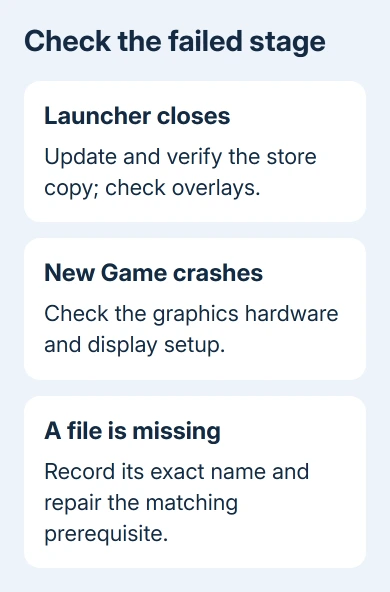
A crash after Play, a crash after New Game, and a missing-file error need different checks. Current Steam copies no longer need Games for Windows Live, so installing that old service isn't the first repair.
In this guide
1. Check the graphics processor the game will use
Open Task Manager > Performance and look at its GPU entries. Some laptops pair Intel graphics with a separate GPU from NVIDIA or AMD. Integrated graphics use the processor's hardware; a dedicated GPU is separate.
GOG's Fallout 3 troubleshooting page identifies unsupported Intel integrated graphics as a common reason the menu opens but New Game crashes.
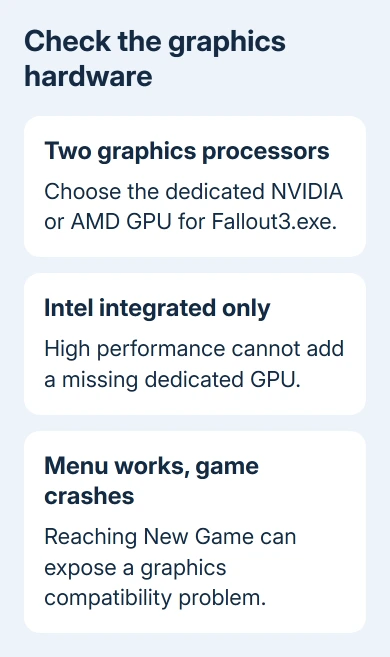
If your PC has a dedicated GPU, open Settings > System > Display > Graphics. Add the game's Fallout3.exe as a desktop app if it isn't listed. Use the actual game folder rather than a shortcut to its launcher.
Select the game and open its graphics options. Choose High performance, check that the named GPU is the dedicated one, and save. Repeat for the launcher if it needs its own entry, then relaunch Fallout 3.
The control layout varies between Windows 11 versions. Microsoft's per-app graphics instructions explain choosing a graphics preference and restarting the app to apply it.
High performance can't add a missing dedicated GPU. If your PC only has Intel integrated graphics, tell support the model. The game's troubleshooting page mentions community compatibility mods, a different approach from switching GPUs.
I'd check the GPU before editing game settings files. A menu that displays normally doesn't tell you that the same graphics processor can start the game's 3D world.
2. Update and verify the copy from your store
Finish any pending Fallout 3 update in Steam Library. With the game closed, right-click its entry for Properties > Installed Files > Verify integrity of game files. Allow verification and replacement downloads to finish.
For GOG Galaxy, select Fallout 3 and open the control beside Play. Choose Manage installation > Verify / Repair. This checks the installed files and downloads missing or damaged copies.
For the Epic Games edition in the legacy launcher, open Library, select the game's three-dot menu, and use Manage > Verify. In Launcher Preview, open the game in Library, then choose the three dots beside Play > Manage > Verify.
Wait for verification to finish before launching. Keep the store distinction in mind: Steam's verification won't repair a copy installed by Epic or GOG, even if the same game appears in both libraries.
Keep a copy of your mod-manager profile and custom files before repairs. Verification can replace modifications with official files. Try the regular game without adding mods, checking both the menu and starting a game.
For another aging Steam title, the Rocksmith launch guide shows why a verified installation can still have a separate runtime or device problem. Use the packages appropriate to Fallout 3 rather than copying another game's runtime list.
3. Leave Games for Windows Live out of a current Steam repair
The 1.7.0.4 Steam update removed the Games for Windows Live dependency in October 2021. The official update notice recommends uninstalling and reinstalling an older copy if needed to get that version.
Old disc copies and modified executables differ from current Steam downloads. If an updated Steam copy asks for xlive.dll, check its update and mod history before installing an old service or downloading a loose DLL.
Back up Documents > My Games > Fallout3, including its saves, before reinstalling. If Documents is redirected into OneDrive, use the Documents location shown in File Explorer. Keep that backup separate from the game installation folder.
Reinstall from the store that owns the copy, then try its ordinary launcher before restoring modifications. This lets you try the current game files, though reinstalling won't automatically remove every file left by mods.
4. Remove overlay and display conflicts
Close programs that put an overlay over the game, such as Discord's overlay, MSI Afterburner or RivaTuner. Exit their overlay or monitoring functions for this attempt, then start Fallout 3 again.
If it launches, add those tools back individually until the conflict returns. That gives you one setting to change instead of leaving several everyday programs disabled without knowing which affected the game.
For multiple screens, try using only the primary display. On a laptop, press Windows + P and choose PC screen only. Disconnect or disable virtual displays from VR software too, then retry the game.
If display scaling seems involved, open Settings > System > Display and temporarily set Scale to 100% for the screen you use. Note the original value so you can restore comfortable text size after the check.
Try a new game as well as reaching the menu. A working launcher is progress, but the original New Game crash isn't fixed until gameplay starts. If only one saved game fails, keep that save intact and report that narrower symptom.
5. Try the executable's compatibility options
Open the actual game folder. In Steam, use Properties > Installed Files > Browse; in GOG Galaxy, use Manage installation > Show Folder. Find Fallout3.exe, right-click it, and open Properties > Compatibility.
Try Disable fullscreen optimizations, apply the change, and launch again. GOG also recommends Run this program as an administrator for its copy, then starting directly from this executable with Galaxy closed.
Use that administrator option only for the trusted installed game. If an option doesn't help, restore it before stacking further changes. That way, you won't leave a setting changed after it failed to help.
If the error names a missing DirectX component, repair the runtime files the game needs. The game also needs older DirectX 9.0c libraries. Windows 11's newer DirectX version doesn't automatically supply all those optional libraries.
Use the extra software supplied with the game or the runtime linked in its support instructions. Avoid loose DLL replacements. For GOG failures, launch Fallout3.exe with Galaxy closed to check whether the client is involved.
The Fallout 4 input repair covers a different game and a different symptom. Its controller setting isn't a Fallout 3 startup fix, even if both titles are installed on the same PC.
If it still fails, tell store support or Bethesda Support your game edition, store, GPU and the point where it fails. Run dxdiag from Start, then Save All Information for a hardware report. Attach it privately when support requests it.
The Short Version
Select the dedicated GPU if available, verify the store copy, and check overlays and displays. Current Steam copies don't need Games for Windows Live. Protect saves and report the failed startup stage to support.
Checked November 13, 2026.
 If you have any business, I can build it online