

Fallout 4 can ignore the mouse and keyboard when it detects a controller, including a gaming keypad acting as one. Disconnect that device before launching, or turn Settings > Gameplay > Controller off with a working controller.
If the controls fail only inside the Creations menu, check game updates too. That menu has had a separate keyboard-input and cursor-visibility fix, so it isn't always the same problem as losing controls throughout the game.
In this guide
1. Relaunch without a controller or gaming keypad
Exit Fallout 4 completely. Unplug gamepads and their receivers, then turn off connected Bluetooth controllers. Leave your ordinary keyboard and mouse connected and launch the game again.
Bethesda's keyboard and mouse fix specifically calls for disconnecting third-party gamepads before launching. The timing matters: unplug first, then start the game.
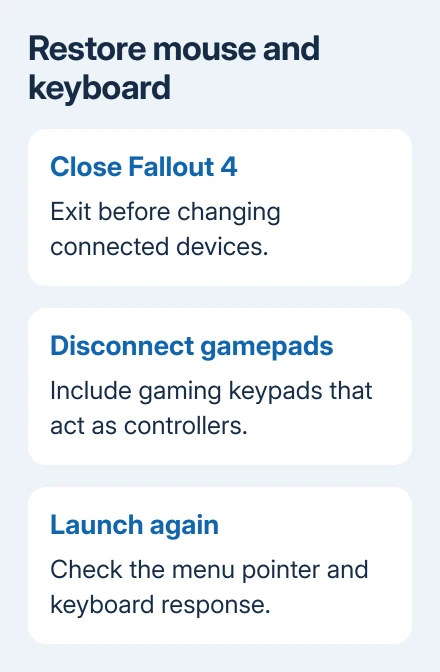
Look for a mouse pointer at the main menu and try moving through its choices. If the pointer and keyboard return, the game was reacting to a controller, and your keyboard and mouse still work.
A one-handed gaming keypad can count here even if you've never connected an Xbox or PlayStation controller. A Steam forum owner restored input by unplugging an Azeron keypad. Later replies reported trouble with Razer Tartarus hardware too.
Add those devices back only after choosing how you want the game controlled. If input disappears again with one connected, keep it disconnected for the next attempt and turn off controller input in the game or its settings file next.
2. Turn off Controller in the game's Gameplay settings
When the game still responds to a controller, use that controller to open Settings > Gameplay and change Controller to Off. Then try the mouse and keyboard in the menu before loading your character.
This is useful when the pointer is missing and you can't click the setting with the device you're trying to restore. Use the control that still works to change the input mode, rather than repeatedly clicking an unresponsive menu.
On a Steam Deck with an external keyboard and mouse, the built-in controls still act as a controller. You can't unplug those controls like a separate gamepad. Use them to reach the same Gameplay setting when it is available.
Don't apply the Deck's desktop-style instructions to a console. These game settings and file paths apply to the PC edition, including the version running on a handheld PC.
Check two things after the change: can you select a main-menu item with the mouse, and do keyboard controls respond in gameplay? Success in only one place is useful information for the later support report.
If Controller returns to On after restarting or the menu is unreachable, change the setting in the file. You can do that with the game closed.
3. Change the saved gamepad preference when the menu is stuck
Close Fallout 4 before editing its settings. Open File Explorer and go to Documents > My Games > Fallout4. On a PC that redirects Documents into OneDrive, use the actual Documents folder shown in File Explorer.
Find Fallout4Prefs.ini and copy it somewhere safe first. Open the original in Notepad and look in the [General] section for bGamepadEnable=1. Change that existing setting to bGamepadEnable=0, then save the file.
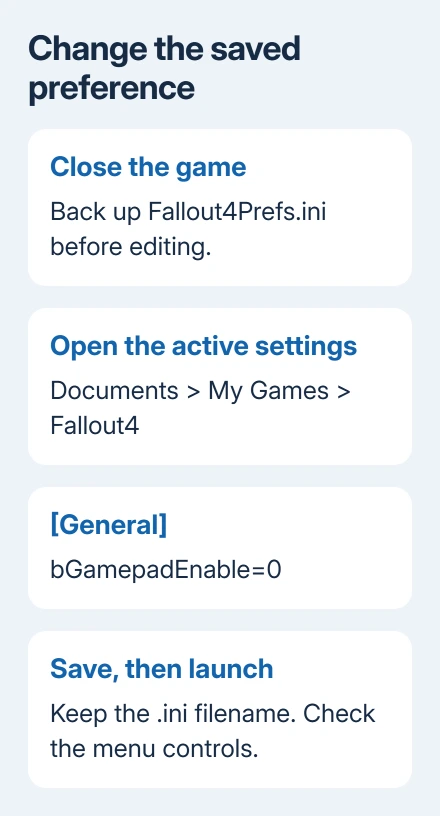
Setting this value to 0 turns off gamepad input. Make sure the file remains named Fallout4Prefs.ini rather than saving a new Fallout4Prefs.ini.txt file, which the game won't read as the same settings file.
Relaunch and check the main menu. Several replies in the saved Steam discussion confirmed that setting restored control, including an owner who had been stuck at the update welcome screen.
If the saved value changes back to 1, exit Fallout 4 and check the settings copy you edited. Replies also report a second copy in the installation, so check which file the game uses rather than editing a setting in the wrong copy.
I'd try the menu switch before making multiple files read-only. The game needs to write to its settings files to save your other choices. Making them read-only can leave you wondering why later changes won't stick.
For a heavily modified installation, check how the Fallout 4 mod setup is managed before changing another profile's settings. Keep your working save separate from troubleshooting changes.
A separate Fallout 3 launch failure needs graphics and startup checks rather than Fallout 4 controller edits.
4. Update for input loss confined to the Creations menu
Return to normal gameplay and compare it with the Creations screen. If movement and ordinary menus work but that screen loses keyboard input or its cursor, treat it as a menu-specific problem.
Install the game's available updates through the launcher that owns your copy. In Steam, check the Library entry for a pending update and finish downloading the update, then launch Fallout 4.
The official patch notes list a fix for keyboard-input loss and cursor visibility in the Creations menu. For this particular problem, try the update instead of editing controller settings over and over.
Test that menu after the update, then report the game version and the screen that still fails. That fix targets one menu. An older or modified copy of the game can still have a different keyboard problem.
5. Repair game files when the input setting isn't enough
For the Steam edition, close the game and right-click Fallout 4 in Library. Open Properties > Installed Files > Verify integrity of game files. Wait until verification ends, then launch Fallout 4.
Verification checks the installed game files and can replace damaged or missing ones. It doesn't replace the controller-mode checks, and it won't necessarily rewrite your personal configuration files.
Keep track of custom files in a modded installation before repairing it. Afterward, launch through the setup appropriate to your installed version and compare the main menu before adding further changes.
If the keyboard or mouse also fails outside Fallout 4, use the Windows mouse and keyboard hardware checks. Trying a different USB port or a direct connection checks whether input is failing outside the game too.
When both devices disappear across Windows, check their shared hub or receiver. A game's preference won't help when the computer can't receive input from either device.
Send the remaining input failure to game support
Open a Bethesda Support ticket for Fallout 4 on PC if the controls still fail. Include your launcher, game version, connected controllers or keypads, and whether the failure affects the main menu, gameplay or only Creations.
Report whether Controller Off or bGamepadEnable=0 survives a restart. Include the mod setup if one is installed. The restart result helps support tell whether the setting isn't saving, a menu is broken or an input mod is interfering.
The Short Version
Launch without a gamepad or gaming keypad. Set Gameplay > Controller to Off, or back up Fallout4Prefs.ini and change its existing bGamepadEnable setting to 0. Update for Creations-only input loss and verify files if the problem continues.
Checked November 10, 2026.
 If you have any business, I can build it online






