A Barracuda X can play sound with its detachable mic partly seated or muted. Align the mic's shaped connector, seat it fully without forcing it, and check the headset's mute button before changing Windows drivers.
Next, check whether the mic fails through the USB dongle, the cable, or only in one app. Each can use a different input. Check the model label before downloading firmware or following Bluetooth instructions because the generations differ.
In this guide
1. Seat the detachable mic and release mute
Remove the detachable boom microphone and inspect its connector and socket. Align the shaped edges and notch before inserting it again. Stop if it resists at an angle; more force won't correct a misaligned connector.
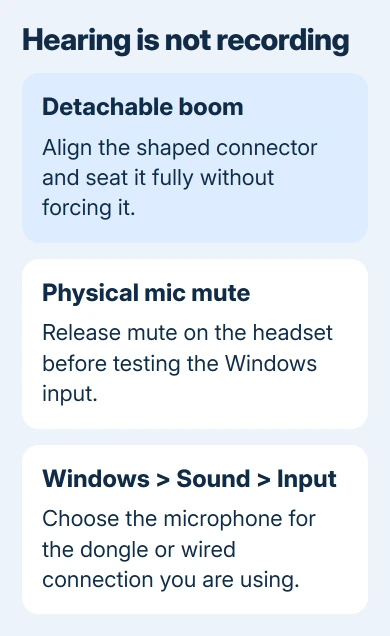
Push the aligned plug fully into its socket. A microphone that is attached loosely can look connected while sound still plays through the headset's speakers. Check the headset's physical mic mute after reseating it.
Several owners on Razer's forum restored recording by fully seating the boom or releasing the headset mute. Their Barracuda X discussion also includes people for whom those checks didn't work.
Speak into the microphone while watching the Windows input test. If it now responds, leave the connection as it is and move on to your calling app. If the test stays still, check which input Windows is listening to.
2. Select the Barracuda input in Windows
On Windows 11, open Settings > System > Sound. Under Input, choose the Barracuda microphone associated with the connection you're using. Selecting the headset under Output only chooses what you hear.
Open the input's properties and use Start test. Speak, stop the test, then use playback where offered. Raise Input volume if it's set very low. Keep your mouth near the boom's normal speaking position for the comparison.
On Windows 10, open Settings > System > Sound, choose the recording device under Input, and watch Test your microphone while speaking. A moving indicator confirms that Windows receives a signal from the selected input.
Microsoft's microphone troubleshooting steps cover input selection, recording tests and access controls. Use the Windows test before judging the microphone from one game lobby.
If no Barracuda input appears when using its wireless USB dongle, reconnect the dongle directly to another suitable USB port. Avoid a hub for this comparison. Then look at the Input list again before testing.
3. Give the game or call app the same microphone
A successful Windows recording and a silent Discord or meeting session point toward the app's input choice, mute or access setting. Open that app's voice settings and select the working microphone by name.
Check whether push-to-talk is enabled. With that option active, speaking alone won't transmit until the assigned key is held. Use the app's microphone test to compare its input with the Windows recording.
In Windows 11, open Settings > Privacy & security > Microphone. Turn on Microphone access and app access. For a desktop program, also enable the separate switch starting Let desktop apps.
In Windows 10, find the access controls at Settings > Privacy > Microphone. The desktop-app permission is separate from the list of Microsoft Store apps, so turning on one named app doesn't cover every program.
After granting access, restart the app. If Windows records but the app doesn't, check the app's audio setup. The Windows microphone guide explains the separate recording and permission controls.
4. Compare the dongle and wired connection correctly
Note the model code on the headset before comparing wireless modes. RZ04-03800 is the original Barracuda X, while RZ04-04430 identifies the 2022 model. Don't assume every version has the same Bluetooth features or firmware.
For the USB wireless route, test the headset with its matching dongle directly connected to the PC. Choose that connection's microphone in Windows. A phone or another wireless connection won't tell you whether the dongle can record.
For the 3.5 mm route, the PC socket must support both headset recording and listening. A headphone-only socket can play sound without accepting a mic signal through the same plug.
If your desktop has separate listening and microphone jacks, use a headset splitter compatible with the single headset plug. The PC headphone socket guide helps distinguish those connections.
If the computer asks what was connected, choose a headset for the combined microphone connection. Then check the matching analog microphone input, which may carry the computer's audio-device name.
A working wired microphone with a silent dongle is useful information. Focus on the dongle connection next, though the headset could still have another fault. Keep that result for the firmware or support check.
5. Try the processing and format workarounds
The original poster restored the 2022 model's dongle mic by disabling audio enhancements, the extra processing applied to a recording. A later reply thanked them for the fix, while several others still had silence.
In Windows 11, select the microphone under Settings > System > Sound > Input. If Audio enhancements is offered, set it to Off and compare another recording. Restore the earlier choice if it doesn't help.
One owner restored recording by changing the microphone format to 2 channels, 16 bit, 48000 Hz. Others still had a silent mic, so try this after checking the connection and mute button.
On Windows 11, open Settings > System > Sound, select the headset microphone under Input, and look for Format. Choose that format only if it's offered. Note the current choice so you can restore it.
Close and reopen the app's microphone test after the change. If the same spoken sentence records now, try the affected call again. If nothing changes, restore the original format rather than cycling through every setting.
On older Windows layouts, you may find recording formats through Windows + R > mmsys.cpl > Recording > microphone Properties > Advanced. Some devices don't offer a choice. A missing format control isn't itself a headset fault.
6. Match firmware to the model, then request service
I'd check the model code before downloading an updater. An owner with the 2022 model fixed their problem with a dongle firmware update. That result doesn't apply automatically to the original model or the Chroma.
For RZ04-04430, use the official Barracuda X (2022) firmware updater, answer 13748. Follow its connection instructions and check the supported-model list before starting.
If the microphone fails on another compatible device too, ask Razer Support to check the boom, socket and headset. Include the model code, purchase details, Windows test result and whether wired or dongle recording works.
When only one PC fails, send those same results with its Windows version and connection type. That helps support check how the PC receives your microphone's sound. Hearing audio through the speakers doesn't confirm the mic is connected.
The Short Version
Seat the shaped boom connector and check physical mute first. Select the matching Windows input, test it, and give the app access. Compare wired and dongle recording, then match any firmware update to the headset model code.
Checked November 13, 2026.