Chrome signing you out of every website after you close it usually points to deleted sign-in data. Set On-device site data to let sites save data, then check whether a cleaner or extension removes it when Chrome exits.
A normal website logout, an Incognito session ending, and Chrome asking you to verify your Google Account aren't the same problem. Start with when it happens: after closing every window, during normal browsing, or only on one site.
In this guide
1. Stop Chrome removing sign-in data when it closes
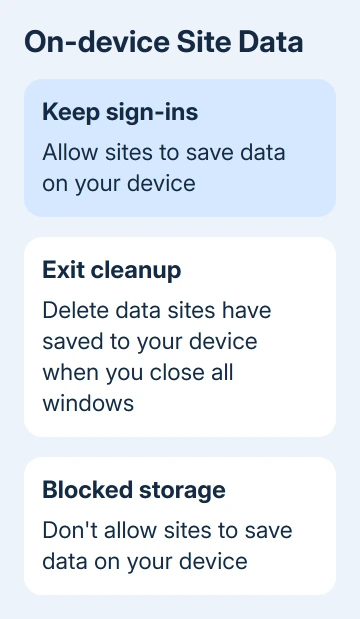
Open Settings > Privacy and security > Site settings > Additional content settings > On-device site data. Select Allow sites to save data on your device for a normal profile where you want websites to remember you.
The option Delete data sites have saved to your device when you close all windows removes information websites use between visits. If that's selected, signing in again won't fix the next restart.
Cookies are small pieces of website data that can help a site remember you're signed in. Saved passwords fill the login form; they don't keep you signed in after the site's cookie is deleted.
Google's on-device site data instructions list these controls. Don't confuse this page with the separate third-party cookie setting, which handles data associated with other sites.
After changing the default, inspect any site exceptions on the same page. An exception that deletes or blocks data for a particular site can explain why that site behaves differently from the rest.
Sign in to one affected site, close every Chrome window, and reopen the same profile. If you're still signed in, the exit setting was the problem. If every login still disappears, check the next two sections before clearing anything.
2. Use the same normal profile each time
An Incognito window doesn't keep the session after all Incognito windows close. Close the dark Incognito window and open an ordinary Chrome window before signing in to sites you want remembered.
Guest browsing won't keep your personal sign-ins either. Use your own normal Chrome profile on your own computer. On a shared or public machine, keeping accounts signed in isn't the right goal.
Check Chrome's profile picture before entering passwords again. Different profiles have separate website sessions, so a desktop shortcut that opens another profile can look like a logout even when the original session remains.
Select your familiar profile from Chrome's profile menu, then revisit the affected website. If it's already signed in, keep using that profile rather than changing the site's password or resetting Chrome.
The same distinction matters when several people use a laptop. A site remembered in one person's Chrome window isn't automatically remembered in another person's window. Compare the profile name along with the account shown inside the site.
3. Check software that clears browsing data
If site data is allowed but logins vanish after every restart, open the settings of any privacy cleaner or antivirus suite you already use. Look for browser cookie cleaning, browsing-data removal, or cleaning when the browser closes.
Use that tool's settings to keep the sign-in data you need. Don't switch off the whole security suite just to stay signed in. Look for the option that controls cookie cleanup.
The account sign-in help specifically notes that antivirus or related software can delete cookies. A Chrome setting can't preserve data that another program removes afterward.
Then review Extensions > Manage extensions from Chrome's menu. Temporarily turn off a cookie cleaner or privacy extension that changes site storage. Reopen Chrome and check whether that site's login now lasts.
If that fixes the next launch, adjust the extension's rules or leave that extension disabled. Turn unrelated extensions back on individually so you don't lose useful features without a reason.
For an unfamiliar extension that also changes your home page or searches, the Chrome search-engine change guide covers that broader problem. Repeatedly correcting login settings won't stop software changing them again.
4. Treat a Google verification prompt separately
A prompt beside Chrome's profile picture can be about the browser's connection to your Google Account, rather than your sign-ins on other websites. Open it and complete the requested verification with your usual Google account.
Signing out of a Google service such as Gmail can make Chrome request identity verification to continue saving new data to the account. It doesn't mean the password manager has deleted every saved password.
When Gmail is the only site affected, check that account separately. If all unrelated websites also lose their sessions, return to the storage and cleanup checks rather than treating the browser profile prompt as the whole answer.
For a managed work computer, open chrome://management to check its management status. chrome://policy lists applied policies. A setting that returns after a restart may require an administrator's change.
Send the administrator the relevant policy names and explain whether the logout happens when closing Chrome or during use. Don't remove work management settings to get around an organization's required session limit.
5. Repair the affected site before resetting Chrome
If a single website keeps failing, delete its stored session, then log in again. The single-site cookie cleanup steps let you do that without wiping working sessions elsewhere.
Have the site's password and verification method ready: deleting its cookies signs you out. Try the site again, close Chrome, and reopen it to see whether the login lasted.
Install any offered Chrome update through Help > About Google Chrome, then choose Relaunch when shown. Save unfinished forms first. Try the update if sites still sign you out even though Chrome is set to keep their data.
I'd save a full reset for last. Under Settings > Reset settings > Restore settings to their original defaults, review the changes before confirming. Bookmarks and passwords remain; extensions and several settings reset.
For a continuing loop, use Chrome Help's community link. Report the version, management status and when sessions disappear. Those details help work out whether software on your computer or a site's sign-in rules are ending your sessions.
The Short Version
Keep site data, open your normal profile, and stop automatic cookie cleaning. Handle Google verification separately. Clear data for a single failing site; update or reset Chrome for a wider problem.
Checked November 13, 2026.