

ARC Raiders can leave PioneerGame.exe running after quitting, even when End task does nothing. Restart Windows to clear that session, then try opening the main game executable directly from the installation folder.
That direct-launch method worked for owners with this exit problem. Check whether the process disappears after you quit. The method helped those owners, but it won't necessarily fix every PC.
In this guide
1. Clear the stuck session with a Windows restart
Save other work, then choose Start > Power > Restart. Use Restart rather than only closing the lid, signing out of Steam, or sleeping the PC. Those actions don't all restart Windows.
For the Windows termination error itself, compare the process ID and access permissions to distinguish a failed close from a new instance.
After signing back in, open Task Manager with Ctrl+Shift+Esc before launching the game. Check whether an ARC Raiders or PioneerGame process remains. With no leftover process, you can check whether changing how you launch the game helps.
If a normal End task succeeds on your PC, you don't need to restart just to follow this sequence. The important case is the process that stays present, or gives an access error, after that command.
Microsoft's Windows restart steps cover Windows 11 as well as Windows 10. A restart clears the current session; it doesn't explain why the game left a process behind.
Repeated launch clicks can leave several entries or repeated launch errors. Stop opening additional copies while checking the leftover process. If you need help locating it, the Task Manager shortcut guide covers opening the tool directly.
2. Launch the main executable from the installation folder
In Steam, open Library, right-click ARC Raiders, then choose Properties > Installed Files > Browse. This opens the installed copy, even if your Steam library is on a different drive from Windows.
Look in that main game folder for PioneerGame.exe. Windows may hide the .exe extension, showing PioneerGame instead. Open that main executable with Steam already running and signed in.
Use the executable in the main ARC Raiders folder, not the similarly named file under Binaries. The reported workaround refers to that main file. Steam's Browse control avoids guessing which drive contains the installation.
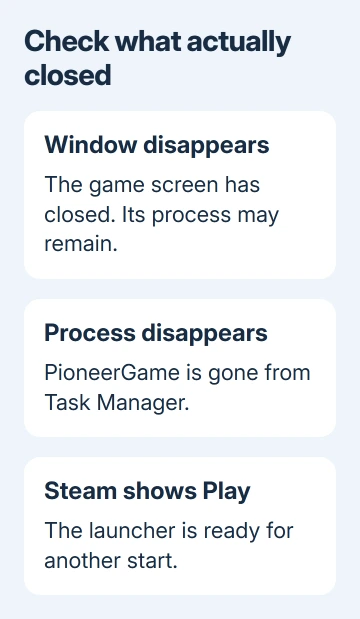
At the game menu, quit normally, then inspect Task Manager. Check whether PioneerGame disappears and whether Steam's button returns to Play. Both tell you whether the game has finished closing.
An owner in the Steam discussion said launching the main executable stopped the background-running problem for them. You can repeat the same quit-and-check comparison on your PC.
If it works, create a shortcut to that exact executable for future launches. On Windows 11, right-click it, select Show more options if needed, then Send to > Desktop (create shortcut). Windows 10 usually shows Send to directly.
If direct launch fails, note its error and try Steam's normal Play button again. Don't disable anti-cheat or change permissions to force another result; the workaround doesn't require bypassing game protection.
3. Test GPU scheduling when the process keeps returning
Another affected owner fixed the lingering process by disabling Hardware-accelerated GPU scheduling and restarting. That Windows setting controls how graphics work is scheduled; it isn't one of the game's graphics-quality sliders.
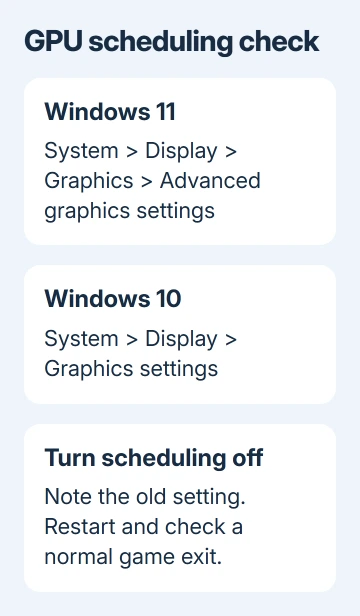
On Windows 11, open Settings > System > Display > Graphics. Enter Change default graphics settings or Advanced graphics settings, depending on the build, and look for Hardware-accelerated GPU scheduling.
On Windows 10, use Settings > System > Display > Graphics settings and look for the same switch. Its availability depends on your graphics hardware and driver; skip this check if it isn't offered.
Note the setting before disabling it, then restart Windows. Launch ARC Raiders, quit, and inspect the process and Steam's Play button again. Keep other settings unchanged while checking whether this helped.
If it doesn't change the exit behavior, return the setting to its previous state. Changing scheduling can affect graphics performance and features, so compare how the PC runs before deciding to keep it off.
The owner had already tried file verification, reinstallation, and other changes without success. Scheduling was the change that helped their PC; other installations can have a different cause.
4. Repair files if launch or exit remains unreliable
In Steam, select ARC Raiders > Properties > Installed Files > Verify integrity of game files. Wait for completion before launching. Steam checks the expected files and can download replacements for damaged content.
This repairs installation trouble. The owners haven't confirmed it fixes the process that refuses to close. It's useful when the exit problem also comes with crashes, missing files, or failed launches.
If verification downloads a repair, complete it and repeat a normal launch-and-quit cycle. Check the result before trying direct launch again. That keeps the file repair separate from the launch change.
I'd try the launch route before reinstalling the whole game. It takes far less time, and it directly matches the owner reports about a process left behind after quitting.
For a game that never shows a window, the background-game launch checks address that different stage. If the game opens but won't close afterward, keep checking what happens when you quit.
5. Leave administrator tweaks out of the permanent fix
The same discussion contains a report that running PioneerGame as administrator worked once, followed by an edit saying the problem returned. That later result matters more than the first success message.
If you previously enabled Run this program as an administrator in the executable's Compatibility settings, record that change when reporting the problem. Avoid stacking administrator mode, compatibility modes, and graphics changes together.
Task Manager's access-denied message doesn't reveal which game component is stuck. Repeated force-close commands and guessed service deletions aren't a substitute for a fix to the exit behavior.
Report the repeated exit failure to Embark
Open the ARC Raiders Help Center, sign in when requested, and submit a technical support request. Include Windows version, game version, graphics card and driver, launcher, and the exact process name that remains.
Describe whether End task fails, whether a Windows restart clears it, and whether direct launch or the scheduling change affected the next quit. Attach a Task Manager picture with private app names hidden if it helps show the stuck entry.
Later discussion replies still report failed exits. Use Restart for temporary recovery if needed, then tell Embark how to make the problem happen again. An older workaround may not help your current installation.
The Short Version
Restart Windows for a stuck session, then test the main folder's PioneerGame.exe launch and a normal quit. Try GPU scheduling separately. Verify files for installation faults and report repeated failed exits to Embark.
Checked November 13, 2026.
 If you have any business, I can build it online






