iCloud can reject a login, request a code you can't receive, or block data after sign-in succeeds. Password and code problems need Apple Account sign-in help. For Web Access is Off, change the iCloud setting on a trusted device.
Start with the message on your screen. Resetting a working password won't turn web access on, and buying more storage won't repair a rejected login.
In this guide
1. Separate a service outage from an account problem
Check the Apple System Status page for the affected iCloud service. iCloud Mail, Photos and account sign-in are separate entries. An incident affecting one service doesn't mean every part of iCloud is unavailable.
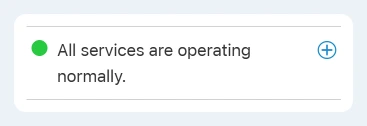
If the service has an incident, wait for recovery before changing account settings. If it's available, continue with connection and sign-in checks. Your account or device can still have a problem when the service shows as available.
Try loading another webpage. If an iPhone or iPad fails only away from Wi-Fi, check cellular access in Settings > Cellular or its regional equivalent. Without internet access, iCloud can't connect.
Apple says to check service availability and account identity in its iCloud sign-in troubleshooting. Check Settings > your name on an already signed-in iPhone or iPad, or System Settings > your name on a Mac.
Use that same Apple Account for the data you expect to see. A successful login to a different account can open an empty-looking library or inbox. Don't create a replacement account as a way to recover the original account's files.
2. Fix a rejected password or locked account
For a forgotten password, start on a device that already uses your account. On an iPhone or iPad, choose Settings > your name > Sign-In & Security > Change Password and follow its prompts.
On a Mac, open System Settings > your name > Sign-In & Security > Change Password. Your trusted device can ask for the passcode or password you use to unlock it during the reset. That isn't a request for an old iCloud password.
A password change may require an hour's security delay. Follow the screen's instructions if that delay appears; the wait is part of the security check rather than another rejected password.
After changing the password, enter the new one in any services still asking for the old one. A recently changed password can explain why one device works while another repeatedly asks you to sign in.
For an account marked locked or disabled, take the recovery option in the alert. Repeated guesses can trigger security protection. Follow the on-screen recovery instructions instead of trying more variations of the same password.
Without a usable signed-in device, select Forgot password? during sign-in and follow recovery. Keep your trusted number accessible if you still control it. Which choices appear depends on the account details you can verify.
I'd try a working trusted device for the password change before requesting account recovery. Signing it out first removes a useful way to reset the password or approve another sign-in.
3. Get the verification code through a trusted route
A correct password can still lead to a two-factor authentication prompt. This extra check asks for approval or a verification code through your trusted devices or numbers. It doesn't mean the password reset failed.
Look at the signed-in iPhone, iPad or Mac for the sign-in notification. Approve it only when it matches the sign-in you're making, then enter that code into the waiting sign-in screen.
If the notification doesn't arrive, choose Didn't Get a Code? or Can't get to your devices? on the sign-in screen. Request a text message or phone call to a trusted number when those choices appear.
Use a new code for the current sign-in attempt. If you no longer have that number or access to a trusted device, use the account-recovery option on that screen. Creating a new account doesn't unlock the old account's iCloud data.
Once recovery starts, follow its instructions about using your devices. A recovery request started on the web requires turning off Apple devices during the wait; activity from a signed-in device can cancel the request.
If a code is rejected, save the error's exact wording for your support request. A code that never arrives and a code the sign-in screen rejects need different checks, even though both stop at the same stage of signing in.
4. Enable web access when sign-in already works
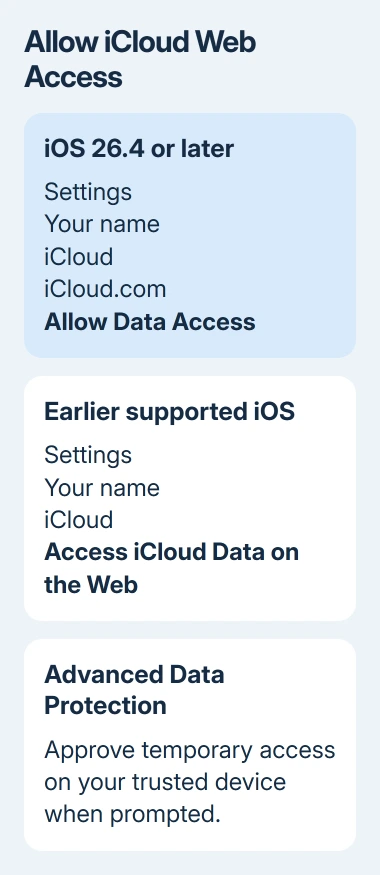
The Web Access is Off alert means your account can sign in, but browser access to the stored data is disabled. Enabling Advanced Data Protection automatically disables browser data access, and you can allow web access separately.
On iOS or iPadOS 26.4 or later, open Settings > your name > iCloud > iCloud.com. Turn on Allow Data Access. Allow Search is a separate permission for searching supported data, not the switch that first opens it.
On earlier supported versions, open Settings > your name > iCloud and enable Access iCloud Data on the Web. These web-access controls are available from iOS and iPadOS 16.2.
On macOS 26.4 or later, open System Settings > your name > iCloud > Data Access on iCloud.com and enable Allow Data Access. Earlier supported releases use Access iCloud Data on the Web in iCloud settings, from macOS 13.1.
With Advanced Data Protection, return to the browser and respond to the temporary-access request on your trusted device. Allowing web access alone doesn't replace that approval. Follow each prompt for the data category you're opening.
After an hour, opening a new type of data can need another approval. Data you've already opened stays accessible until you sign out or the browsing session ends. Keep Advanced Data Protection enabled while using this route.
5. Check whether the data belongs in that view
Not every type of iCloud data has a browser viewer. Health data and passwords in iCloud Keychain aren't available on iCloud.com. Even after you sign in successfully, you can't view those types of data on the website.
For a photo library, use the iCloud Photos viewing guide to distinguish browser access from the library syncing to the phone. A missing photo and a rejected login aren't the same fault.
For mail, the iCloud inbox access steps explain where to open the mailbox. Signing into an Apple Account with a Gmail address doesn't import the Gmail mailbox into iCloud Mail.
If it still fails, use Apple Support's Apple Account or iCloud help. Give them the exact error, software version and what happened on a signed-in device.
Ask for account recovery help if the account is locked. If data is blocked after login, ask them to check the web-access alert.
The Short Version
Check the service and account. Rejected sign-in needs password help; code prompts need trusted verification; blocked browser data needs the web-access setting. Try a trusted-device password reset before requesting account recovery.
Checked November 13, 2026.