Wi-Fi Calling sends carrier calls over Wi-Fi internet when cellular coverage is poor or absent. Turn it on for your mobile line and complete any emergency-address form. Then make a regular call and check for the Wi-Fi Calling label.
It uses your usual phone number and Phone app. The person you're calling doesn't need the same phone, the same Wi-Fi network or a matching app.
In this guide
Know which connection carries the call
Your phone joins a Wi-Fi network, that network reaches the internet, and the carrier handles the phone call. This can make calls possible inside a building where the mobile signal struggles, provided the Wi-Fi connection itself works.
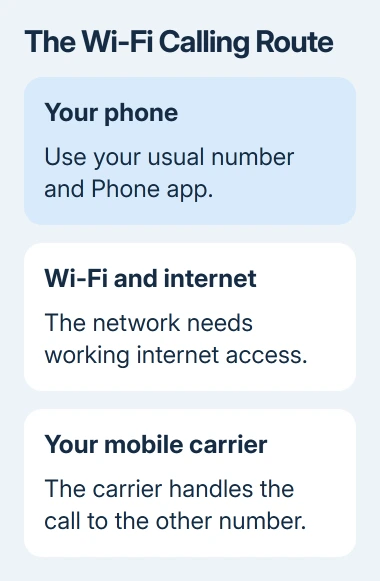
FaceTime and WhatsApp calls use their own accounts and services. Carrier Wi-Fi Calling belongs to the mobile line. Availability depends on your carrier, phone and plan, as well as internet access.
A Wi-Fi symbol on its own only shows that the phone has joined a network. It doesn't confirm the carrier has activated Wi-Fi Calling. After turning it on, check for the label that confirms Wi-Fi Calling is active.
Wi-Fi also needs internet access. A router can keep broadcasting its network name during an internet outage. In that situation, joining the network won't give a Wi-Fi call a working path to the carrier.
Enable it on an iPhone
Open Settings > Cellular. With more than one SIM, choose the intended mobile line. Tap Wi-Fi Calling, turn on Wi-Fi Calling on This iPhone, then tap Enable when requested.
Setup may ask for an emergency-services address, either a new entry or confirmation of the saved one. Finish that form so activation can complete. The carrier can use the registered address when an emergency call needs it.
Apple explains the per-line control and status indicator in its Wi-Fi Calling instructions. In Control Center, check for Wi-Fi in the carrier status information when the feature is available.
For a Home-button iPhone, open Control Center by swiping upward from its bottom edge. For other iPhones, start at the screen's top-right corner and swipe downward. The ordinary Wi-Fi network symbol alone isn't the calling confirmation.
If the control can't be switched on, use the iPhone Wi-Fi Calling activation checks. Selecting another SIM can change the available options because each line has its own carrier support.
Set up an Android phone for the correct SIM
On a Pixel, open Settings > Network & internet > SIMs, choose the carrier SIM, then open Wi-Fi calling and enable it. The wording can include Use Wi-Fi calling. Check the calling line when you have two SIMs.
On a Samsung Galaxy, use Settings > Connections > Wi-Fi Calling. Turn the feature on and follow the carrier's setup prompts. An emergency-address form can appear during activation.
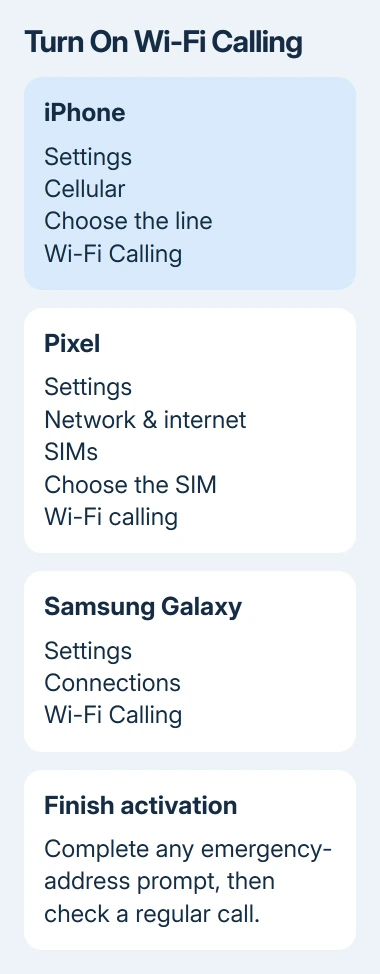
The menus depend on your carrier and phone software. A Galaxy can offer a calling preference, but some setups leave it out. Check the calling status and make a call before treating a missing preference as an activation failure.
If the option is missing or activation fails, ask your carrier whether your exact phone and line support Wi-Fi Calling. The Android Wi-Fi Calling repair guide separates eligibility, activation and connection problems.
Don't assume another person's phone menu must match yours. A phone supplied by a carrier and an unlocked phone can have different controls, even on the same Wi-Fi network.
Confirm it with a normal phone call
Join a reliable Wi-Fi network and complete any network sign-in page first. Load a webpage to confirm the internet connection, then call a familiar number through the Phone app. Use a regular call for this check, never an emergency number.
Look for the Wi-Fi Calling indication. On iPhone, inspect the carrier status in Control Center. On Android, look for Wi-Fi calling or Internet call in the notifications. Your phone determines how that label appears.
Listen to the call as well. The label confirms how the call is connected, but check the connection if the audio breaks up. Move closer to the router or try another trusted Wi-Fi network to see whether the problem follows that network.
I'd make this check at home before depending on it inside a building with poor cellular coverage. It gives you time to sort out activation while another calling route is still available.
Enabling Wi-Fi Calling doesn't mean every call must choose Wi-Fi. On Android, signal strength and the calling preference can affect the connection used. Check the status during the call, not just the switch.
Check charges and emergency-call limitations
Wi-Fi Calling isn't a promise of free calls. The call still belongs to your carrier's service, and charges depend on the plan, destination and roaming rules. Check those rules before calling abroad or using the feature while traveling.
Ask the carrier specifically how it bills Wi-Fi calls from the country you're visiting to the number you intend to dial. General statements about unlimited domestic calls don't answer every international-calling question.
An iPhone uses available cellular service for emergency calls. Without it, an emergency call might go over Wi-Fi if Wi-Fi Calling is enabled. The phone's location may help emergency responders even when Location Services is off.
Keep the registered emergency address accurate. An internet connection at a different address doesn't make the stored address correct automatically, and emergency behavior can differ by country and carrier.
A power or internet outage can interrupt the Wi-Fi route. If you depend on calls at that location, think about how you'll make them if the router loses power or broadband stops working.
Get carrier help when activation won't finish
Restart after failed activation and install any available phone updates. Test a second trusted Wi-Fi network afterward. Success only on that second network points toward the first network's connection or restrictions.
When it fails on both networks, contact the mobile carrier and ask it to verify Wi-Fi Calling eligibility and activation for the specific line. Include the phone model, software version and exact activation error or missing menu name.
If you use two SIMs, tell the carrier which number has the problem. If a saved emergency address keeps being rejected, ask the carrier to check it. A factory reset makes little sense if the carrier hasn't enabled the feature.
The Short Version
Enable Wi-Fi Calling for the intended SIM, finish activation and confirm its label during a regular call. The internet carries the call to your carrier. Check billing, travel rules and the emergency address before depending on it.
Checked November 13, 2026.