The quickest fix for an Apple Watch calendar not syncing is Reset Sync Data in the iPhone's Watch app, provided the events already appear correctly on the iPhone. That rebuilds the watch's calendar data.
When the phone misses the event too, fix that calendar account or its display settings first. An appointment already visible in Calendar but lacking an alert needs notification checks instead.
In this guide
1. Find out whether the event reached your iPhone
Open Calendar on the paired iPhone and look for one missing appointment on its actual date. Check its time too. That tells you whether the event is missing from just the watch or never reached your phone.
Tap Calendars to see the available accounts and calendars. Select the calendar containing that appointment.
A work calendar, personal iCloud calendar and shared family calendar can appear in the same app while storing events in different accounts.
Swipe down on that calendar list to refresh its events. Return to the appointment's date and check again. If the event now appears, your phone has received it. You can now check the watch against the correct appointment on your phone.
If it still isn't on the phone, keep working on the account holding it. For work events specifically, the iPhone and Outlook calendar sync guide covers the phone's account route.
Don't recreate several copies of the appointment as a test. Once a delayed calendar catches up, duplicate events leave several copies to sort through. Use the same appointment to compare the two devices.
2. Rebuild the watch's calendar data
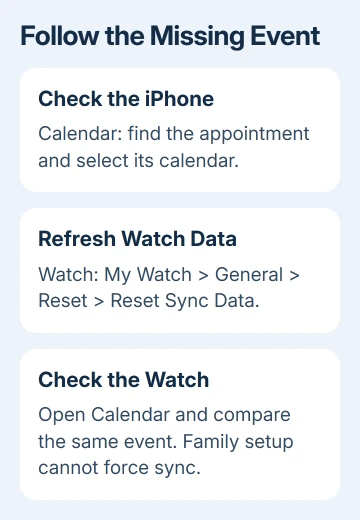
With the appointment visible on your iPhone, open Watch and choose My Watch. Go to General > Reset > Reset Sync Data. This is the force-sync command for Calendar, rather than the option that erases the whole watch.
Apple says to use Reset Sync Data for a forced Calendar sync. A family member's watch using family setup can't use this force-sync Calendar procedure.
After the data has had time to sync, open Calendar on the watch. Navigate to the same date and appointment instead of checking only the next appointment on the watch face.
Check that the missing event appears with the correct time. If events are still absent, check which calendars the watch is set to show. Rebuilding data won't help a calendar that's excluded from its display settings.
I'd try this before unpairing. It targets the missing calendar data and avoids rebuilding the whole watch setup for an app-specific problem.
For a family member's watch, continue with its calendar settings and the account used for that setup. If you need support, tell them the watch uses family setup. You won't find the force-sync option in a different menu.
3. Check the watch's calendar choices and alerts
On current software, open the iPhone's Watch app and go to My Watch > Apps > Calendar. Older layouts may list Calendar directly under My Watch. Check the calendars selected to appear on the watch.
Choose the calendar that holds the missing appointment. If the settings offer mirroring or a custom selection, check whether a custom choice has left out the account you use for those events.
Open Calendar on the watch again and compare the appointment. An event that appears after changing the selection was hidden by those settings. It doesn't need moving to a different calendar account.
Next, check whether the event itself is missing or just its alert. If the appointment is in the watch's Calendar app but an expected alert never arrived, check the Calendar notification choices in that same Watch settings area.
For a wrong or missing event time, stay with the calendar checks. Alert settings control when the watch notifies you. They won't correct an appointment's saved time or add a missing calendar to your account.
4. Correct the account, time and older-event range
For iCloud calendars, check that the iPhone uses the expected Apple Account and has Calendars enabled in iCloud settings. Open Settings > your name > iCloud, then find Calendars among the apps saved to iCloud.
A Gmail or Exchange appointment belongs to that service unless you moved it. Changing the default calendar to iCloud affects new events; it doesn't transfer existing appointments from another account.
The calendar events recovery guide explains account and calendar visibility when the phone is missing events too. Start there if events are already missing from your phone's calendar.
If recent events appear but older appointments don't, open Settings > Apps > Calendar > Sync on the iPhone. In iOS 17 or earlier, use Settings > Calendar > Sync.
Check the selected time range. The sync instructions suggest changing the range, waiting a few minutes, then returning to All Events. If a specific range was selected, change it to All Events to include older appointments.
Check Settings > General > Date & Time as well. Incorrect date or time settings can make an event appear to be on a different day or at a different hour. Compare the event's actual details before treating that as missing data.
5. Refresh the phone and check for a service problem
When the iPhone's Calendar app itself is stuck, close it and wait on the Home Screen for about a minute. Then reopen Calendar. Refresh the calendar list again and inspect the appointment you chose at the start.
For an iPhone with no Home button, begin at the bottom edge, swipe upward, and pause halfway. In the app switcher, flick Calendar upward.
With a Home button, double-click it to reach the switcher, then dismiss Calendar the same way.
Check for current iPhone and watch software updates when the mismatch keeps returning. Use Settings > General > Software Update on iPhone and Watch > My Watch > General > Software Update for the paired watch.
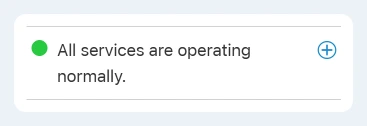
For an iCloud calendar, check Apple System Status for an iCloud Calendar service problem. During an incident, wait for recovery and refresh the calendar rather than deleting the account.
6. Take a specific sync failure to support
If the appointment is correct on the iPhone but remains missing on the watch, ask Apple Support for Calendar sync help. State whether this is a normally paired watch or a family member's setup.
Give them the watch and iPhone software versions, calendar provider, one affected event's date and the Reset Sync Data result. Choose an example without private details if you share screenshots.
For a work account, include the calendar administrator if the phone also misses updates.
The Short Version
Get the appointment onto the phone, then use Reset Sync Data in the Watch app. Check selected calendars and separate missing alerts from missing appointments. Family setup cannot force-sync Calendar this way.
Checked November 13, 2026.