

Task Manager may need higher permissions to close an app, or another component may restart it. Find the process for the app you recognize, then try running Task Manager as administrator. A new process ID means it started again.
A process that never disappears needs different handling from one that vanishes and returns with a new process ID. If a forced close also fails, restarting Windows is usually a better next move than sending the same close command again.
In this guide
1. Confirm the app and save anything still accessible
Try the app's own Exit or Quit command first. Some apps keep running after their main window closes. Look for an icon near the clock; its menu can have an Exit command that closes more of the app than the window's close button.
Save accessible documents before attempting a forced close. Ending an app can discard changes it hasn't saved. Treat a game launcher and its running game as separate programs when deciding what to stop.
For general cleanup rather than one stuck program, review unnecessary running apps before deciding which processes can safely close.
Press Ctrl + Shift + Esc. In Windows 11, select Processes from Task Manager's navigation. In Windows 10, choose More details if the small view appears, then open Processes.
Find the familiar app, select its row, and choose End task. Give it a moment to disappear. If the window closes but its row remains, expand the app group and note which component is still running.
If Task Manager itself ignores clicks, use the frozen Task Manager repair. An unresponsive manager can't give a useful result about the app you're trying to close.
2. Try an administrator session for a permission error
When Access is denied appears, Windows has refused to end that process. It doesn't mean the process must be malicious. The app's account, permissions or protection can affect what Task Manager is allowed to do.
Close Task Manager. Open Start, search for Task Manager, right-click its result and select Run as administrator. Use an administrator account you have permission to access when Windows asks for approval.
For a workplace or school PC, ask IT if you don't have that permission. Don't change ownership of program folders or disable security protection to make an unfamiliar process stoppable.
Try End task again for the app you identified. If it now closes, Task Manager needed administrator permission for that app. Relaunch the app normally and check whether it can quit through its own menu afterward.
If the same denial remains, record the executable name and error. Some Windows and security processes can't be safely stopped, or won't let an administrator stop them. Leave system and protection components to their support team.
3. Target the exact process ID with taskkill
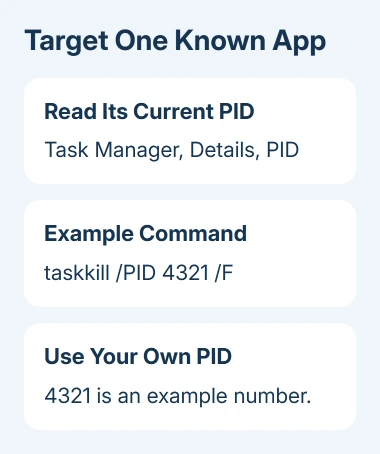
For a known app that remains stuck, open Details in Task Manager and locate its executable. Read the PID column. PID means process ID, the number Windows uses to distinguish that running instance.
Right-clicking the app under Processes and choosing Go to details, when available, helps select the associated entry. Check the name before copying its PID; don't guess from a similar-looking executable.
Open Start, search for Command Prompt, then choose Run as administrator. Microsoft says its taskkill command supports targeting a PID and forcing that process to end.
For an example PID of 4321, the command is:
taskkill /PID 4321 /FReplace 4321 with the current PID you just read. /F requests a forced close. The example number isn't a universal app identifier, and a later launch can have a different number.
A success message means the command finished closing that process. A process-not-found response means that PID isn't present now. Refresh Details and check the current entry before trying a new number.
If the familiar app has child processes that also need closing, /T includes processes started by that target:
taskkill /PID 4321 /T /FUse that only when you're comfortable closing the app's related processes too. Avoid wildcard commands that target many unrelated applications. One PID lets you check what you're closing without affecting other apps with similar names.
4. Check whether the process is returning after a successful close
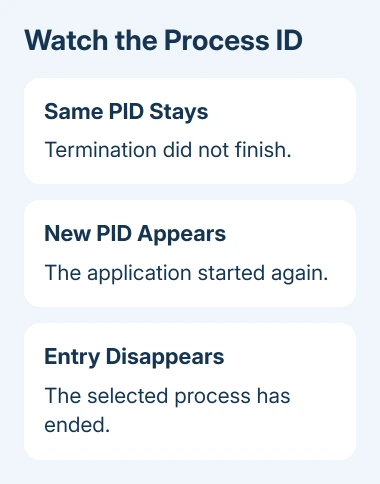
Watch Details after a successful termination. If an entry with the same name returns under a different PID, the app has started a new process. Repeating taskkill against the old number won't stop the new one.
Look for the app's launcher, notification-area utility or service that could restart it. Use the application's own settings to turn off its background operation or automatic launch when those options exist.
On Windows 11, review Settings > Apps > Startup for a recognized app that opens at sign-in. Windows 10 also has Settings > Apps > Startup. Disabling an entry controls future sign-ins; it doesn't terminate the current process.
Don't disable unfamiliar services simply because a name looks related. For a company security product or managed app, give IT the executable name and the changing PIDs so they can check what's restarting it.
When a game stays present without ever showing its window, use the game startup checks. That is a launch failure, which can continue even after you successfully clear the previous session.
5. Restart Windows when the process still won't terminate
Save work in the programs that still respond, then select Start > Power > Restart. A restart ends the current Windows session and gives the application a fresh start without leaving the same stuck instance running.
If the desktop stops responding, press Ctrl + Alt + Delete and use the power menu if that screen opens. Reserve a sustained power-button press for a computer that won't respond to a normal restart.
After signing in, open Task Manager before reopening the affected app. Check whether its process is already running. Then launch it, repeat the action that froze it, and try its normal exit command.
If the failure repeats, send the app developer its version, Windows version, exact termination error and what you clicked before it failed. Mention whether restart clears it and whether its PID changes after a successful termination.
Ask the vendor or IT for the supported shutdown method when protected software stays blocked in an administrator session. A stronger process-killing utility isn't a dependable repair for that situation.
The Short Version
Check the app's identity and permissions, then target its current PID with taskkill if needed. A new PID means it restarted. If closing still fails, restart Windows and report the recurring fault to the developer.
Checked November 15, 2026.






