

Do Not Disturb quiets iPad notifications during a meeting or study session. In Control Center, tap Focus, then choose Do Not Disturb. For one noisy app, change its sound setting so other alerts can still arrive.
Choose Focus when you want a quiet period. Change an app's notification settings when you want it quiet every day. Neither requires deleting the app or turning off the iPad's internet connection.
In this guide
1. Start a quiet period with Do Not Disturb
Open Control Center by swiping downward from the upper-right edge. Current iPads use that gesture, including models that have a Home button. Tap Focus, then Do Not Disturb. Touch and hold the Focus control if you need to open its full menu.
Look for the crescent-moon indicator in the status bar or on the Lock Screen. It shows that Do Not Disturb is active. Notifications still reach the iPad; Focus decides whether they interrupt you.
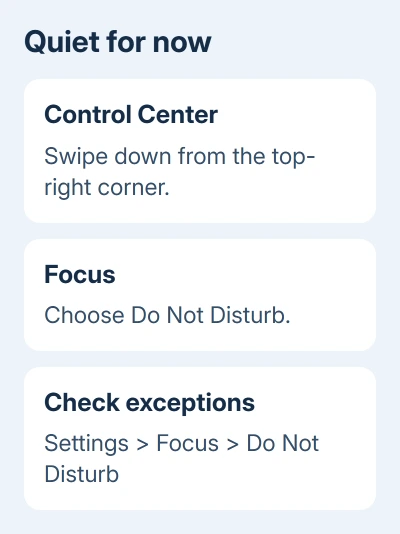
Apple says Do Not Disturb silences calls, alerts and notifications. Existing exceptions can still allow some people or apps through, so review those before relying on it for complete quiet.
To quickly mute alert sounds, open Control Center and turn on Silent mode. That silences alerts without muting music or videos. Use Focus when you want selected people or apps to remain exceptions.
To finish the quiet period, open Control Center again and tap the active Do Not Disturb control. The button returns to Focus when it switches off. Check that indicator if notifications remain quiet afterward.
I'd use this for a short interruption-free period rather than switching every app off separately. It gives you one place to return to when you want your usual notifications back.
2. Choose which people and apps can interrupt
Open Settings > Focus > Do Not Disturb. Tap People to review contacts, then Apps to review applications. Read whether each list is set to Allow Notifications From or Silence Notifications From before editing it.
Those choices do opposite things. An allowed list lets selected people or apps interrupt; a silenced list quiets the selected entries. Read the list type carefully before adding an app.
For an allow list, remove people or apps you don't need during this Focus. For a silence list, add those you want quiet. Keep an important contact allowed if missing their message would change what you need to do.
Also check any call or time-sensitive notification options shown for your Focus. These are separate from simply turning the Focus on. An exception can explain why one alert still sounds while everything else stays quiet.
On iPads that support Apple Intelligence, Intelligent Breakthrough & Silencing can decide which alerts interrupt you. Turn it off for predictable quiet, then choose the exceptions yourself.
The basic Do Not Disturb option doesn't require Apple Intelligence. An iPad without the extra intelligent setting can still use Focus and its normal notification exceptions.
3. Keep banners but stop one app's sounds
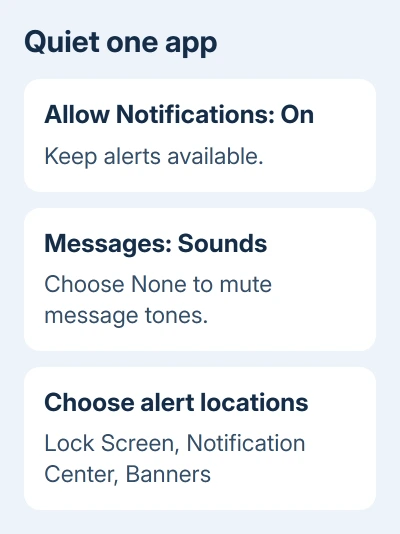
Open Settings > Notifications and select the noisy app. In Messages, tap Sounds > None. Other apps can offer a Sounds switch or their own sound menu. Leave Allow Notifications enabled to keep visual alerts.
Check Lock Screen, Notification Center and Banners to choose where alerts appear. Silencing sound leaves visual alerts available. Removing banners alone can still leave notifications in the other selected places.
For example, a shopping app can stay visible in Notification Center without sounding during the day. Messages can show banners without a tone; its None setting also mutes outgoing message sounds. Choose the behavior you need.
If an app has its own notification categories or sounds inside the app, review those as well. Start with the iPad's app-level settings so you know whether you're silencing the whole app or just one category it offers.
An iPhone paired with the same account has its own Do Not Disturb controls. Check those separately if the phone keeps interrupting while the iPad stays quiet.
4. Turn an app's notifications off completely
In Settings > Notifications > [app], turn off Allow Notifications when you don't want that app's alerts at all. The app remains available when you want to check it yourself.
Another route starts from an existing notification. Swipe left on the notification or group, tap Options, then Turn Off. That changes the app's notification permission rather than only dismissing the item already on screen.
Clearing a notification isn't the same as stopping future ones. If the same app keeps returning after you clear its alerts, use its notification permission or sound setting instead of repeatedly clearing the list.
For a child using a shared iPad, make the change on the app that's interrupting the activity. Leave unrelated account or app restrictions alone when you only need to quiet a single game or reminder.
Return to Settings > Notifications and enable the app again if you later need its alerts. Reopening an app doesn't automatically undo a notification choice you've made in Settings.
5. Schedule quiet hours and check your other devices
Open Settings > Focus > Do Not Disturb and find Set a Schedule. Set the time you want the Focus to start and end. Check the selected days so a weekday study schedule doesn't also silence your weekend alerts.
Review an existing schedule if Do Not Disturb keeps returning after you turn it off. A scheduled Focus can make the iPad seem to ignore your manual change when it next reaches its start time.
In Settings > Focus, check Share Across Devices. When it's enabled for devices connected to that Apple Account, changing a Focus on one device can affect another. Turn it off if the iPad needs its own quiet routine.
That is especially useful when an iPhone should keep alerting while the iPad stays quiet on a desk. For quiet hours on a computer as well, set the Mac's notification controls separately if sharing is off.
When an alert still interrupts
Return to the active Focus's People and Apps lists and look for the app or caller that got through. Check its permitted exceptions rather than resetting every notification setting on the device.
If Focus is active but ordinary alerts ignore those choices, record the iPadOS version in Settings > General > About, the app and the exception settings. Ask Apple support to review Focus behavior with those details.
Do Not Disturb is a notification control. It isn't a master mute for music, videos or every alarm. Set playback volume or an alarm in its own app when that is the sound you need to stop.
The Short Version
Choose Do Not Disturb in the Focus controls and inspect its exceptions. Disable an app's Sounds for silent alerts, or Allow Notifications to stop them. Check schedules and device sharing when quiet time changes unexpectedly.
Checked November 15, 2026.
 If you have any business, I can build it online






