

A game checksum error means a file doesn't match its expected contents. Verify an installed game through its launcher; for a standalone installer that fails, download another copy directly from its publisher.
Steam file errors, Epic's IS-BV04 hash mismatch, and a damaged installer need different checks. A hash is a file's calculated fingerprint, used to compare its contents with the expected copy.
In this guide
1. Match the repair to the stage that failed
Read the message before deleting anything. Note the game, launcher, named file, and whether the error appeared during a download, installation, update, or startup. A screenshot keeps details that disappear when the dialog closes.
For a game listed as installed, use the launcher's verification control first. It compares local files with the expected game files and repairs differences. You don't need to uninstall the game for this check.
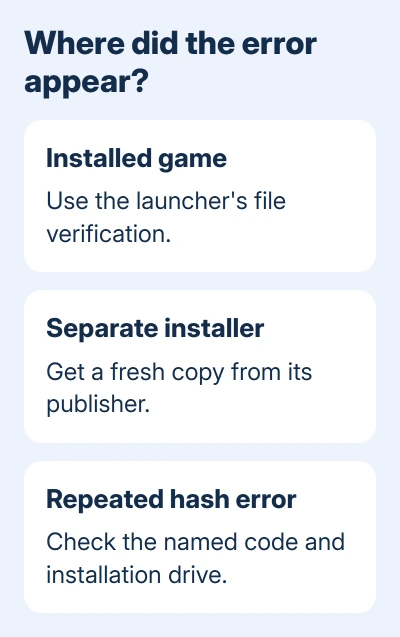
For a separate installer, get a fresh copy from its publisher or store. Keep related installer parts together if the package contains several files. The launcher's Verify button can't repair an unrelated installer.
A newly released game can still have an ordinary incomplete download. A game's release year doesn't change how you repair a checksum error. Use the message and the program that displays it to choose the repair.
I'd verify an installed game before downloading it all again. That gives the launcher a chance to replace the affected data, and it preserves useful information about whether the same file fails repeatedly.
2. Verify an installed Steam game
Restart Windows, then open Steam. In Library, right-click the game and choose Properties. Open Installed Files and select Verify integrity of game files. Let that check finish before launching the game again.
Steam's file-verification procedure checks the installed copy. If replacement data downloads, let it complete. Retry the installation, update, or launch that previously failed.
Check one game at a time, and avoid running a big disk scan or download during verification. Those tasks can slow the check and make its progress harder to judge.
Some games normally report files that fail verification because local configuration files aren't meant to be replaced. Check whether the original checksum error returns and whether the game now starts.
If the Steam client never displays Library, use the Steam startup repair guide first. A file check inside Library isn't available until the client works.
3. Use the correct Epic Games Launcher controls
In the standard Epic Games Launcher, open Library, select the game's three-dot menu, and choose Manage > Verify. Wait for the validation to complete before starting the game.
In Epic Games Launcher Preview, open Library from the top bar, select the game, and use the three-dot menu beside Play. Choose Manage > Verify and wait for the completion notification.
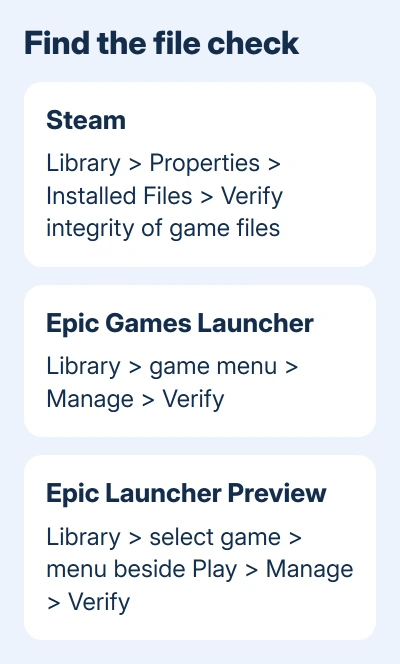
These controls apply to games supplied through Epic Games. If the library entry points to a game from another source, use that source's repair method. The launcher version changes where the menu is, so use the path that matches your window.
The Epic verification instructions confirm that this repairs changed or damaged files without affecting saved data. If the error returns, move to the download or hardware checks rather than repeatedly choosing Verify.
4. Repair Steam's download path when the update keeps failing
For a repeated download or installation failure in Steam, open Steam > Settings > Downloads > Clear Cache. This clears saved download settings so Steam can load them again. Retry the failed update afterward.
If the message concerns the library folder, open Settings > Storage, select the affected drive, and use its three-dot menu's Repair Folder command. This addresses library permissions, a different problem from a damaged individual game file.
For download failures that continue, try another Download Region under Settings > Downloads. A different region uses another group of content servers. Keep track of whether the same download completes after that change.
For repeated download failures, try another available internet connection with the same game and destination drive. A successful retry suggests a problem with the original download route.
If the game opens normally after the update, stop there. A remaining game process without a window is a launch problem and needs different checks from a file-download mismatch.
5. Check whether security software removed a game file
Open Windows Security > Virus & threat protection > Protection history. Look for an event at the time the installation or update failed, then compare the listed path with the file named in the error.
Microsoft says the Protection history list records Defender's actions. If another antivirus protects the PC, check that product's quarantine or event history instead.
Don't restore an unfamiliar file just to continue installation. Ask the publisher or antivirus provider to check the detection name and path. Repair the game files after resolving that detection.
This check matters when a file is repaired and then disappears again. Downloading it again won't help if your antivirus keeps removing it. If the history is empty, don't assume you need to exclude the game from antivirus checks.
6. Follow Epic's hash-mismatch hardware checks
For IS-BV04 or IS-IN-BV04, check the installation drive in File Explorer > This PC. Right-click that drive, choose Properties, and read File system. The documented requirement for this error is NTFS.
If the drive uses another file system, get help backing up the drive and planning a file-system change. Don't format the drive just to test this: formatting removes its data, including unrelated files.
The same error can involve faulty memory. Search Start for Windows Memory Diagnostic, save your work, and choose Restart now and check for problems. This restarts the computer to test memory outside your normal Windows session.
If errors are reported, have the RAM assessed before another installation attempt. A passing test doesn't identify every possible storage or memory fault, so persistent mismatches across several games still deserve a hardware check.
When the same file still fails
Give the store or game publisher the complete error, failing filename, launcher version, destination drive, and the result of verification. Say whether other games install on that drive and whether a fresh download changes the result.
For errors across unrelated games, ask a PC technician to check storage and memory. If only one current game build fails, ask its publisher to check the package. Tell each support team what happened when you checked its product.
The Short Version
Verify installed files through Steam or Epic, or replace a damaged standalone installer with a fresh publisher copy. For repeat failures, check the download route, security history, and code-specific storage or memory requirements.
Checked November 15, 2026.
 If you have any business, I can build it online






