

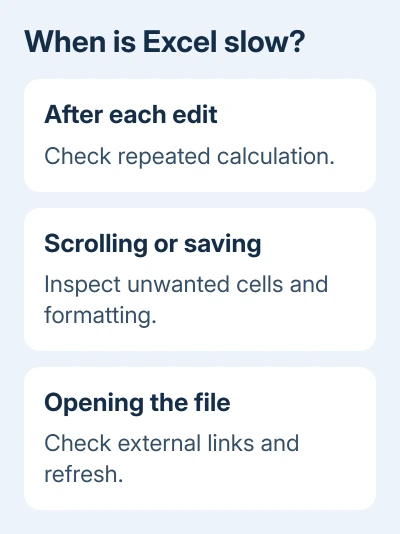
Excel often slows down because formulas repeat too much work or formatting extends far past the data. If it pauses after edits, check whether it's recalculating. For slow opening, scrolling or saving, check unused cells and the file size.
A blank workbook that runs normally points toward the spreadsheet rather than the whole computer. Start with a separate copy of the slow file so you can compare changes without risking the working version.
In this guide
1. Match the delay to what Excel is doing
Open the affected workbook on its own. Try three ordinary actions: enter a value, move around a sheet, then save. Notice which action produces the pause and whether the status bar shows calculation or a data refresh.
Close it and create a blank workbook. Repeat those actions. A small empty file doesn't need the same formula work as a financial model, but a long delay in both points more toward add-ins or the Excel installation.
For an app that stops accepting clicks altogether, use the Excel not responding checks. This page focuses on Excel that still works but takes too long, especially with a particular workbook.
After each change, try the slow action again in that same file. A workbook opening faster immediately after a restart doesn't tell you whether removing a formula actually helped it.
If the slow file is shared, keep your test copy separate from the team's live version. Ask its owner before changing formulas, connections or formatting that other people depend on.
2. Check for cells Excel is storing unnecessarily
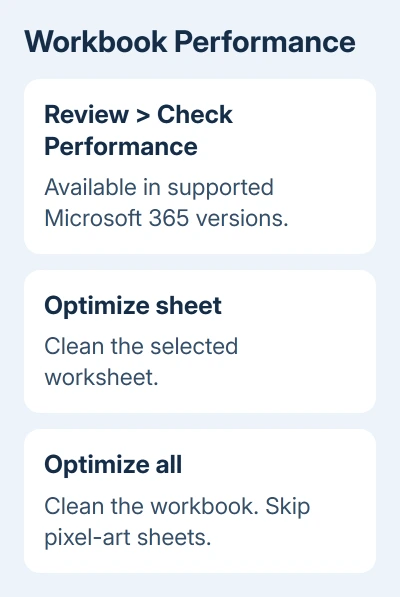
In supported Excel for Microsoft 365 versions, open Review > Check Performance. The Workbook Performance pane shows the used cells and how many can be optimized.
Select a worksheet in the pane to inspect its details. Use Optimize sheet for that sheet, or Optimize all when your whole test copy needs cleanup. Save, reopen and compare the delay with the original copy.
Microsoft says unwanted cell information can slow a workbook, even when those cells appear empty. Formatting, blanks and nonprinting characters can still take space.
Don't use this cleanup on sheets containing pixel art or intentional designs made from blank colored cells. Excel can't distinguish those designs from unwanted formatting and can remove them.
If Check Performance isn't available, don't hunt for an identical command in every older Excel release. The next section gives a way to inspect excessive formatting without that feature.
3. Look for formatting far beyond the real table
On Windows, press Ctrl+End in each affected worksheet. It moves to the last cell Excel considers used. If it jumps far past the real table, check that apparently blank area before deleting anything.
Check for formulas, notes, print layouts and hidden content in that area. On your test copy, clear unwanted formatting from unused rows or columns. Save and reopen the workbook, then check its size and whether it responds faster.
Some editions offer the Inquire add-in and Clean Excess Cell Formatting. These options depend on your Office edition. Use the feature available in your installation rather than installing an unrelated cleanup tool.
Also open Home > Conditional Formatting > Manage Rules. Choose the affected worksheet in the list. Look for duplicated rules or rules applied across a much larger area than the data needs.
Remove redundant rules or narrow their Applies to range on your copy, then check both speed and appearance. The sheet still needs its useful warning colors, even if removing them makes it faster.
I'd compare the file size after saving as well as the delay you noticed. A smaller file helps confirm that cleanup removed stored data. Repeating the slow action tells you whether that cleanup helped.
4. Reduce formulas that recalculate after every edit
Watch the status bar after changing a cell. If calculation is the slow part, open Formulas > Calculation Options and note which calculation mode is selected.
A temporary switch to Manual can show whether repeated automatic calculation causes the typing delay. Press F9 when you want to calculate. Return to Automatic after the comparison so later edits don't leave results out of date.
Calculation mode affects other open workbooks too. Keep only your test copy open for this check, and don't share a workbook with outdated totals just because it feels quicker to edit.
Functions such as NOW, TODAY, RAND, OFFSET and INDIRECT can recalculate repeatedly. These are called volatile functions: they run again during recalculation even when their apparent input hasn't changed.
Search formulas for repeated uses, then ask whether each one needs to be repeated. For example, many formulas can refer to one cell holding today's date rather than each containing its own TODAY() call.
Keep the result the same when changing formulas. Replacing a formula with a fixed value makes sense only when that value no longer needs to update, such as a finalized historical report.
5. Shorten large formula ranges and tangled calculations
Inspect formulas that scan enormous ranges for a small table. Whole-column references in array calculations can make Excel evaluate far more cells than the data requires. Restrict the range to the actual data where the formula allows it.
For a formula with calculations inside other calculations, try helper columns. These hold results that other formulas can reuse. Calculate a repeated part once, then refer to it instead of working it out again throughout the sheet.
Excel tables can help ranges expand with new records. Check the formula's behavior after adding a row so a speed improvement doesn't accidentally exclude next month's data.
The calculation performance guidance explains how formula dependencies and volatile functions add work. The useful change is less repeated calculation, not simply fewer visible formulas.
If totals stop updating instead of updating slowly, check why Excel shows formulas or old results. That needs a calculation-mode or cell-format check before performance tuning.
6. Check links and the Excel installation last
A workbook that pauses mainly while opening may be waiting on external files or data. Inspect its workbook links and Data > Queries & Connections in Windows desktop Excel. Identify the source before changing a refresh setting.
Ask the workbook owner whether the source still exists and whether refresh on opening is required. Don't break a needed link just to remove a pause; it can replace live data with a result that no longer updates.
If blank workbooks are slow too, close Excel and use Windows+R, enter excel /safe, then press Enter. A quicker session points toward startup extras. Follow the app-level repair page linked earlier for the add-in comparison.
For continuing problems, open File > Account > Update Options > Update Now where available. If your workplace controls updates, send IT the Excel version and an example file that shows the delay, with private information removed.
Ask Microsoft support to review workbook performance if cleanup and formula changes don't help. Include whether the pause happens on opening, editing or saving, and whether a blank workbook behaves normally.
The Short Version
Compare a blank workbook, remove unwanted cells and inspect excess formatting. Reduce repeated formulas and huge calculation ranges for delays after edits. Restore automatic calculation afterward. Check external links for opening delays.
Checked November 15, 2026.
 If you have any business, I can build it online






