

Use Switch user to open another person's desktop on a PC. To switch Microsoft accounts while keeping your existing desktop, change its sign-in to a local account, then connect the replacement.
An account inside Office, OneDrive, or Microsoft Store is separate again. Changing only an app's sign-in doesn't require changing the Windows login.
In this guide
Choose which account needs changing
Open Settings > Accounts > Your info and check the account shown there. This shows the account connected to your current Windows profile. Other Microsoft accounts you own won't all appear here.
If another person already has a Windows account on this computer, choose that account from the Start menu. Their desktop, documents, and settings belong to their profile.
If the current desktop is yours but its Microsoft email address is wrong, keep the profile and replace its connected account. Microsoft documents both directions of the local account conversion.
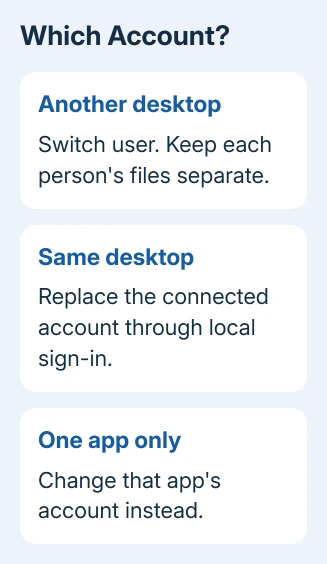
Changing an account's primary email alias is another task. An alias belongs to the same Microsoft account; a different Microsoft account has its own purchases, storage, and subscriptions. Check which result you need before proceeding.
I'd keep a separate Windows profile for another person. Replacing your own sign-in makes sense when the desktop stays yours, rather than when you're handing the computer over to someone else.
Switch to another existing Windows user
Save your work, then open Start and select your account picture or name. Choose the other account if it's listed. Depending on the Start menu layout, the account menu may use a three-dot control to reveal additional users.
On Windows 11, the account panel's appearance varies by update. On Windows 10, select Start, then the user icon along the menu's left edge. Choose the other person's account.
Some PCs also show Switch user in the account menu. Select the account on the sign-in screen and enter that account's password or PIN. The PIN from your own profile won't sign into somebody else's.
Switching users leaves the first session signed in. Programs can remain open there while the second person uses their desktop. Sign out closes your session instead, so save unfinished work before choosing that option.
If the other account isn't listed, it may not have a Windows profile on this PC yet. Having another Microsoft email address doesn't add it to this computer's list of users.
For Windows 11, an administrator can open Settings > Accounts > Other users > Add account. Windows 10 uses Accounts > Family & other users, then Add someone else to this PC.
Enter the other person's Microsoft account email and finish adding them. The Windows user setup guide explains account permissions. Then return to Start and choose the new user.
Disconnect the old account from your current profile
Before replacing your connected account, copy your BitLocker recovery key to an accessible place outside this computer. Also check that needed cloud-only files have downloaded before changing their app accounts.
Open Settings > Accounts > Your info in either Windows version. Choose Sign in with a local account instead. Confirm your identity when prompted.
Create a local username and password, follow the prompts, then choose Sign out and finish. Use those newly created local details to return to your Windows desktop.
The same profile now uses a local sign-in, so you won't land on a new Windows desktop. Your existing local files and installed programs stay in this profile.
When that local-account option is absent, use the missing local account option checks rather than deleting the user. A managed company computer may need its administrator to approve account changes.
Don't use Remove under Other users as a substitute for conversion. Removing a Windows user can remove that user's local data. Switching to a local account lets you keep the current profile.
Connect the replacement Microsoft account
While signed into that local profile, return to Settings > Accounts > Your info. Select Sign in with a Microsoft account instead. This option appears when the current profile is local.
Enter the replacement account's email address and complete its sign-in checks. If Windows asks for your current Windows password, enter the local password created in the previous section, rather than the old Microsoft account password.
Follow the remaining prompts, including Windows Hello setup if offered. Return to Your info afterward and check that the intended account appears. Then open a local document to confirm you're still using your existing desktop.
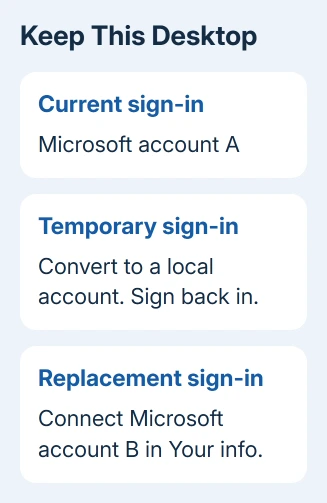
The profile's folder name under C:\Users can stay the same. The old folder name doesn't mean the account switch failed. Check Your info to see which account is connected.
Purchases and subscriptions don't transfer between accounts through this change. A Microsoft 365 subscription attached to the old account remains attached to it, even when Windows now signs in with a different account.
Change Office, OneDrive or Store separately
If the wrong account appears only in an app, start with that app's account control. For desktop Word and Excel, choose File > Account to see which account is signed in and check the product information.
Choose Sign out, close the Office apps, then restart that app and enter the replacement account's sign-in details. Keep the licensed account available if that account owns your desktop Office subscription.
For OneDrive, open its cloud icon, then Help & Settings > Settings > Account. Changing the connected cloud storage is separate from changing Windows. Before unlinking an account, check that your needed files are downloaded to the PC.
For a replacement OneDrive account, select Unlink this PC, then Unlink account. Reopen OneDrive and enter the replacement account's sign-in details. Files that were online-only remain in the original account's cloud storage.
In Microsoft Store, select the profile icon, sign out of the unwanted account, then sign in with the intended one. Your app and game purchases stay with the account that bought them.
For an organization account, check Settings > Accounts > Access work or school. Adding a work account there isn't the same as replacing your personal Windows identity. Follow the organization's instructions for a managed device.
If the replacement account won't sign in, open the sign-in helper from Microsoft account support. Include the error message and say whether Windows or just one app fails. That helps support choose the right sign-in repair.
The Short Version
Use Switch user for another Windows desktop. To replace the Microsoft account on your existing desktop, convert it to a local account, sign back in, then connect the replacement. Check Office, Store, and OneDrive accounts separately.
Checked November 15, 2026.
 If you have any business, I can build it online






