

Office error 0x426-0x0 can stop several desktop apps from starting. Repair the installed product rather than changing each document. Restart Windows first, then use Office repair if the error remains.
The same code doesn't identify one cause on every PC. Check whether all Office apps fail or just one, and whether that app opens in Safe Mode. The result points you toward either the shared installation or one app's startup settings.
In this guide
1. Restart and open an app without a document
Save work in any other open programs, then choose Start > Power > Restart. A closed lid usually puts a laptop to sleep, which isn't a restart. After signing back in, launch Word from Start without opening a recent document.
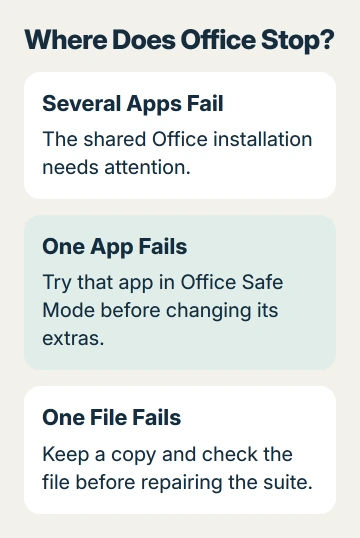
Try Excel the same way. If both display 0x426-0x0 before showing a blank window, the failure isn't limited to one Word file or one Outlook mailbox. Start with the Office installation that those apps share.
If Word opens normally and only one document fails, treat that as a problem with the file rather than Office startup. Copy it before trying document recovery, and note whether another document opens successfully.
Keep the complete error message. Include any interrupted installation, update, or restart that happened just before the error began. Timing helps support understand the failure; it doesn't by itself identify which recent change caused it.
When the box instead carries error 0xc0000142, try its Office update task before using the later repair choices.
For a Word-only failure without this shared error, the Word startup checks cover its templates and startup settings. Continue here when the Office installation itself needs repair.
2. Try Office Safe Mode when just one app fails
Hold Ctrl while opening the affected Office app until the app asks about Safe Mode. Choose Yes. This is Office's own reduced startup mode, not Windows Safe Mode.
For Word, another route is Windows + R, then winword /safe. For Excel, enter excel /safe. Classic Outlook uses outlook /safe; the separate new Outlook app doesn't use that classic command.
If the app opens in Safe Mode but fails normally, an add-in or another startup component may be involved. Follow the Office Safe Mode guidance before deleting templates or reinstalling the suite.
To review a desktop app's COM add-ins, open File > Options > Add-ins, choose COM Add-ins beside Manage, then select Go. Note which items are enabled, then disable one and check whether the app starts normally.
Close the app and open it normally after each change. If turning off one add-in lets it start, ask that add-in's provider about an update. Once you've found the add-in causing the failure, leave the others alone.
If Safe Mode also returns 0x426-0x0, stop repeating it and move to repair. For a classic Outlook-only startup fault, the Outlook opening guide keeps its profile checks separate from a suite-wide launch failure.
3. Find the actual Office product in Windows
On Windows 11, right-click Start and choose Installed apps. Find Microsoft 365 or the installed Office suite, open its three-dot menu, and select Modify. Accept a permission request from Windows when it appears.
On Windows 10, right-click Start, choose Apps and Features, select the installed Office product, and choose Modify. Search by the suite's name; its included apps don't each need a separate repair entry.
A standalone purchase such as Visio or Project has its own product entry. Repair that entry when it is the program that fails. Don't assume repairing Word also repairs every separately installed Office product.
Microsoft's Office repair procedure explains that repairing a suite affects its included apps, even when you began because only one of them was failing.
If Modify is unavailable or blocked, note the product name and ask your organization's administrator to repair the copy they installed. Don't replace a work or school installation with a different personal product.
4. Use the repair option that matches the installation
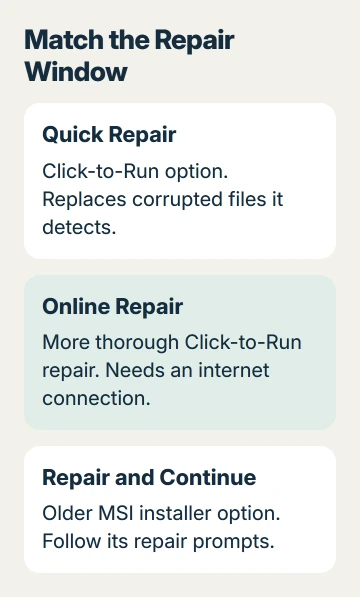
For a Click-to-Run installation, look for the two choices: Quick Repair and Online Repair. Quick Repair is the faster option and replaces corrupted files it detects. It's a reasonable first attempt when you're short on time.
Select Quick Repair > Repair and let the process finish. Restart if prompted, then open the same app that failed earlier. Reaching its normal start screen without the error is the result to check.
If that repair doesn't resolve it, return to the product's Modify screen and choose Online Repair > Repair. Keep a reliable internet connection and leave the PC powered while it completes the more thorough repair.
For an older MSI-based installation, which uses a different installer, the window instead offers Repair in Change your installation. Select it and choose Continue. The absence of Quick Repair in that older installer isn't another fault.
I'd finish one repair and test it before starting another. If you close the repair window early or launch several installers, it's hard to tell which repair finished.
If an app opens afterward but asks for activation, use the account that owns that Office product. A new account won't automatically contain the license associated with the original purchase or work subscription.
5. Reinstall only after confirming how you'll restore Office
If a completed repair leaves the error unchanged, prepare to reinstall the Office product you have a license for. Check access to the account that owns it or your company installer first, and back up any local work you need to keep.
Use the supported Office removal procedure for the installed edition. The ordinary route uses Control Panel > Programs > Programs and Features, then the Office product and Uninstall.
Restart when removal finishes, then reinstall through the account or deployment method that supplied the license. Choose your licensed product instead of a trial with a similar name.
If the error returns on that fresh installation, send the code and repair results to your administrator or Microsoft Support. Include the Windows version, Office product name, and Safe Mode result.
Ask about the Office installation and its update history. Include any installer error: support needs to know whether repair stopped partway through or finished without resolving the launch failure.
The Short Version
Restart, check whether one app or the whole suite fails, and try Safe Mode for an app-specific problem. Repair the installed product using Quick Repair, then Online Repair if needed. Confirm the license and installer before reinstalling.
Checked November 15, 2026.
 If you have any business, I can build it online






