

Do Not Disturb switches off on an iPad through Control Center. Swipe down from the upper-right corner, then tap the Focus button's crescent-moon icon. When it switches off, the button changes back to Focus.
If it returns later, a schedule, linked Lock Screen or another Apple device can be turning it on again. Check what's turning it on rather than switching it off each time.
In this guide
End the quiet session from Control Center
Swipe downward at the upper-right edge to reveal Control Center. Current iPad software uses this gesture on Home-button models too. Swiping up from the bottom isn't the current iPad Control Center gesture.
Find the button labeled Do Not Disturb and tap its moon icon directly. The icon dims and the label becomes Focus when the session ends. Close Control Center and check that the moon has disappeared from the status bar.
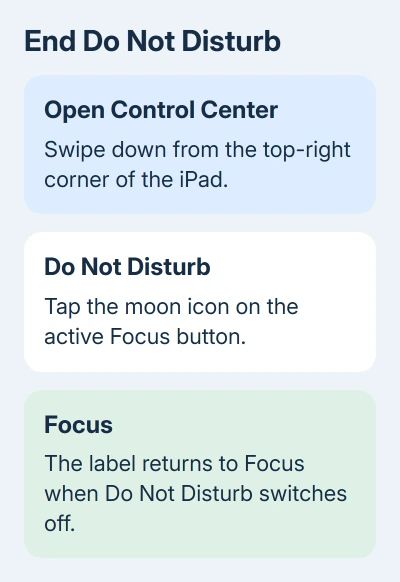
If tapping the words opens a menu, select the active Do Not Disturb entry there to turn it off. Touching and holding the Focus button also opens the list, which is useful when you want to see which mode is running.
Another name, such as Work, Personal or Sleep, means a different Focus is active. Switch off that mode's icon instead. Do Not Disturb isn't a master switch that disables every other Focus on the iPad.
Siri can also turn Do Not Disturb off. Use that option if reaching Control Center is awkward, then check the Focus button afterward. The label tells you whether Do Not Disturb has switched off.
Remove a schedule that starts it again
Open Settings > Focus > Do Not Disturb and find Set a Schedule. Review each listed schedule. A time-based entry can bring the mode back every evening even though you turned it off earlier in the day.
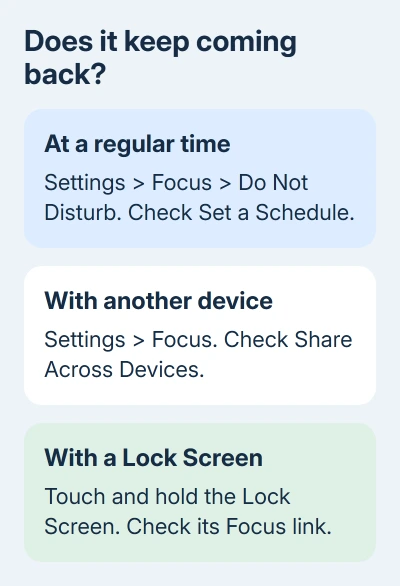
Open the relevant schedule and disable it, or delete an unwanted routine. Check the days as well as the start and end times. An old weekday routine can explain why the iPad is quiet only on certain mornings.
Some Focus setups can start at a location or when an app opens. Check those entries too if the return follows a place or an app rather than a clock time. Turn off the trigger that matches what you're seeing.
If Smart Activation is enabled for that Focus, switch it off while stopping automatic activation. This feature can activate a Focus based on patterns such as your location or app use, rather than a single time you entered.
Apple says its Do Not Disturb controls separate ending the current session from changing its schedule. That distinction matters: turning the icon off now doesn't remove tomorrow's scheduled start.
After changing the trigger, use the iPad normally through the time or action that used to activate it. If it stays off, keep the other Focus settings as they are. If it returns, check device sharing next.
Stop an iPhone or Mac from sharing the change
Go to Settings > Focus and check Share Across Devices. When it's enabled for devices signed into one Apple Account, a Focus change on one device can also affect the others.
Turn Share Across Devices off on the iPad if you want to control its Focus separately. Then end the iPad's active Focus in Control Center. Disabling sharing and ending a currently active session are separate actions.
Consider when the silence begins. If the iPad enters Do Not Disturb when you start work on a Mac or turn it on on your iPhone, sharing could explain it. A schedule saved on the iPad doesn't need another device to be awake.
The iPhone Do Not Disturb controls help you check the other device's session. Changing the iPad's sharing preference is useful when you still want the iPhone to follow its own routine.
Don't confuse this with Share Focus Status. Focus status tells supported apps that notifications are silenced. It isn't the control that keeps several devices' Focus sessions in step.
Unlink a Lock Screen that activates Do Not Disturb
On iPadOS 17 and later, a Lock Screen can be linked to a Focus. Choosing that screen can activate its linked mode. Check this when the moon returns immediately after changing your wallpaper or Lock Screen.
Touch and hold the iPad's Lock Screen until its wallpaper gallery opens. Unlock the iPad if asked. Select the screen you use and tap its Focus control. Deselect Do Not Disturb to remove that screen's link.
Keep the wallpaper if you like it. The link, rather than the picture itself, is what starts the Focus. Select the screen again and check Control Center to see whether the unwanted activation has stopped.
An older iPad without linked Lock Screens won't have this setup. Skip this check if the gallery doesn't offer a Focus link. Check its own schedules and device-sharing options.
Check notifications when Focus is already off
With the moon gone and no other Focus active, a missing alert needs a notification check. Open Settings > Notifications, select the affected app and turn on Allow Notifications to receive alerts from it.
Review the delivery locations offered for that app, such as Lock Screen, Notification Center and Banners. A notification can be allowed but absent from the place you're watching.
Check Sounds separately when banners arrive silently.
Check whether Scheduled Summary is holding that app's notifications for a later delivery. An app in the summary can behave differently from an app delivering immediately, even with Do Not Disturb switched off.
For a broader sound problem, compare a notification with normal media playback and review the iPad sound checks. Increasing media volume alone doesn't change an app's notification permission.
Use a new incoming message or another newly triggered alert for the check. Switching off Focus doesn't make every previously silenced notification appear as a fresh banner. A new alert lets you check whether your current settings work.
If one app still fails, ask its support team about notification delivery for that account.
If several apps fail with Focus off and notifications allowed, contact Apple Support and give the iPad model, iPadOS version and which checks left it silent.
The Short Version
End the running Focus session using Control Center. Remove unwanted schedules, switch off device sharing when the iPad should stay independent, and unlink a triggering Lock Screen.
If Focus is already off, check the affected app's notification controls.
Checked November 15, 2026.
 If you have any business, I can build it online






