

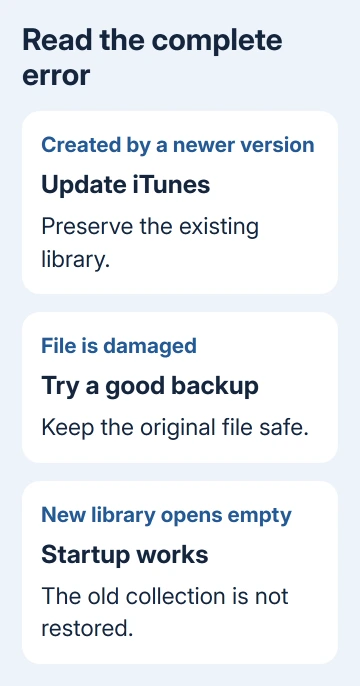
An older version of iTunes can't read an iTunes Library.itl file saved by a newer version. Update the app first and keep the library intact; deleting it can leave you with an empty collection.
If the message says the file is damaged instead, an update isn't the whole repair. Back up the folder, then try a library copy you know works or create a separate library to check whether iTunes itself opens.
In this guide
1. Match the repair to the rest of the message
Read the words after cannot be read. The newer-version warning means the library was saved by an iTunes version newer than the one you're opening. It doesn't say that your music files have disappeared or that Windows 11 can't play them.
This matters after moving a library or installing an older iTunes package. Apple's own steps say to use the latest iTunes version on the receiving computer.
Close iTunes before changing anything. Copy the iTunes library folder to an external drive or another safe location. The usual starting point is your Windows user folder > Music > iTunes, though a moved library may be elsewhere.
Keep the .itl file together with the rest of the library backup. It keeps track of how your library is organized. The media files hold the songs and other content. Keeping both lets you go back if a repair opens the wrong collection.
If your media lives on an external drive, connect it before reopening iTunes. A missing drive and an incompatible library are different failures, and iTunes needs access to the storage location its library uses.
2. Update the installed iTunes copy
For a Microsoft Store installation, open Microsoft Store and check its Library or Downloads area for app updates. Install the iTunes update offered there. The exact placement of the update control varies with the Store layout.
For an installation from Apple's download page, Help > Check for Updates is the in-app route when iTunes opens. If the library error blocks the app, use the latest supported iTunes installer rather than relying on a menu you can't reach.
The iTunes update instructions separate these two installation methods. An absent Check for Updates item doesn't mean a Store installation has no updates; it uses the Store instead.
Restart if the installer asks, then reopen the original library. Check that the expected songs and playlists appear without the warning. Play a few tracks; an empty iTunes window isn't a recovered collection.
If the installer itself fails, record that installation error separately. It needs an installation repair before the library compatibility check can continue. Don't install a succession of older packages over the same library.
I'd update the app before trying an older library backup. It preserves the chance of opening the most recent playlists and library changes without returning to an earlier copy.
3. Choose the intended library after updating
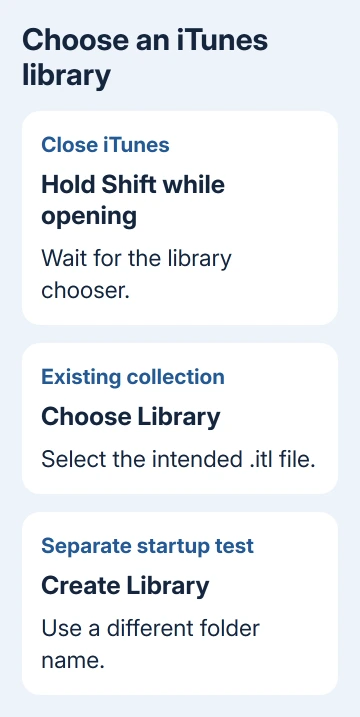
If iTunes still opens the wrong collection, exit it completely. Hold Shift while opening iTunes from Start. Keep holding until the library chooser appears, then select Choose Library.
Browse to the library folder you actually use and select its iTunes Library.itl file. Choose that file, rather than the iTunes Media folder or an individual song. Check the location carefully when several backups exist.
If choosing that file restores the expected collection, the app had been opening a different library. Exit and reopen once more to check that the intended collection is still selected and the external media drive remains available.
If the same newer-version message returns, check that your iTunes shortcut opens the version you just updated. Give support the installed version and the library's source computer. Renaming the .itl file doesn't change its internal format.
4. Restore a good backup when the file is damaged
For a damaged-file message, you'll need a working library copy. Changing the filename won't repair it. Close iTunes and restore a working backup of the library folder to a separate location. Keep the original until the restored copy works.
Hold Shift while starting iTunes, select Choose Library, and open the restored .itl file. Use a current iTunes version for a library copied from another computer. Then check playlists and play tracks from several parts of the collection.
A backup brings the library back to the state saved in that copy. Songs or playlist edits added afterward may need to be recovered separately. Pick a backup whose date makes sense for when the fault began.
If no usable backup exists, choose Create Library in the Shift-start chooser and give it a different name, such as Music Recovery. This keeps the attempt separate from your existing library.
If the empty new library opens, iTunes can start with a different library file. It hasn't recovered the old playlists, ratings, or play history. Use File > Add Folder to Library to add accessible local media if rebuilding becomes necessary.
A folder of media files doesn't replace a complete library backup. Keep the damaged library file and ask support about recovering it before you settle for rebuilding the collection.
5. Check which Apple Windows app the task needs
Current Windows apps split music, video, and device management into Apple Music, Apple TV, and Apple Devices. If the goal is syncing an iPhone, the Windows device connection guide explains the newer arrangement.
An Apple Music library error needs that app's repair path; it isn't automatically fixed by replacing an iTunes file. The Apple Music PC error guide covers failures inside that app.
If updating and a good backup don't help, contact Apple Support for iTunes on Windows. Provide the full message, installed version, library location, and whether a separate new library opens.
Ask about recovering the existing collection before removing its files. For a Store download or update failure, use Microsoft Store support for that installation problem, then return to the library check once iTunes is updated.
The Short Version
For a newer-version warning, update iTunes and preserve the library. Hold Shift at startup to choose the right .itl file. For damage, try a good backup; opening an empty library checks startup without restoring playlists.
Checked November 15, 2026.
 If you have any business, I can build it online






