
HP Sprocket 200 firmware installs through the Sprocket app with the printer connected and charged. Charge it first, select your printer in the app, then look for Get Firmware Upgrade in its printer settings.
If the iPhone can't connect to the printer, fix its Bluetooth connection before starting the update. A connected printer with no upgrade button is a different case: the setup instructions say that means the firmware is already current.
In this guide
1. Charge the printer before retrying the update
Connect the Sprocket 200 to a USB power supply with its charging cable. For initial setup, the instructions call for charging for 30 minutes or until the Charging Indicator light turns green.
If the app can already see the printer, open its printer settings and check the battery reading. The update needs a battery reading of 25% or higher. At 24% or lower, charge it for a minimum of 30 minutes before proceeding.
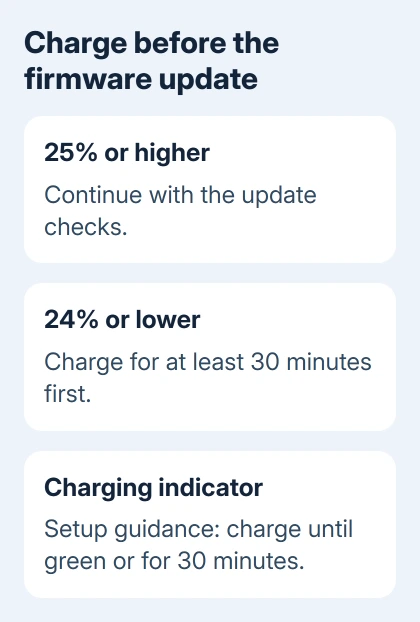
HP says to check the battery before upgrading. Its Sprocket 200 setup instructions give these charge limits.
The phone and printer have separate power supplies. A fully charged iPhone doesn't tell you the printer's charge level, and plugging in the printer doesn't replace the Bluetooth connection used by the app.
After charging, reopen the printer's settings in the app. Continue once the battery reading is high enough for the update. If the printer won't stay powered, fix that power problem before updating firmware.
I'd check the battery ahead of an app reinstall or printer reset. It's a short check, and the update instructions tell you exactly how much charge it needs.
2. Make sure the app sees the correct Sprocket
Hold the printer's Power button until its Status Indicator light over the output slot comes on. On the iPhone, open Settings > Bluetooth and turn Bluetooth on.
Open the HP sprocket app. Follow its setup option if a welcome screen appears. In the app layout shown in the instructions, tap the Menu icon, choose sprocket, then open Manage Printers.
Look for your Sprocket 200 in that list. If it isn't there, choose Add New Printer, select the printer and complete the prompts. If several printers appear, select the one you're actually trying to update.
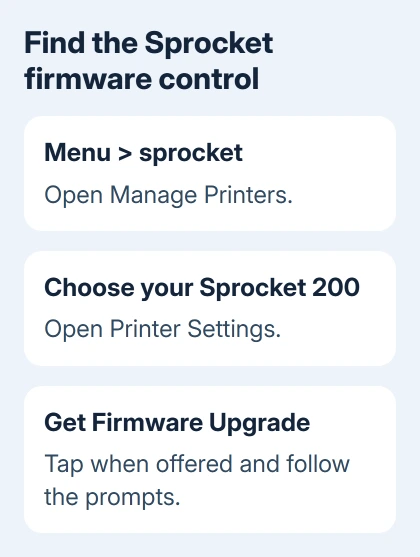
Seeing a printer name somewhere in iPhone settings isn't the whole check. Return to the Sprocket app and confirm that its selected printer opens the settings you need for the upgrade.
If that works, move to the firmware controls. If the app can't find or reconnect to the printer, stay with the Bluetooth checks in the next section. An update can't repair the connection before the app can talk to the printer.
3. Restore Bluetooth access when the printer stays missing
Keep the iPhone close to the powered printer. Use the printer's normal power control to switch the printer off, then on, and retry setup. Charge or replace the accessory battery as appropriate when an accessory won't stay on.
On iOS 16 or later, check Settings > Privacy & Security > Bluetooth and allow access for the Sprocket app if it appears. iOS 13 through 15 group the permission under Settings > Privacy > Bluetooth.
Apple's Bluetooth accessory checks include app permission, power and reconnecting an accessory. These checks fix the connection from your phone; installing the printer's firmware is a separate step.
If the printer is paired with another phone or tablet, disconnect it there before connecting the iPhone. Then return to the Sprocket app's printer list and try selecting it again.
For a saved Bluetooth entry that won't reconnect, use Settings > Bluetooth, open the printer's information button and choose Forget This Device. Put the printer back into its setup process and add it again through the app.
The iPhone device-discovery guide separates saved pairings from accessories ready to pair. Follow this printer's own pairing prompts.
If other accessories also disconnect, use the iPhone Bluetooth dropping checks. A phone that loses every accessory needs broader attention than a printer-specific failure.
4. Install the offered firmware from Printer Settings
Give the iPhone internet access through working Wi-Fi or cellular data. The printer's local Bluetooth connection and the phone's internet connection do different jobs; both matter during this procedure.
In the Sprocket app, open Menu > sprocket > Manage Printers. Select the Sprocket 200, then open Printer Settings. Recheck the battery in the Status section before starting.
Look for Get Firmware Upgrade. Tap it when offered and follow the app's instructions until the process finishes. Leave the phone near the printer while it transfers and installs the update.
Don't switch the printer off during an active firmware installation. Its internal software is being changed, so let the app finish or report an error before deciding on the next action.
After completion, return to Printer Settings and check whether an upgrade is still offered. Try a normal photo print through the app as well. This checks that the app and printer still work together after the installation.
If the app reports an error, keep its exact wording. A failure to download the update and a lost printer connection are different failures, even if both happen after tapping the upgrade button.
5. Handle a missing upgrade or a repeated failure
When the selected, connected printer has no firmware upgrade option, the setup instructions say its firmware is current. There isn't a separate iPhone setting that forces a newer Sprocket package to appear.
This advice applies to the Sprocket 200. Check the model on your printer before borrowing reset or firmware instructions for a Sprocket Studio, Plus or a different Sprocket model.
If the app offers the update but repeatedly fails after charging and reconnecting, open the Sprocket site's Contact Us page and request Sprocket 200 firmware help. Send the error's exact wording and the point where installation stops.
Give support the iPhone model, iOS version, Sprocket app version, printer model and battery reading. Explain whether the printer stays connected outside the upgrade and whether normal photo printing works.
Ask whether they have a supported recovery procedure for that exact failure. Repeating unrelated factory resets gives support less useful information than a clear description of where the update stops working.
The Short Version
Charge the printer, select it in Manage Printers, and use Get Firmware Upgrade in Printer Settings. Repair a missing Bluetooth connection first. No upgrade option for the connected printer means it's current in the setup guide.
Checked November 15, 2026.






