

Create a Samsung account in Galaxy Settings with an email address you already own. Tap the account area at the top and choose Create account. Enter the requested details, then finish phone and email verification.
An existing Google account doesn't automatically mean a Samsung account is already set up. It's fine to register both services with one email address, but the two accounts are separate.
In this guide
Check whether the phone already has an account
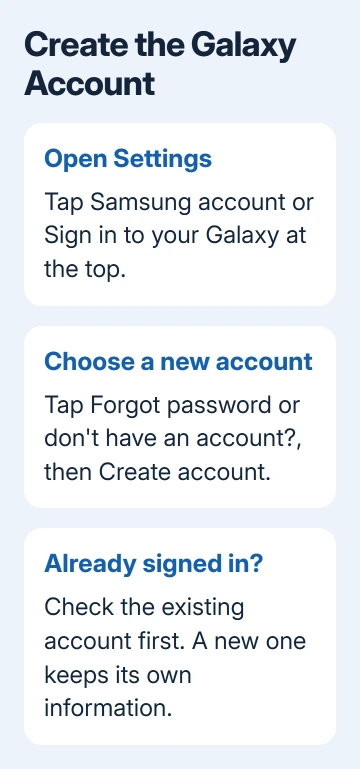
In Settings, check the account area at the top. Depending on the software version, it can show Samsung account, Sign in to your Galaxy, or the name and details of someone already signed in.
If it's your existing account, keep it. Creating a second account won't transfer information or services saved under the original one. Recovering access is usually the right step when the account already belongs to you.
For a forgotten credential, use the Samsung account password reset steps. That lets you keep your existing account instead of starting again with another email address.
On a phone you're buying or receiving from someone else, ask them to remove their account through the normal sign-out process. Don't enter your information into their profile as a substitute for creating your own account.
Before starting, check that your chosen email inbox opens normally. You'll also need access to your phone number for verification. Those details matter again when you need to recover the account later.
Open Create account and enter your details
In Settings, tap Samsung account or the sign-in area. Select Forgot password or don't have an account?, then Create account. The wording and order can vary with your Galaxy's software and region.
If an age choice appears, select the one that applies to the person using the account. Read the terms presented during setup and select the required agreements to continue.
Enter your email address, choose the account password, and supply the requested name and date of birth. Follow the form's current password requirements rather than assuming they match another service's rules.
Use details you can recognize and recover later. A typing mistake in the email address sends the verification message somewhere else, so read it once before continuing. The phone's screen-lock PIN isn't the password being created here.
Tap Next or the button shown on your screen to finish. Samsung's setup guide describes this Galaxy registration route and its verification stages.
If the form says the email is already registered, return to sign-in or password recovery. Filling out the form again with the same address won't create another account.
Complete the phone and email checks
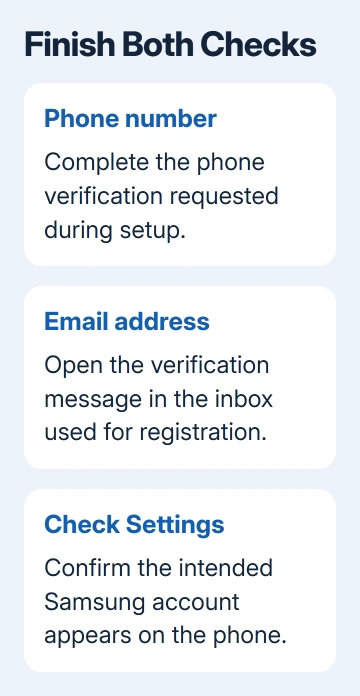
Enter your phone number when requested and complete the SMS verification. Depending on the device and setup, the number may be recognized automatically. Enter the country code and phone number as the form asks.
Then open the inbox for the email address entered during registration. Look for the Samsung account verification message and use its verification control or link. Return to setup and choose Verification complete when offered.
Check the spam or junk folder if the email isn't in the inbox. Also compare the address shown during setup with the address you're checking. A message sent to a misspelled address won't appear in the correct mailbox.
These checks have different purposes. Receiving a phone code doesn't necessarily finish email verification. Opening the email doesn't replace a separate phone-code prompt either. Complete the stage still shown on the device.
If verification keeps failing, use account help on Samsung's support site. Say whether you're missing an email, an SMS code or approval on another Galaxy, so support knows which stage needs attention.
Don't keep creating accounts with different addresses to escape a stalled verification screen. First finish setting up or recover the account you intended to use, so later backups and device services aren't split between accounts.
Confirm the account is actually on the Galaxy
Return to Settings and open the Samsung account area. Check that it displays the intended email or profile. Reaching this account screen is a better completion check than simply seeing a message arrive in your inbox.
Open the service you created the account for, such as Galaxy Store or SmartThings, and follow its own setup prompts. Account creation and enabling a particular service are separate steps.
A new account doesn't automatically copy another account's backups, purchases or registered devices. For a replacement phone, use the account containing your existing information.
I'd keep one account for the Galaxy devices you use together. Samsung allows separate accounts with different email addresses, but information stays separate in each account. A second identity can make recovery more confusing.
If the phone reports Processing failed after the account exists, switch to the Samsung sign-in checks. Handle that as a sign-in failure rather than starting registration over.
Review recovery and two-step verification
Open the account's security settings after signing in. Review the phone number used for two-step verification, which asks for another approval or code in addition to the password.
On supported account screens, Security > Two-step verification lets you review available methods, including an authenticator app and backup codes. The choices and exact path can differ between the phone and website.
Keep the recovery number current while you still have access to it. If you change phone numbers later, review these settings before losing the old number, rather than waiting until the next sign-in requests its code.
Keep any backup codes outside the phone in a private, accessible place. They're an alternative sign-in method when offered. Keeping the only copy inside that account can make the codes inaccessible during a lockout.
The security settings may ask you to enter your password again or complete another verification check. Follow that prompt for the account shown, rather than using the Galaxy screen-lock PIN unless the phone specifically asks for it.
Creating the account from a computer or getting help
The Samsung account website also offers Create account from its sign-in page. Open account.samsung.com, choose that control, and follow the displayed registration and verification stages.
Creating it in a browser doesn't add it to your phone automatically. Once finished, return to the Galaxy's account area in Settings and sign in with your new email address and password.
If the account website won't load or returns an error, use the phone's Settings route instead. It creates the same type of account without needing to complete registration in a computer browser.
For a child or a setup screen with different age choices, follow the family setup offered for that region. Don't change the birth date to get past an age restriction; ask Samsung account support which family route applies.
If neither route completes, tell account support the error message and where you're stuck. Say whether the email was accepted, verification arrived and Settings shows the account. Keep codes and passwords out of the report.
The Short Version
Choose Create account in Galaxy Settings and enter the requested details. Finish phone and email verification, then check the account shown in Settings. Recover an existing account rather than replacing it with another one.
Checked November 15, 2026.
 If you have any business, I can build it online






