
A glitching laptop can have a flickering picture, one stuck app, or Windows that won't respond. Try Windows + Ctrl + Shift + B for display trouble. For a stuck app, save your other work, then close the program that won't respond.
Those symptoms need different fixes. Choose the fix for the symptom on your laptop, rather than reinstalling Windows because a single window misbehaves. The procedures apply to laptops running Windows 10 or 11.
In this guide
1. Recover the picture or the app that's stuck
Press Windows + Ctrl + Shift + B once for a blinking or blank picture while the laptop remains on. This resets the graphics driver, which connects Windows to display hardware. The reset can cause a brief flicker or beep.
If the image returns, save your work. When the same fault returns, continue to the display comparison in section 2. I'd try this shortcut before removing a driver because it leaves the current driver installed.
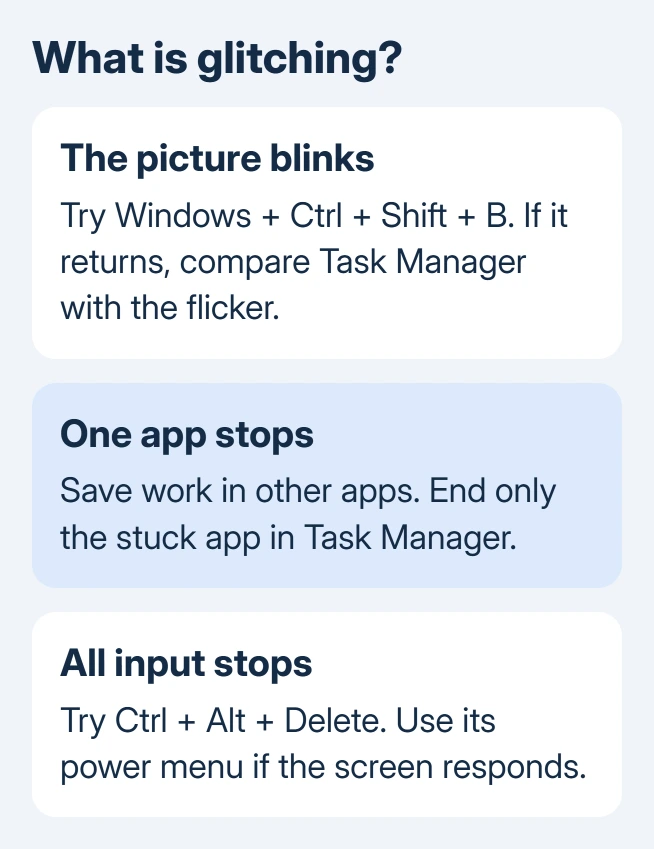
For one frozen app, switch to another window and save any work there. Press Ctrl + Shift + Esc. In Task Manager > Processes, select the stuck program and choose End task. That app's unsaved edits will be discarded.
Launch the app again and retry the failed action. If other programs still work, update that app first. For trouble tied to one document, give the app's support team the file format and error text.
If all apps and the pointer stop responding, press Ctrl + Alt + Delete and restart from its power menu. If no input works, hold down Power until the laptop shuts off. Start it again normally.
The Windows restart options help when Start is frozen but the keyboard still responds. Once Windows loads, follow the check for the problem you saw. Temporary relief after restarting doesn't explain the cause.
2. Compare Task Manager with the flickering screen
Open Task Manager while the flicker is happening. Watch the Task Manager window as well as the taskbar and desktop. Microsoft documents this Task Manager comparison to help distinguish driver trouble from app incompatibility.
Flickering inside Task Manager points toward a display-driver problem. A steady Task Manager beside other flickering windows points toward an incompatible app. This helps you choose a fix, but doesn't tell you that a part is broken.
When Task Manager stays steady, check apps with an installation or update close to when the glitch began. Update that app through its normal update control or Microsoft Store. Return to the affected screen after the app update.
If removing it is necessary, Windows 11 uses Settings > Apps > Installed apps. Windows 10 uses Settings > Apps > Apps & features. Select the affected app and choose Uninstall, then restart to compare the display with the app removed.
Change one app at a time. Removing several together leaves you without a useful answer about which one caused the flicker. If the display remains unstable with those apps closed, follow the driver branch next.
3. Reverse a bad display update or install a matching one
Rolling back a driver requires an administrator account.
If the flicker started just after a graphics update, open Device Manager from Start. Expand Display adapters, right-click the adapter, and choose Properties > Driver > Roll Back Driver. Confirm the rollback when asked, then restart.
If rollback is grayed out, the saved older driver isn't available from that button. Pressing it again won't bring the older driver back. Use Windows Update or the laptop maker's support channel for the exact model instead.
In Windows 11, open Settings > Windows Update > Check for updates. Driver updates can also appear under Advanced options > Optional updates. In Windows 10, start at Settings > Update & Security > Windows Update.
If Windows offers no suitable update, ask the maker for its approved graphics driver. A laptop can use multiple display adapters, so supply its model and the adapter names. The brand name alone doesn't tell support which driver you need.
For persistent display-only trouble, the screen flickering guide takes that repair further. A picture that fails before Windows loads needs different support from a flicker that appears only after signing in.
4. Treat slow responses as a performance problem
A pointer that moves and apps that eventually respond suggest a performance issue rather than display flicker. Close unused browser tabs and applications, restart normally, then open only the app needed for your task.
Press Ctrl + Shift + Esc and inspect Task Manager's Processes during the slowdown. Look for unusually high CPU, memory or disk use by an app. Save and close it normally first; leave unfamiliar Windows processes alone.
For repeated slow startups, choose Startup apps in Windows 11 Task Manager, or the Startup tab on Windows 10. Disable a nonessential app you recognize, then compare the next startup. This stops its automatic launch without uninstalling it.
If storage is nearly full, inspect Settings > System > Storage. Review the files offered for cleanup before removing them. For large personal folders, decide what you want to keep or move. Don't delete them just because Windows lists them.
5. Report the symptom that survives these checks
Note whether the glitch affects the picture, one app, or both the keyboard and pointer. List the model, Windows version, when it began and whether it happens before sign-in. A phone photo can show a repair shop a brief display defect.
Ask the laptop maker for hardware diagnostics if glitches affect startup or several apps. For one failing app, contact its developer with the action that triggers it. On a managed laptop, get IT's help before more driver changes.
The Short Version
Choose by symptom: reset a blinking display, close one frozen app, or restart a stuck session. Task Manager helps separate app flicker from driver trouble. Recurring faults need support for your laptop model.
Checked November 15, 2026.






