

Yes, Teams can detect third-party apps capturing meeting audio when its external-recording detection policy is enabled. That doesn't mean it identifies every Cluely session by name, and a hidden overlay doesn't mean the app is undetectable.
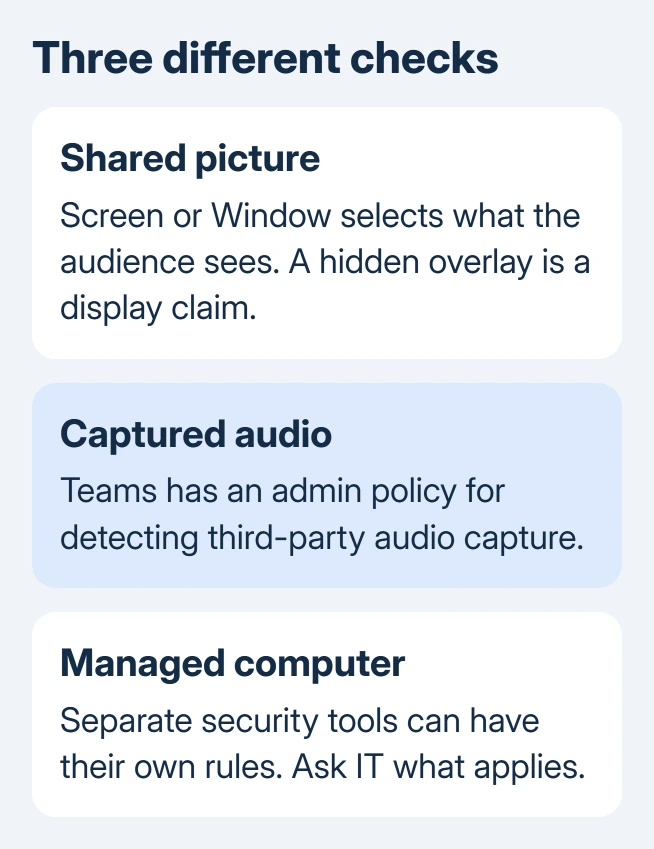
Screen-share visibility, audio-capture detection and work-computer monitoring are separate questions. Check which matters before trusting an invisibility claim, especially for an interview or a meeting with rules about AI assistance.
In this guide
Check audio detection separately from screen visibility
Microsoft documents EnableExternalRecordingDetection in its Teams meeting-policy reference. It controls detection of third-party apps capturing audio on the user's device, including recorders and AI note-taking tools.
When enabled, the client runs detection and participants are notified when a third-party app is detected capturing audio. The reference lists False as the default, meaning that detection doesn't run under that default setting.
Your organization's policy can differ from the default. Don't assume detection is off because you haven't changed Teams settings. Administrators set this policy; it isn't an ordinary personal preference.
The reference covers audio capture in general. It doesn't list supported Cluely versions or promise to recognize every version. It also doesn't say the notice always names the app, so it doesn't settle those questions.
Ask IT whether external audio-recording detection is enabled for your account and the Teams app or browser you're using. Ask about the policy actually applied to your account, rather than whether Teams has ever had such a feature.
Read hidden-overlay claims as display claims
Cluely's visibility guidance has platform and sharing-mode limits. Its Live Insights page carries a September 2025 compatibility note. It also says the app remains visible in the taskbar and Activity Monitor.
That dated note doesn't tell you what works on every computer now. Its Windows Home wording contains an apparent version typo. Ask whether your actual OS and meeting client are supported; the typo makes that version list unclear.
Keeping an overlay out of the shared picture controls what the audience sees. It doesn't answer whether another app is capturing audio, whether a process is running, or what a managed computer can report.
I'd ask for a written compatibility answer rather than accepting the word undetectable on its own. Include your operating system, whether you use Teams on the desktop or web, and whether you'll share a window or the entire screen.
A setting called Make Invisible can't tell you what an employer's separate security software records. That question belongs to the device-management policy and the tools installed on that computer.
Choose the presentation you intend people to see
In a Teams meeting, Share > Screen presents the selected display. Share > Window presents the selected application window. These controls choose what you present, not whether AI assistance is allowed.
For a document review, close unrelated material, then share the document's window. A shared browser window can expose another tab opened inside it. Choosing Window doesn't make everything in that window appropriate for the audience.
The Teams screen-sharing steps cover choosing the source and stopping a presentation. Use Stop sharing when you're finished; minimizing Teams or turning off the camera doesn't end a screen share.
On Teams for the web, the browser also presents a sharing picker. Read whether it is sharing a tab, window or screen before confirming. Don't assume a previous desktop-app choice carries over to the browser.
A second connected device also needs its own check. If a phone is presenting, stopping a laptop's camera won't stop the phone's presentation. Confirm which device is actively sharing before opening private material.
Keep recording notices and capture detection distinct
Teams' built-in recording and transcription features have their own meeting notices. External-recording detection checks for a separate app capturing audio. One kind of notice doesn't tell you whether other recording methods are active.
A bot that joins a meeting as a participant is another case again. Check the participant list and ask the organizer what a note-taking participant does. An assistant running on your computer doesn't have to join as a meeting participant.
If a meeting shows an unexpected recording or capture notice, pause the sensitive discussion and ask the organizer to explain it. Give IT the notice's exact wording, meeting time and client used if the organizer can't account for it.
Don't use the absence of a notice as permission to record. Ask the organizer whether the intended tool is allowed and whether its handling of meeting content meets the organization's requirements.
Ask what the work computer can report
A managed laptop can have security or support software outside Teams. The meeting's Share button doesn't control those tools, and a participant's limited view of your screen says little about what the computer's administrator can inspect.
The unshared-screen explanation separates meeting visibility from device administration. It helps answer what other participants can see, but shouldn't be stretched into a claim that an employer cannot detect installed apps.
For a work computer, ask IT which app inventory or monitoring tools apply. Say whether the device belongs to you or the company. What administrators can see depends on ownership and how the device is connected to their management tools.
For a personal computer used in an interview, ask the organizer what assistance is permitted before the session. Permission is the decision you need; a guess about whether someone could notice an overlay doesn't answer it.
Get a clear answer before the next meeting
Send IT three concrete questions: Is external recording detection enabled for this account? Is this AI assistant approved for meeting audio? What device-management rules apply to this computer? Include the Teams client and operating system.
Report a visibility bug to Cluely support with the OS version, app version and sharing mode. Use a meeting without confidential content to show the problem. Ask about that combination, not a universal invisibility promise.
The Short Version
An enabled Teams policy can detect third-party audio capture; universal Cluely detection isn't promised. Screen overlays, recording notices and device monitoring are separate. Check your policy and whether the tool is allowed.
Checked November 15, 2026.






