

Excel's large white cross normally selects cells. Move onto the ribbon: if it becomes an arrow and cells still select, it's working normally. If dragging won't fill cells or clicks expand your selection, check the fill handle and F8 mode.
What matters is which action has stopped working. A normal selection cross, a missing fill handle and an unresponsive Excel window need different actions, even though each can feel like a stuck cursor.
In this guide
1. Check what the pointer does over a cell
Open an empty worksheet, then move across the grid. Click one cell, type a short value and press Enter. Then click a different cell. If that works, Excel is accepting ordinary mouse and keyboard input.
Move onto a ribbon command, then back to the worksheet. The pointer changes because clicking buttons and selecting cells are different jobs. A white cross in the grid doesn't by itself mean the mouse or workbook is broken.
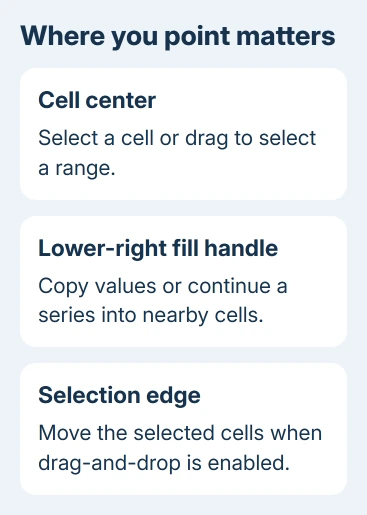
To fill a series, point at the small handle on the selected cell's lower-right corner. To move cells, point at the selection's edge. The cell center selects cells, so dragging there has a different result.
Microsoft says its fill-handle controls support those different operations. Try them in a few practice cells first, so an unexpected drag won't change important data.
If the pointer actually disappears rather than staying visible as a cross, use the missing Excel cursor checks. Making the pointer bigger helps you see it; it doesn't change how it selects cells.
2. Turn off Extend Selection when clicks select too much
Click one cell, then click another some distance away. If Excel selects the whole rectangle between them instead of selecting just the second cell, check whether Extend Selection is active on the status bar.
In desktop Excel for Windows, F8 turns extended selection on or off. Press it once and try selecting two separate cells again. On a laptop whose function keys control brightness or sound, use Fn + F8 if needed to send F8 to Excel.
Shift + F8 adds another range to the current selection. Don't try random key combinations to remove the cross. Watch the selection behavior: the normal cross can remain after you've corrected the mode.
Press Esc to leave an unfinished operation, then try again. If single clicks now select one cell, continue working. If cells still won't respond, compare a blank workbook before changing settings.
The Excel keyboard reference lists selection shortcuts by platform. These function-key steps are for Windows. On a Mac or in a browser, use the shortcuts listed for that platform rather than changing system keyboard settings.
3. Enable the fill handle when dragging won't copy
In Excel for Windows, open File > Options > Advanced. Under Editing options, select Enable fill handle and cell drag-and-drop, then choose OK. This controls filling and moving cells, not the ordinary appearance of the selection cross.
Enter 1 in one empty cell and 2 in the cell immediately underneath it. Select both cells and drag the selection's lower-right handle down a few rows. The numbers that appear will show whether filling is working again.
Keep Alert before overwriting cells enabled when you work near existing data. It gives you a chance to stop an accidental replacement. That matters more than making the pointer look different while practicing a drag.
For desktop Excel on a Mac, open Excel > Preferences > Edit and look under Edit Options for Allow fill handle and cell dragging and dropping. The Mac app doesn't use Windows' File > Options path.
Excel for the web has filling controls but no Windows Options dialog. Try the small handle on an editable sheet. For a read-only workbook, request editing access or use an editable copy before testing changes.
If filling copies a formula but gives the wrong answer, check its cell references. A1 changes as a formula fills; $A$1 stays fixed. That's a formula issue after the drag, rather than a cursor stuck selecting cells.
4. Compare another workbook before restarting Excel
Repeat the selection and fill exercises in a fresh blank workbook. If only one workbook fails, focus on that file: check for a read-only notice, protection message or an operation waiting for a response.
If protection blocks the edit, ask its owner which cells you can edit or for the password. Mouse settings won't let you edit locked cells. Keep the workbook's safeguards in place while checking selection behavior.
If the ribbon and cells all stop responding, save what you can and close Excel normally. Reopen it with a blank workbook first. If the mouse and keyboard work after restarting, a permanent mouse fault is less likely.
For a workbook that stays unresponsive, the Excel freezing guide follows the wider application problem. I'd keep cursor troubleshooting short once it's clear the whole app has stopped responding.
5. Try Windows safe mode for a persistent app problem
Use this step only when Excel keeps malfunctioning across workbooks. Close Excel, press Windows + R, enter excel /safe and press Enter. Look for Safe Mode in the title bar, then test a blank workbook.
If selection works in safe mode but breaks in a normal launch, check File > Options > Add-ins. In Manage, choose COM Add-ins, select Go, and note which items are enabled, then disable them and test again.
Restart normally and re-enable add-ins individually. Report the item that brings the fault back, plus your Excel version, to its provider or IT. A cross that selects cells correctly isn't a sign of a faulty add-in.
This /safe procedure is for Office on Windows. On a Mac or in Excel for the web, note your app or browser version and exactly which action fails for Microsoft support. Include whether a blank workbook behaves the same way.
The Short Version
The white cross normally selects cells. Use the corner handle for filling, the selection edge for moving, and F8 on Windows to leave Extend Selection. Troubleshoot Excel itself only when clicks or edits fail across workbooks.
Checked November 15, 2026.
 If you have any business, I can build it online






