

Safari's Private Browsing doesn't keep localStorage as permanent website data. A site can remember something during a private session and lose it when that session ends, so use a normal tab for information you want to keep.
If the same data disappears in normal browsing, that's a separate storage problem.
In this guide
1. Match the missing data to the browsing mode
LocalStorage is a website's small store of data in the browser. A site might use it for a display preference or an unfinished form. Despite its name, it doesn't promise permanent storage in a private browsing session.
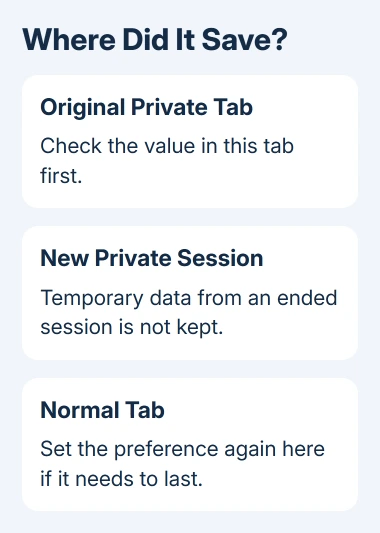
Check whether the missing preference was saved in a private tab, a normal tab, or another device's browser. Each keeps its own data. LocalStorage doesn't become shared account storage when both devices use your Apple Account.
WebKit's tracking-prevention description explains that Safari private tabs use temporary sessions and that private state goes away when the session ends. Private tabs also have separate sessions from one another.
Check the first tab's value in that original tab. A second private tab has a different session. You can then tell whether saving failed or the value disappeared after its original session ended.
Don't clear Safari's history or website data as the first repair. Clearing storage removes the very information you're trying to retain, including useful data in normal browsing.
2. Use a normal tab for a preference that must survive
On a Mac, choose File > New Window in Safari, rather than New Private Window. Open the site in that normal window and set the preference again. A private window has a dark Smart Search field with white text.
If Safari always starts privately, open Safari > Settings > General and check Safari opens with. Choose an ordinary new-window option if that's how you want to browse. Older Safari releases call Settings Preferences.
On current iPhone layouts, open Safari, tap More, then choose New Tab. On iOS 17 and earlier, tap Tabs, switch from Private to the numbered tabs group, then open the site there.
Apple's private-browsing controls show those iPhone paths. For the tab-group approach in more detail, use the iPhone private-tab guide.
On iPad, switch from Private to an ordinary tab group through Safari's sidebar or tab overview. The iPad tab-group steps cover layouts where that switch is less obvious.
Set the preference in the normal tab, reload it, then return after closing and reopening that window. If it stays there but disappears in a fresh private session, the browsing mode explains the difference. No Safari reset is needed.
3. Save important work through the site's own controls
A display preference is easy to set again. An important draft needs a saved copy. For a draft, use the site's Save, Download or account-based saving feature, where it offers one. Check for its saved confirmation before leaving the page.
An account sign-in alone doesn't tell you where a particular draft lives. Some sites save one kind of information to an account and keep another kind only in that browser. Check the site's help for the specific item you're trying to retain.
If a private tab still contains unsaved text, copy it to a document or use the site's export feature before closing it. Opening the site in a normal window won't carry the private tab's localStorage into that window.
I'd treat localStorage as a convenience for preferences, rather than the only copy of work I can't replace. That choice also helps when website data is cleared, a browser profile changes or the device is replaced.
If the site has no saving or export option, ask its support team whether the feature is meant to survive a private session. A browser setting can't turn a session-only design into an account backup.
4. For developers, separate a failed write from a new session
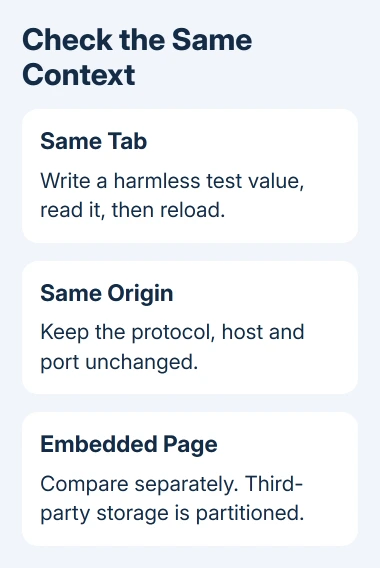
Check the value immediately after setting it, then reload the same tab. Then compare a new tab or a fresh private session. Starting a different session first leaves the original save unchecked.
Use a harmless test key on a development page you control. Keep the same origin: its address, protocol and port. LocalStorage keeps data separately for each origin, so switching from HTTP to HTTPS changes the storage area.
A small write-and-read check can look like this:
try {
  localStorage.setItem('storage-check', 'ok');
  const saved = localStorage.getItem('storage-check');
  console.log(saved === 'ok');
  localStorage.removeItem('storage-check');
} catch (error) {
  console.log(error.name);
}
This checks access at that moment. It doesn't test survival after a private session ends, and it doesn't make the data permanent. The example removes its own test key without clearing the application's other entries.
Make sure the app handles a storage error without breaking the whole page. Keep the page usable, explain when a preference can't be saved, and offer account saving or export for important work where the application supports it.
5. Check embedded pages separately from the main site
A widget inside another site can store data differently from the same widget opened directly. Safari keeps that third-party localStorage separate for each main website and makes it temporary.
For a site you maintain, compare the page opened directly with the embedded version. Note which loses the value and which main site hosts the embed. Even if saving works directly, check saving in the embedded copy too.
Also check for application code that removes the key, replaces stored settings or saves only after another action. Check those parts of your code rather than asking visitors to disable Safari's privacy features.
If storage also fails on the site opened directly, save a small example and the Safari and operating-system versions. Report it to the site developer. Use WebKit's bug-reporting route if that example still shows a browser fault.
When the normal tab also loses the value
Give the site's support team the exact page, the preference or draft involved, and whether a same-tab reload loses it. Mention whether it happens only privately, only in an embed, or on the site opened directly in a normal tab too.
Include steps to repeat the failure by creating and removing the value, without sharing passwords or personal form contents. The developer can then check how the site saves data without asking you to erase everything first.
The Short Version
Private Safari storage is temporary. Keep lasting preferences in a normal tab and save important work through the site's own tools. For developers, compare the same tab and origin before checking a separate embedded page.
Checked November 15, 2026.
 If you have any business, I can build it online






