

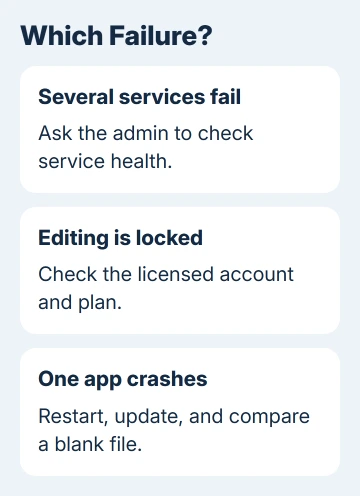
Microsoft 365 issues can come from an outage, an account without the right license, or a broken app. Check service health when several services fail, the account when editing is locked, and the installation when one computer keeps crashing.
An outage won't be fixed by reinstalling Word. A Word crash also doesn't mean Outlook, OneDrive, and Teams are down. Choose the section for your symptom, then continue with the next check if the problem remains.
In this guide
1. Check service health when several services fail
Mail, meetings, and cloud files failing together can point to a service interruption. Ask whether another person in the same organization sees the same failure, and whether another device can reach the affected service.
For an organization account, have its administrator open Microsoft 365 admin center > Health > Service health. They should select the affected service and read its incident or advisory, affected features, and next update.
Microsoft's service-health instructions explain which admin roles can view the dashboard. A normal employee account may not have access, so a permission error there isn't another symptom of the outage.
If the admin center itself can't be reached, check the public service status page. It is a backup channel for major access failures, rather than a complete list of service problems affecting every organization.
Follow an incident that matches your symptoms. Keep local work saved and agree with your team on another way to stay in touch. Rebuilding an Outlook profile during a mail outage won't fix the server.
2. Match activation errors to the licensed account
Unlicensed Product, Activation Required, or a message blocking editing mean you should check the account. Open a desktop app that still starts, choose File > Account on Windows, and inspect the signed-in address and product information.
Use the account that purchased Microsoft 365 or received the work license. Personal and work accounts can hold different subscriptions. The Windows sign-in account doesn't automatically own Office.
For a personal plan, open the account's Services & subscriptions page. For work, ask whether your license includes desktop apps. Don't buy another subscription before checking.
The Microsoft 365 plan comparison explains why a storage plan can leave desktop Word unlicensed. Having OneDrive benefits doesn't necessarily include the desktop Office applications.
If the password itself is rejected, follow the work or school password-reset route for that account. Repairing the installation won't recover a forgotten password or remove an organization's sign-in requirement.
3. Restart and update the affected desktop app
For one freezing app, save the other open work, quit that app, and launch it again. If it keeps failing, restart the computer before changing its installation.
In Windows Word or Excel, open File > Account > Update Options > Update Now. Use another working Office app if the failing one won't stay open. This updates the Office apps, rather than changing the document.
If Update Options isn't available, your organization may manage updates or the installation may use another update method. Ask IT how that copy receives updates. Don't install a second Office package to create a missing button.
On a Mac, open an Office app and choose Help > Check for Updates to use Microsoft AutoUpdate. Apps obtained through the Mac App Store update through the App Store > Updates instead. Use the method that matches how you installed Office.
Retry the same task after the update finishes. An app that opens successfully but fails on one particular file needs the file check next, rather than repeated restarts.
4. Compare a blank file with the affected document
Create a blank document or workbook in the same app and enter a little harmless text. Save it locally, using a folder that accepts new files. Then reopen it and repeat the operation that was failing.
If only one document fails, keep an untouched copy. Ask its owner for a fresh copy or use the app's document-recovery steps. Check macros and external connections separately from basic typing and saving.
If only cloud saving fails, check the account, connection, and service health. Confirm saving has finished before switching computers. A local copy can keep work moving while the shared location is unavailable.
I'd make this comparison before a full repair. The result separates an app-wide failure from a problem with one document, so you'll know what to send support.
5. Repair Microsoft 365 on Windows
Close the Office apps first. In Windows 11, right-click Start > Installed apps, find Microsoft 365 or the installed Office suite, open its three-dot menu, and choose Modify.
In Windows 10, right-click Start > Apps and Features, highlight the Office suite entry and click Modify. Pick the suite entry rather than assuming every individual app has its own repair button.
For a Click-to-Run installation, choose Quick Repair first for a fast repair of damaged program files. If the failure remains, use Online Repair, which needs an internet connection and performs a more complete repair.
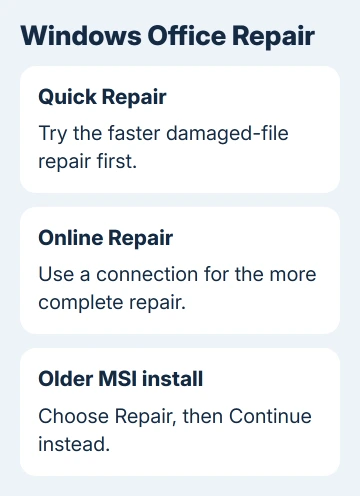
An older MSI-based installation shows Repair > Continue instead. Repairing a suite affects its Office applications even when only Word or Excel was failing. Let the process finish, restart if requested, and repeat the original task.
6. Use the Mac or managed-device support route
Mac Office doesn't have the Windows Modify > Online Repair dialog. After updating and testing a blank file, use Help in the affected app to reach its support options. Report whether other Office apps work.
On a managed computer, give IT the app name, exact error, operating system, and whether the fault happens in a blank file. Include any incident ID from service health and the result of the repair, if one was allowed.
For a personal subscription, open the Get Help app on Windows and describe the Microsoft 365 error. For a work account, the administrator can request support in the admin center. They have access to fix account or policy problems.
The Short Version
Check shared service failures first, then the licensed account. Restart and update a crashing app, compare a blank file, and use Windows repair for an installation fault. Tell support the exact error and how each check turned out.
Checked November 15, 2026.
 If you have any business, I can build it online






