

Core isolation can disappear from Windows 10 when hardware virtualization is disabled. Open Device security directly, then check virtualization in firmware. The error message helps separate missing support from an access restriction.
A missing page isn't the same as a Memory integrity switch that rejects a driver. For a missing page, check hardware support and access. For a driver block, look for a compatible update for the named driver.
In this guide
1. Open Device security instead of the search result
Open Start > Settings > Update & Security > Windows Security, then select Device security. This is the Windows 10 route. Windows 11 places Windows Security under Privacy & security instead.
Look for Core isolation, then select Core isolation details if that link appears. Reaching a page with a Memory integrity switch means the page is available, even if its protection is currently off.
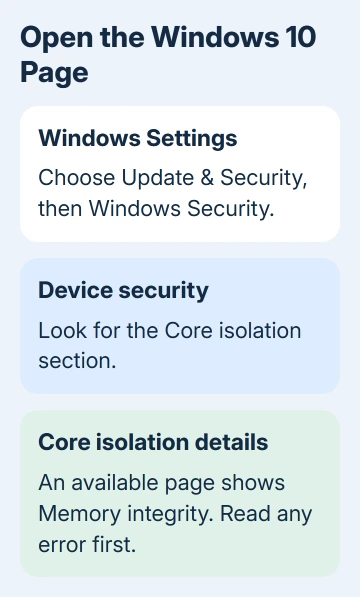
Microsoft's Device security guidance explains that available features depend on the Windows version and installed hardware. Your Windows 10 PC won't necessarily have every option shown in a newer PC's screenshot.
If the direct route works but the Start search result doesn't, use the direct route to manage the setting. Reinstalling Windows because one search shortcut failed would be a large change before you've checked the actual feature.
Write down the exact message when it fails. A restriction from your IT administrator calls for a different next step from a message that the page has no supported features. Use that wording to choose the right check next.
2. Check whether hardware virtualization is enabled
Press Ctrl + Shift + Esc to open Task Manager. Select More details if you only see a short app list, then choose Performance > CPU. Read the Virtualization entry in the processor details.
Disabled means the firmware setting needs checking. Enabled means the processor's virtualization feature is already available to Windows. It doesn't mean Memory integrity itself is on, so don't stop at that one reading.
Firmware controls your PC before Windows starts. Hardware virtualization lets Windows keep sensitive security work in a separate protected environment using the processor. Core isolation needs it; app permissions can't replace that setting.
For a Disabled reading, get your PC or motherboard manufacturer's instructions for enabling processor virtualization. Intel systems often call the control Intel Virtualization Technology or VT-x. On AMD systems, look for SVM Mode.
On an ASUS system, our Windows 10 virtualization guide separates supported firmware paths. For another brand, follow its own model instructions rather than assuming the ASUS menu names apply.
If Task Manager already reports Enabled, leave that firmware switch alone and continue to the permissions and compatibility checks. Repeatedly toggling it won't explain an administrator restriction.
3. Enable the firmware setting, then check Windows again
Save your work before restarting. On Windows 10, open Settings > Update & Security > Recovery, then select Restart now under Advanced startup.
Choose Troubleshoot > Advanced options > UEFI Firmware Settings > Restart when that option is offered. If it isn't there, use the startup key described in your PC's manual to enter its firmware setup.
On encrypted PCs, retrieve the recovery key for BitLocker before editing firmware. Firmware changes sometimes trigger its recovery screen. On a work computer, let IT handle this part.
Find the processor virtualization control, enable it, and save the change using the firmware's own exit controls. Leave unrelated TPM, boot mode, storage, and Secure Boot settings alone. This check is about processor virtualization.
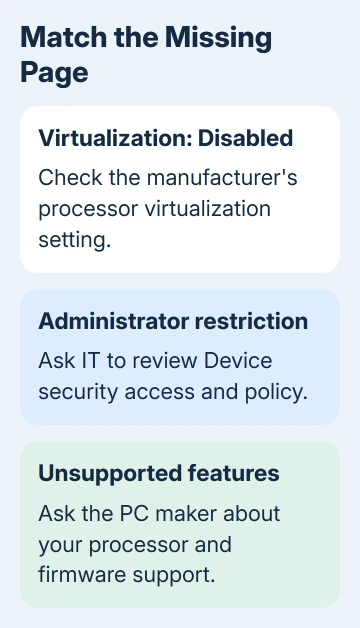
After Windows starts, repeat the Task Manager > Performance > CPU check. If it now says Enabled, reopen Device security. The appearance of Core isolation details confirms that the missing page is now accessible.
If virtualization remains Disabled, ask the manufacturer to confirm the exact setting for your model and firmware revision. Don't assume a saved change worked just because the setup screen closed.
4. Match the remaining message to its cause
For an administrator access restriction, contact the organization managing the PC. Request a review of Device security access and virtualization-based security policy, and include the message's exact wording.
On a personal computer, confirm whether Settings > Accounts > Access work or school lists an organization. A connection there can explain management settings. Don't disconnect a work account simply to remove a security message.
For unsupported hardware, ask the manufacturer whether your processor and firmware support Windows 10 Core isolation. Turning on a setting lets Windows use support that's already there; it can't add features your processor lacks.
If this is Windows inside a virtual machine, the host's settings matter too. The administrator needs to review the Memory integrity requirements for virtual machines.
Avoid applying physical-PC firmware instructions inside a guest operating system. Changing the guest's Windows settings won't supply virtualization features that the host hasn't made available to that virtual machine.
5. Repair a driver block only after the page opens
Once Core isolation details opens, read what happens when you enable Memory integrity. If it lists incompatible drivers, you've reached the page and can work on that driver problem.
Use the driver names and publishers to find compatible updates from Windows Update or the relevant manufacturer. Our Memory integrity driver guide explains that repair sequence; its Windows 11 Settings paths differ from Windows 10.
If the page still fails with virtualization enabled and no management restriction, take the model, firmware version, Windows version, and exact message to the PC maker's support team. Ask whether that configuration supports the feature.
For a managed PC, give those details to IT instead. I'd stop before applying registry files from an unrelated computer. Changing the registry won't tell you whether your processor, firmware, or organization supports this protection.
The Short Version
Open Device security directly and check processor virtualization. Enable it through the manufacturer's firmware instructions if needed, then separate hardware limits from access restrictions. Repair driver blocks once the page opens.
Checked November 15, 2026.
 If you have any business, I can build it online






