

Lenovo laptops use different BIOS entry keys: most IdeaPad models use F2 or Fn + F2, while ThinkPads generally use F1. Restart the laptop and press the correct key as the Lenovo logo appears.
Windows also offers a route into the firmware settings without catching that brief startup window. On models with a Novo button, its menu gives you another way in.
Choose the method for your laptop rather than trying recovery commands at random.
In this guide
Use the startup key for your Lenovo family
Save your open work and select Start > Power > Restart. Watch the screen as the laptop starts again. Begin tapping the correct key when the Lenovo or ThinkPad logo appears, before the Windows sign-in screen.
For IdeaPad and supported Yoga models, try F2. If the top row normally changes volume or brightness, use Fn + F2. Hold Fn while tapping F2 rather than pressing the two keys at separate times.
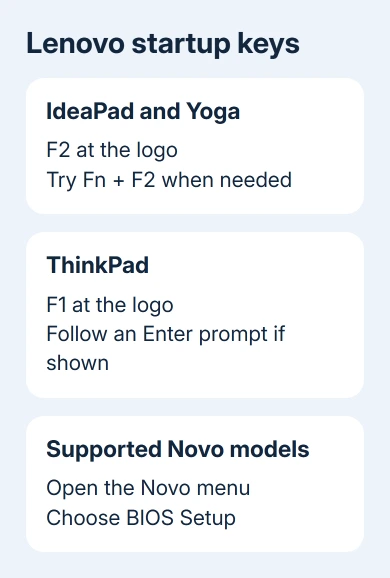
For ThinkPad, use F1 at the logo. Some startup screens offer an Enter prompt for a startup interrupt menu; follow that prompt and choose the BIOS entry shown there instead of assuming every model has the same first screen.
Lenovo's IdeaPad Slim 5 instructions use repeated F2 presses. Its 100e/300e Windows manual lists F2 or Fn + F2. The T14/T15 family manual uses F1.
If Windows opens, you missed the startup window or used a key the model doesn't use. Restart once more with the correct combination ready. Don't keep holding the power button to interrupt Windows just to reach BIOS.
A laptop that never shows a logo needs the Lenovo power and startup checks first. The BIOS key won't help if the laptop hasn't started far enough to respond to it.
Enter through Windows when the key is hard to catch
On Windows 11, open Settings > System > Recovery. Under Advanced startup, select Restart now. Save your work before confirming the restart.
At the recovery menu, choose Troubleshoot > Advanced options > UEFI Firmware Settings, then Restart. The next screen should be the Lenovo firmware interface rather than Windows sign-in.
On Windows 10, begin at Settings > Update & Security > Recovery. Under Advanced startup, select Restart now, then follow the same Troubleshoot and UEFI Firmware Settings choices.
Microsoft says the Windows recovery menu lets you enter firmware settings. UEFI is the modern firmware interface; many people still call its setup screen BIOS.
This method is useful when the logo disappears too quickly or the function-key behavior is unclear. It asks Windows to restart directly into the firmware, so you don't need to time a key press.
Older setups don't all have the same recovery choices. If UEFI Firmware Settings is missing, use your model's startup key or Novo method. Don't change disk partitions or boot mode just to make this option appear.
On a work laptop, IT controls or a firmware password may limit what you can open. Ask the organization's administrator for the setting you need rather than trying to bypass its controls.
Use Novo only when the model has that control
Shut the laptop down before using a physical Novo button. Check the model's user guide for where it is and how to use it. Depending on the laptop, it can be a small button or a recessed button hole.
The Novo Button menu can offer firmware setup, a boot-device choice and recovery. Select BIOS Setup or UEFI/BIOS Setup, using the label shown on that machine.
An emergency-reset hole isn't a Novo button. Confirm the labeled control in the manual before inserting a tool into a recess. A similar-looking opening can perform a different function.
Some Lenovo manuals list another way to open the Novo menu, such as a keyboard and power-button combination. Use such a shortcut only when the guide for your exact model lists it.
Choose the firmware entry rather than System Recovery. Recovery is for restoring the operating system, which is a different task from viewing firmware settings.
The Lenovo reset guide explains those recovery choices when a reinstall is actually your goal. Simply entering BIOS doesn't require resetting the laptop or erasing Windows.
Tell BIOS Setup apart from the boot menu
The BIOS or UEFI setup interface contains hardware and startup settings. A boot menu is a shorter list of devices the laptop can start from, such as its internal drive or a connected USB installer.
On many Lenovo laptops, F12 opens that boot-device list. It doesn't open the setup screen that F1 or F2 opens. If the screen only lists boot devices, return to startup and use the setup method for your model.
For a one-time USB boot, the boot menu may be all you need. Changing the permanent boot order inside BIOS adds a lasting change that a one-time selection can avoid.
I'd use the Windows firmware route when Windows still works and the key timing keeps failing. For a laptop that can't reach Windows, the documented startup key or Novo menu is the practical route.
Leave setup without making an unwanted change
Read the screen's list of keyboard controls before moving through the menus. Firmware layouts differ between Lenovo models, so an online screenshot from another laptop isn't a reliable map of your menus.
If you only came to look at settings, choose the exit option that discards changes. If you changed something on purpose, use the save-and-exit option shown by that firmware and check its confirmation before accepting.
Before changing boot or security options, have the drive's BitLocker recovery key available. Such changes can lead Windows to ask for that key at startup. Merely looking at the settings doesn't require altering them.
Don't load setup defaults to fix trouble getting into BIOS. It changes settings after you've already reached BIOS and can affect how an existing Windows installation starts.
When none of the entry methods works
Use Lenovo Support with the laptop's exact model or machine type. Ask for its BIOS entry key and whether it has Novo. Report whether the logo appears, whether Windows starts, and which key combination you tried.
For a firmware password prompt, start with the laptop's owner or your IT team. Lenovo's service options depend on the password type and model; a Windows account password reset isn't the same repair.
The Short Version
Try F2 or Fn + F2 on IdeaPad models and F1 on ThinkPads at the startup logo. Windows Recovery can restart into UEFI Firmware Settings. Supported Novo menus offer BIOS Setup separately from boot selection and System Recovery.
Checked November 15, 2026.






