
Smart charging in Windows 11 is controlled by the laptop maker, so there isn't one Windows switch that turns it off on every PC. On a supported Surface, open Surface > Battery & charging and select Charge to 100%.
Other brands use their own battery app or firmware setting. A battery that stops at a consistent charge limit needs that model's charging control; Windows Energy saver and Power mode are different settings and won't remove the limit.
In this guide
Find the charging control your laptop actually uses
Look at the battery icon and the maker's battery application. A heart over the Windows battery icon means Smart charging is active on a supported device. Some manufacturers use their own charge-limit labels instead.
The point is to stop the battery spending long periods completely full when the laptop stays plugged in. That can be helpful at a desk, but you'll want a fuller charge before spending a day away from an outlet.
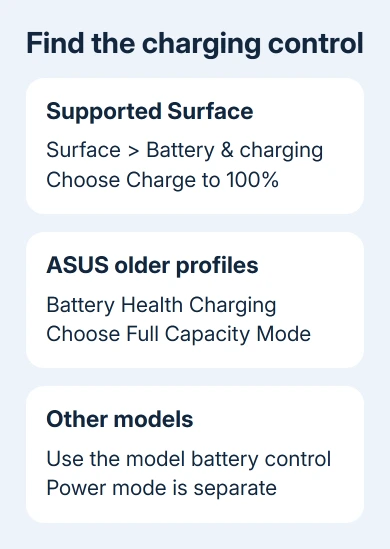
Search Start for the computer's own battery app, such as Surface or MyASUS. Read the battery section before changing Windows power settings or looking for a registry adjustment.
Microsoft says to follow the device maker's Smart charging instructions because each maker decides how the feature works. Windows 11 can show the feature without providing a universal off switch.
If you're unsure of the brand's utility, look up your exact laptop on its manufacturer's support site. Ask for its charging-limit control.
Don't install another manufacturer's battery utility simply because its instructions have a convenient toggle.
For a battery that will barely run the laptop even after a full charge, check its battery health. A charge limit and a worn battery are different reasons for reduced unplugged use.
Charge a supported Surface to 100%
Open Start > Surface. In the Surface app, select Battery & charging. Find Smart charging and select Charge to 100% if your device offers it.
Depending on the Surface model, the app may offer a period for pausing Smart charging. Keep the power supply connected and give it time to reach a full charge before you need to leave.
This pauses the battery protection; it doesn't keep Smart charging off permanently. The device can turn it on again based on how you charge it and the conditions it's used in.
Some models also offer Charging mode > Limit to 80%. If that mode is selected, choose Charge to 100% for a full charge, or Adaptive to return to automatic management. Adaptive doesn't promise an immediate full charge.
Those choices come from the Surface charging instructions. Not every Surface supports manually managing Smart charging, so some models have no manual override button.
If the Surface app isn't installed, it is available from Microsoft Store. After opening it, check the options your device shows rather than expecting the same controls as a different Surface generation.
Plan ahead for travel. Choosing a full charge just before unplugging won't instantly fill the battery. The useful result is the percentage continuing past its previous cap while the charger remains connected.
For a Surface charged through USB-C, match the power supply to the Surface model. A charging-mode change can't compensate for an unsuitable supply during demanding use.
Choose full charging in the ASUS battery app
ASUS has more than one version of its battery controls.
On supported systems with Battery Health Charging, Full Capacity Mode allows a full charge. Balanced Mode caps charging around 80%, while Maximum Lifespan Mode caps it around 60%.
If you're using that standalone utility, find its notification-area battery icon, right-click it, then select Full Capacity Mode. The Battery Health Charging guide describes the three choices and the model-dependent availability.
In MyASUS, open Device Settings and look for the battery section. Newer versions can use Battery Care Mode instead of the older three named profiles. Follow the control offered by the app for your supported laptop.
Some versions offer Instant Full-Charge Mode for a temporary full charge. If it's present, use it for a trip rather than assuming Battery Care must remain off indefinitely. Read the app's explanation of when protection resumes.
The current MyASUS Device Settings reference describes different battery features by model. An older screenshot showing three profiles isn't a reliable map for every current MyASUS installation.
After changing the setting, leave the charger connected and watch whether charging resumes.
If the selected mode allows a full charge but the percentage doesn't move, continue with the power checks instead of cycling that control again.
Use the exact model's instructions for other brands
For Lenovo, Dell, HP and other makers, search the installed support or battery application for Conservation, Battery charge limit, Charging mode, or a similarly named battery setting.
The labels and available limits vary by product family.
Use the model's official support instructions to choose normal or full charging. Some laptops manage charging in firmware instead of a Windows app, and some don't offer a user-adjustable limit.
I'd check the installed maker's utility first. It can show a deliberate limit immediately, saving a trip through unrelated Windows settings and avoiding a firmware change you don't need.
On a company laptop, the organization can manage battery behavior. If a charge-limit control is locked or missing from the approved app, ask IT whether a policy or firmware setting controls it.
Give them the model and the exact percentage where charging stops. A stable cap after each charge is useful information; a battery that stops at different levels or disconnects from power needs more power checks.
Leave Windows power modes separate from charging limits
Settings > System > Power & battery contains controls for energy use and runtime. Changing Power mode or switching Energy saver off isn't the manufacturer's charge-to-100% command.
Keep the power settings that suit your work while you adjust the charging control. A laptop can save energy while charging fully, or use a performance mode while a battery-care limit remains active.
If charging still stops unexpectedly, check the original or correctly rated adapter, the cable connection and the maker's app status. Check for a temperature or adapter warning before assuming software is keeping the percentage stuck.
A visibly swollen battery needs service rather than a different charging profile. Stop using the laptop and contact the manufacturer for safe battery replacement instructions.
When the laptop still won't reach a full charge
Contact the maker's battery or power support team with the exact model, chosen charging mode, displayed percentage and adapter details.
Ask whether that model supports temporarily overriding its limit and how to check the current firmware setting.
If full charging is enabled already, ask them to check adapter recognition and battery condition. Those checks address the power problem that remains once you've ruled out a charging limit.
The Short Version
For full charging, select Charge to 100% on a supported Surface or Full Capacity Mode in older ASUS Battery Health Charging. Other makers use their own controls. Windows power modes don't override a battery cap.
Checked November 15, 2026.





