

Android Auto puts compatible navigation, calling, messaging, and music apps on your car's display. Connect the phone while parked, finish the setup prompts, then use the app launcher or voice controls to choose what you need.
Bluetooth calls alone don't mean Android Auto is running. Look for its app launcher and dashboard on the car screen; some vehicles need you to select Android Auto after the phone connects.
In this guide
Get Android Auto onto the car display
Start with the car parked and the infotainment system on. Supported Android phones already include Android Auto, with no separate app to install before getting started. The car or aftermarket receiver must support it too.
The current phone requirements are Android 11 or later and an active data plan. Wireless use also needs 5 GHz Wi-Fi support. Check the supported-country list on that page.
For a wired connection, plug a suitable USB cable into the car's supported USB port and your phone. Follow the prompts on both screens. The phone might ask for an Android Auto update before setup can continue.
For wireless setup, the vehicle must support wireless Android Auto. Pair the phone with the car through Bluetooth, keeping Bluetooth, Wi-Fi, and Location Services on during setup. Follow the vehicle's pairing instructions.
Google's setup instructions say the wireless interface should start shortly after pairing. Select Android Auto on the display if the vehicle asks you to launch it.
If the display never opens, use the Android Auto connection checks. Continue with these steps once Android Auto appears on the display. A phone that's only charging through the car's USB socket hasn't reached that point yet.
Find the launcher, dashboard and recent apps
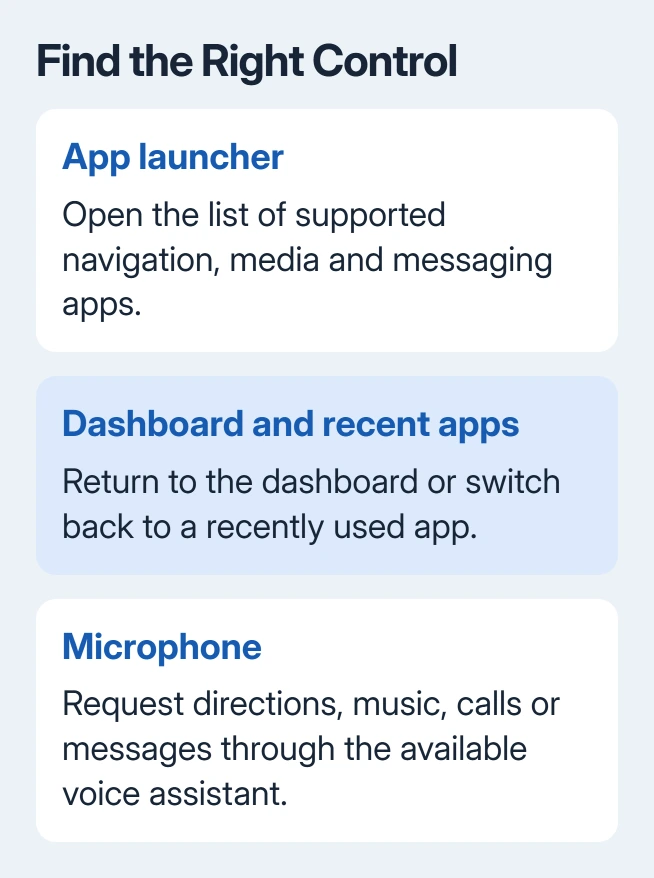
Tap the app launcher to see compatible apps. Choose an app there to open it on the display. The launcher isn't a mirror of every application installed on your phone, so don't expect the complete phone app drawer.
The recent-apps area gives you shortcuts to recently used navigation, media, and communication apps, plus another app. Use those shortcuts to return to the map or audio app without opening the full launcher each time.
When you're inside the launcher, the dashboard control takes you back to the dashboard. Layouts vary with the vehicle display, so learn the controls by their purpose rather than expecting every car to match one picture.
The status area shows time, signal strength, and battery status. A numbered circle indicates missed calls, messages, or alerts. Tap that circle to open the notification center when it's safe to check them.
I'd find these controls before the first trip. Recognizing the route back to your map is more useful than learning every setting while you're still learning your way around the screen.
Start directions and check the destination
Open the navigation app from the launcher or use voice control to request directions. For voice, tap the microphone, say Hey Google, or use the supported steering-wheel voice control.
Say the destination clearly, including the city or street when several places share a name. Check the destination shown on the screen before following the route. A familiar business name can refer to a different branch.
To enter an address on the display, open the navigation app's search controls while parked. Choose the correct result and start guidance. The available typing and search controls can change with the app and whether the vehicle is moving.
Once guidance is running, use the recent-app shortcut to return to the map after changing music. Navigation and media are separate apps; opening your audio app doesn't mean you must enter the destination again.
For a trip through weak coverage, prepare Android Auto for offline driving before leaving. Downloading a map and preparing music are separate jobs, and live information still needs a connection.
Choose music or another supported audio app
Open a compatible media app from the launcher. Select the audio you want using its available controls, or ask the voice assistant to play an artist, album, playlist, or other supported content.
Name the app in your request when you have several services installed. That tells the assistant which service you want to use, rather than leaving it to choose one for the song.
Check the selected app on your phone before the drive if it needs a subscription, sign-in, or downloaded content. Android Auto displays supported controls; it doesn't create a subscription or download your library for you.
Use the displayed playback controls for pause and track changes. If a media app is missing from the launcher, check that it supports Android Auto and is installed and ready on your connected phone.
For media controls alongside a full-screen app, enable Show quick controls for apps in Android Auto settings on the phone. This gives you access to media and navigation information without switching the full-screen app each time.
Make a call or reply to a message by voice
Activate the voice assistant and ask it to call a contact. Include the person's full name or which number to use when your address book contains several matching entries. Check any offered choice before placing the call.
An incoming call can be answered through the car's available call controls. Use the vehicle manual for steering-wheel button behavior, since the same button can work differently in another car.
For messages, ask the assistant to send a message through a supported service and name the recipient. Listen to the response and confirm the intended wording before sending when the assistant requests confirmation.
Message notifications can also offer playback and reply controls. Use those controls rather than picking up the phone to read the conversation. Android Auto's supported messaging experience is designed around listening and voice replies.
If a contact or app can't be used, check the account, app setup, and permissions on the phone once parked. A failed request for one service doesn't automatically mean the car has lost its entire Android Auto connection.
Use the voice assistant your account currently offers
Some accounts show Gemini and others still use Google Assistant during the transition. Both support familiar requests for directions, calls, messages, and music. Keep using familiar requests when the assistant's name changes.
The steering-wheel method can require a held voice button, but check your vehicle's instructions. A brief press can activate the vehicle's own voice system instead of the assistant connected to your phone.
When speech isn't recognized, try the on-screen microphone while parked. If that works and the steering-wheel button doesn't, check the vehicle's button instructions before changing unrelated phone settings.
If it still won't work, give the receiver manufacturer the phone model, Android version, connection type, and failed control. Report whether maps and audio still work; that helps separate a voice problem from a lost connection.
The Short Version
Connect while parked, open Android Auto, and use the launcher to choose maps, audio, or communication apps. Learn the dashboard and recent-app controls, check your destination, and use voice for supported calls and messages.
Checked November 15, 2026.
 If you have any business, I can build it online






