

Scientific notation in Excel works best as a number format: select the cells, open the number-format menu on Home, and choose Scientific. The cells then display values such as 1.23E+06 while calculations keep using the stored numbers.
To enter a new number, you can also type it with E, such as 1.23E6. This is useful for very large or very small measurements. Account numbers need different handling because their exact digits matter more than arithmetic.
In this guide
Enter a number using E notation
Click an empty cell, type 1.23E6, and press Enter. The E means multiply by a power of ten, so this entry represents 1,230,000. A negative exponent moves in the other direction: 1.23E-6 represents 0.00000123.
The exponent belongs after E. Don't type a multiplication sign or a superscript into the cell when the entry needs to behave as a number in Excel.
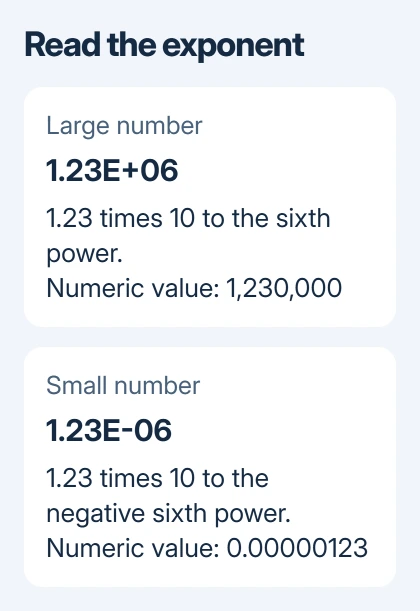
A quick check is to multiply the cell by 10 in another cell. If the first entry is in A1, enter =A1*10 in B1. If Excel reads the entry as a number, the formula multiplies it by 10. Text that Excel can't convert gives an error instead.
The displayed style can depend on the cell's existing format. If the cell was already formatted as Text, Excel can keep what you typed as text. Change its format to General and re-enter the value if that happened.
Use the decimal separator expected by your Excel settings. An English US workbook normally uses a period. A workbook used with different regional settings can expect a comma, so use the separator already working in that file.
Apply Scientific to existing numeric cells
- Select the cells containing the measurements.
- Open the Home tab.
- In the Number group, open the number-format list and select Scientific.
- Check a known value before applying the same choice to the rest of the column.
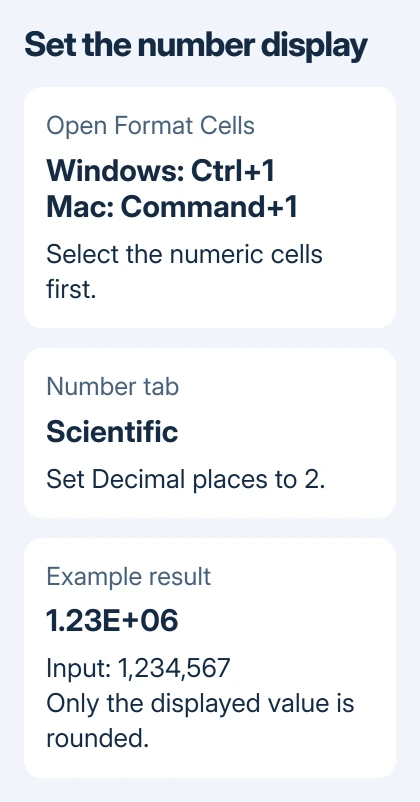
In desktop Excel, Ctrl+1 opens Format Cells on Windows. On a Mac, use Command+1. Choose the Number tab, select Scientific, set Decimal places, and use OK to apply it.
Microsoft's scientific-format instructions explain that formatting changes the display without changing the stored value used for calculations.
For example, formatting 1,234,567 with two decimal places gives 1.23E+06. That screen value is rounded for display. It doesn't replace the stored measurement with exactly 1,230,000.
Select that cell and look in the formula bar when you need to compare the entry with its shortened display. For a formula cell, the formula bar shows the formula, so inspect its inputs as well.
Choose the decimal places your report needs
The decimal places in Scientific refer to the digits after the decimal point in the first part of the display. Two decimal places show three significant digits in a normal scientific display, such as 1.23E+06.
With three decimal places, the same measurement can display as 1.235E+06. Choose the number of digits your work needs. Adding more digits won't make the measurement more accurate.
In Excel for the web, select Scientific from the number-format choices on Home. Use Increase Decimal or Decrease Decimal to adjust the display. The web app doesn't need the desktop Format Cells dialog for this task.
Widen the column if the display won't fit. Use the same format for measurements that belong together. That makes their exponents easier to compare without checking how each cell is formatted.
I'd check one large value and one small value before formatting a whole results sheet. You'll see whether the decimal places you've chosen suit both measurements.
Use a custom exponent format when required
Desktop Excel can use a custom format code for a particular reporting style. Select the numeric cells, open Format Cells > Number > Custom, and enter 0.00E+00 in Type.
That code displays two decimal places and an exponent with at least two digits. The plus in the code lets positive exponents display their sign, making E+06 easy to distinguish from E-06.
Check the Sample area before applying the format. Use a copy of the workbook while trying unfamiliar codes so the original report keeps its intended presentation.
A custom format changes how the stored number looks, including its decimal places and exponent style. It doesn't perform a calculation. It doesn't convert a measurement to different units or give a number extra precision.
For a typical sheet, the built-in Scientific choice is simpler. Use custom formatting when the receiving team or report specification asks for a particular exponent style.
Keep calculations numeric and identifiers as text
Arithmetic formulas can refer to scientifically formatted cells normally. Adding two such cells adds their stored values, rather than the shortened labels on screen. Format the result cell separately if it also needs Scientific.
The TEXT function is useful when a formatted result must become part of a sentence. However, its result is text. Keep the original numeric cell for later calculations instead of replacing your numbers with formatted text.
Scientific formatting doesn't increase Excel's 15-digit numeric precision. For long identifiers, use the long-number handling steps before entering or importing the data.
Serial numbers, barcodes and account numbers need every character kept exactly. An exponent display isn't useful for copying them. Store these identifiers as text to keep their digits, rather than treating them as measurements.
If the display changed after removing Excel table formatting, inspect the cell's number format too. Table styling and the underlying cell format can affect different parts of its appearance.
Check the saved workbook before sharing
Save the workbook, reopen it, and compare a few formatted cells with their original inputs. Check both positive and negative exponents if the sheet contains large and small measurements.
Keep an Excel workbook when recipients need formulas and editable formats. A plain-text export doesn't carry the workbook's formatting controls, so check the exported file separately if another program will import it.
If a numeric value is still treated as text, make a small sample with the original entry, its number format and your regional decimal separator. Send the sample to your organization's spreadsheet support team or Microsoft Support.
The Short Version
Enter a new value with E notation, or select existing numeric cells and choose Home > Number > Scientific. Set decimal places to suit the report. Formatting shortens the display while formulas keep using the stored value.
Checked November 15, 2026.
 If you have any business, I can build it online





