

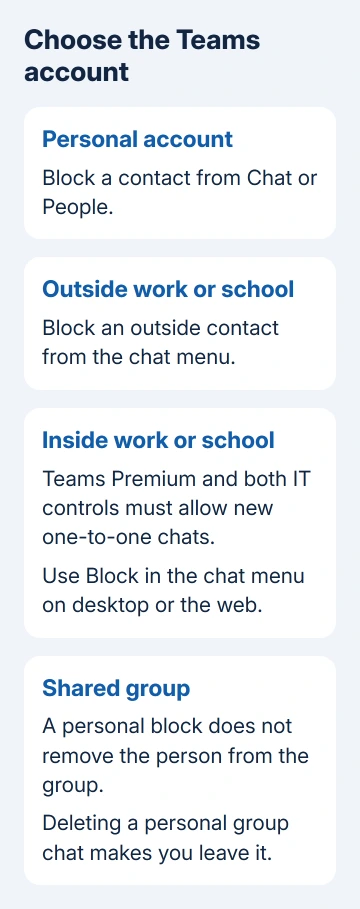
Blocking someone on Microsoft Teams starts in the person's chat menu. Choose More options > Block for a personal contact or an outside work contact.
Some internal one-to-one chats can also be blocked in work or school Teams. That needs Teams Premium and an admin-enabled policy, so a missing button can reflect your organization's settings.
A group conversation needs extra attention: blocking a personal contact doesn't remove their messages from a shared group. Check whether you need to block direct contact, quiet a chat or ask its owner to remove a participant.
In this guide
Choose the account and conversation first
Select your profile picture and check which account is active. The same Teams installation can contain personal and organizational accounts, so you might see Block in one account but not another.
Find the person in the chat list and confirm their identity. For unwanted group messages, check the group's participant list too. Blocking direct contact and removing a group member are different actions.
For the general layout, the Teams chat and account guide explains the chat list and organizational sign-in. Return to the account receiving the unwanted contact before using the steps here.
The personal-account blocking controls prevent the blocked contact from adding you to a one-to-one chat, a new group chat or a community, and from calling you in Teams.
Use Block when you want to stop that person contacting you directly. Hiding a chat only removes it from view, while muting changes notifications. Neither should be used as a substitute for a block you actually need.
Block a personal contact on a computer or phone
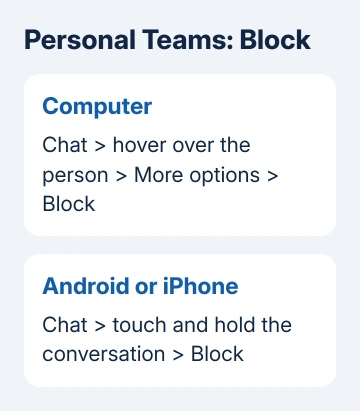
In Teams for personal use on a computer, open Chat. Hover over the person you want to block, select More options, then choose Block. If the person isn't visible, use Search at the top to find the contact first.
The desktop People tab provides another route. Find the contact there, select More options > Block, and follow any confirmation shown. Use the route that makes the intended contact easiest to identify.
On Android or iPhone, open Chat, touch and hold the person's conversation, then tap Block. The mobile long-press opens those same chat controls.
Check that the action applies to the intended person before confirming. After blocking, don't expect the old conversation to disappear automatically. Blocking limits contact; it doesn't erase your chat history.
If your menus don't match, check the active account again. Work and school accounts use a different blocking procedure, so switching to that profile and repeating the personal-account steps won't add a missing control.
Block an outside or eligible internal work contact
In the organizational Teams chat list, find the outside person and select More options > Block. Another desktop route is to hover over their profile picture, open the profile card and select More options > Block contact.
For a new external chat request, use the action it offers. Depending on the chat type and your organization's settings, that can be Block, Delete or Leave. Don't accept a suspicious request just to look for a blocking menu.
Microsoft's external-contact instructions explain the Report this person option in the confirmation window. Reporting shares the person's contact details and messages with your IT admin for review.
A blocked outside person can't communicate with you in Teams or view your status. Use the separate reporting option when your IT team needs to know about the contact, such as an unexpected request pretending to come from a colleague.
For an eligible new internal one-to-one chat, open Chat, find the conversation, then choose More options > Block. This needs Teams Premium and works in the desktop or web client.
IT must enable Priority account chat control in both the organization's messaging settings and your assigned messaging policy. Microsoft's internal-blocking requirements explain the two controls.
It doesn't apply to channel or meeting chats. If Block is missing, ask IT to check the license and both controls. Microsoft currently notes that a blocked internal contact may still see your presence status.
Handle shared groups, communities and files separately
In personal Teams, a blocked person's messages remain visible in a group chat you both belong to. To stop them taking part in that group, someone with permission needs to remove them through the group's membership controls.
Without removal permission, ask the group manager or leave when appropriate. In personal Teams, deleting a group chat makes you leave it; it remains for other participants.
For a personal Teams community on desktop, open Communities, select the community and select the person's profile picture. In their profile, choose More options > Block contact.
On mobile, open the community, tap its name, then under Members select Manage. Open View profile for the person and choose the blocking action shown for their name. Follow the confirmation on that screen.
Blocking a community member doesn't remove them from the community. A community owner must remove the participant when their membership needs to end. Ask the owner for removal separately, even if you've already blocked the person.
Shared files need their own permissions check too. A link set to Anyone with this link can remain usable after a contact is blocked. Ask the file owner to review the OneDrive folder permissions if access should end.
Quiet a chat when blocking isn't the goal
For an organizational desktop chat, hover over the conversation, choose More options > Mute. You remain in the conversation. Regular chat notifications stop, but mentions can still notify you.
Choose More options > Hide to put the conversation out of view. The conversation can return when someone sends a new message. That behavior is expected and doesn't mean Teams ignored a block.
In personal Teams on desktop, right-click the chat or open More options, then choose Mute or Hide. Pick the control for the result you need rather than repeatedly hiding a conversation that keeps returning.
Unblock a contact or ask the organization for help
For personal Teams on desktop, select Settings and more > Settings > People > Manage blocked users. Find the contact and choose Unblock. Check the name carefully when several contacts have similar display names.
On a phone using personal Teams, tap Profile picture > Settings > People > Blocked contacts. Find the person, then choose More > Unblock contact. Use this phone route instead of looking for the desktop Manage blocked users screen.
For work or school Teams, use the person's More options > Unblock in the chat list, or Unblock contact on their profile card. Another route is Settings > Privacy > Edit blocked contacts, then Unblock beside the person.
If unwanted contact continues, give your IT team the active account, whether the person is internal or external, and whether messages arrive privately or through a shared group. Those details determine the next action they can take.
The Short Version
Use Block in the right account. Eligible internal one-to-one blocking needs Teams Premium and IT policy. Deleting a personal group chat makes you leave it; shared files need separate permission changes.
Checked November 15, 2026.
 If you have any business, I can build it online






