

Remove a Windows 10 user in Settings > Accounts > Family & other users: select their account and choose Remove. First, sign in as another administrator and copy needed files. This removes their sign-in and files in that Windows profile.
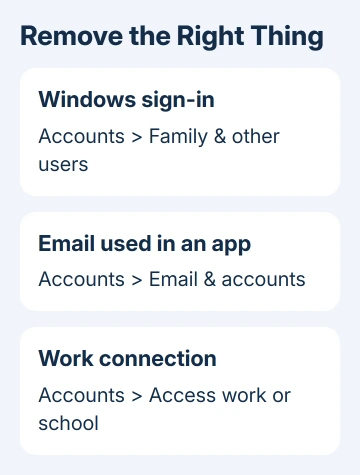
Their online Microsoft account stays open. An app's email account, a work connection and family-group membership are separate things. Match the removal method to the item you want gone.
In this guide
Prepare another administrator and keep the files you need
For removal, sign into another administrator profile that you're keeping. Have the departing user save their work and sign out. You'll use that other account to remove theirs, rather than trying to delete the profile you're signed into.
Press Windows + I and open Accounts > Your info to check the signed-in account. Look for its administrator status. If Windows requests an administrator's username and password, use an administrator login you're permitted to use.
Before deletion, have the departing user copy their important documents, desktop files, downloads and any app-specific exports to a separate location. Open a few copied files from that location to confirm they're usable.
Files visible through a cloud service aren't always complete local copies. Have the owner check their online files using their own account and confirm where the copies they want to keep are stored before removing the Windows profile.
The existing Windows user-account creation guide helps if you need a separate account that will stay on the PC. Create it and confirm you can sign in before removing an old administrator.
I'd finish this preparation before opening the deletion confirmation. If you discover an important folder wasn't copied after deleting the account's local data, you'll need to recover those files. Changing a setting won't bring them back.
Remove the local Windows sign-in
Use these Windows 10 Settings steps for a local account or for someone who signs in to Windows with their Microsoft account. Both types can appear in the Other users area.
- Open Start > Settings > Accounts.
- Choose Family & other users. Some Windows 10 editions show Other users instead.
- Under Other users, select the account you intend to remove.
- Choose Remove.
- Read the confirmation, then choose Delete account and data only after the files are safe.
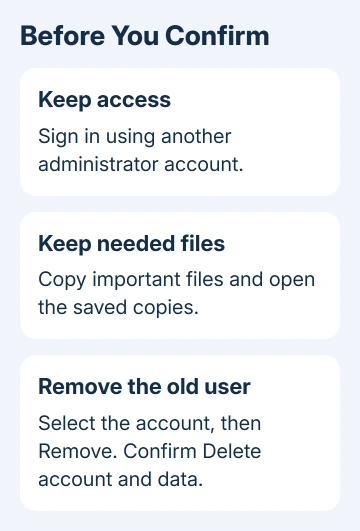
Check the account name carefully in that last dialog. A display name can look similar to someone else's, especially when two accounts were created for the same person during setup.
Microsoft explains in its account instructions that local removal leaves the online Microsoft account open.
After removal, the account should disappear from the Other users list. Sign out of your own account and check the Windows sign-in choices if you need to verify that the old local sign-in is gone.
Don't delete a folder from C:\Users as a substitute for removing the account. A folder and a Windows sign-in aren't the same thing, and deleting files by hand can leave the account listed while damaging its profile.
Use the matching route when it isn't a separate Windows user
An address inside Outlook or another app may be an app account. Use that app's account controls to disconnect an email address while keeping the Windows profile.
In Windows 10, open Settings > Accounts > Email & accounts and inspect the relevant entry. For an email account, Manage can open the app's account settings. Use the app's removal option when that's the account you want to disconnect.
An entry under Accounts used by other apps can have its own Remove control. Check that section rather than expecting every address displayed there to appear in Family & other users.
To remove a work or school connection, open Settings > Accounts > Access work or school. Select it and use Disconnect if you have permission to remove the connection. This disconnects the device without deleting the organization's account.
For an organization-managed computer, ask IT before disconnecting its work account. Tell them whether you're removing a former user's local profile or returning a device that should leave management. Those are different administrative jobs.
Keep the current profile when only the Microsoft sign-in should change
Sometimes the goal is to keep the same Windows desktop and files while stopping use of a Microsoft account for sign-in. You can change how you sign in without deleting that profile.
On your own profile, open Settings > Accounts > Your info. Choose Sign in with a local account instead and complete the prompts if you want that sign-in change.
The local-account steps explain that route. Deleting the profile is a larger change and isn't required just to use a local Windows sign-in.
For a member under Your family, local device access and online family membership are separate decisions. Removing an entry under Other users doesn't remove someone from the family group.
If the entry is managed through family controls rather than the normal Remove button, have the family organizer review the member's device access. Change family membership only when you intend to take that person out of the family group.
When Remove is missing or the wrong account remains
First check that you're in a different administrator account and have selected a user under Other users. Looking at Your info shows the active account, which isn't the place to delete that same profile.
Without another usable administrator, recover access before removing anything. For a managed PC, ask IT to remove the former user's profile and keep the administrator account you still need.
An account that remains in an app after a Windows user was removed can be a separate app sign-in. Return to Email & accounts or the app itself. Repeating local-profile deletion won't remove every remembered email address.
If an unwanted sign-in remains on a personal PC, use Get Help for local-user removal assistance. Say where its name appears: the sign-in screen, Other users, Email & accounts or Access work or school.
The standard Windows 10 support period finished October 14, 2025. Account removal still works, but it doesn't extend security support. You'll still need a plan to keep the computer on supported software.
The Short Version
Keep an administrator, copy needed files, then use Accounts > Family & other users > Remove > Delete account and data. This removes the local Windows user. Email accounts, work connections and family membership have separate controls.
Checked November 15, 2026.
 If you have any business, I can build it online






