

Adobe Acrobat exports a PDF as an editable workbook through Convert > Microsoft Excel > XLSX. Choose that format with your PDF open, then save the result. For Excel to PDF, start with the workbook in Excel.
Before you export, choose how Acrobat splits worksheets and reads numbers. Even a readable export can have misplaced columns or a decimal separator that changes an amount.
In this guide
Export the PDF as an Excel workbook
Open your PDF in the desktop Acrobat app on Windows or Mac. Select Convert in the global bar, then Microsoft Excel in the left pane. Choose XLSX from the format menu rather than XML.
XLSX is the normal modern Excel workbook format. XML is a different export choice. Use it only when the app or process you're sending the file to asks for it. The two options aren't interchangeable file extensions.
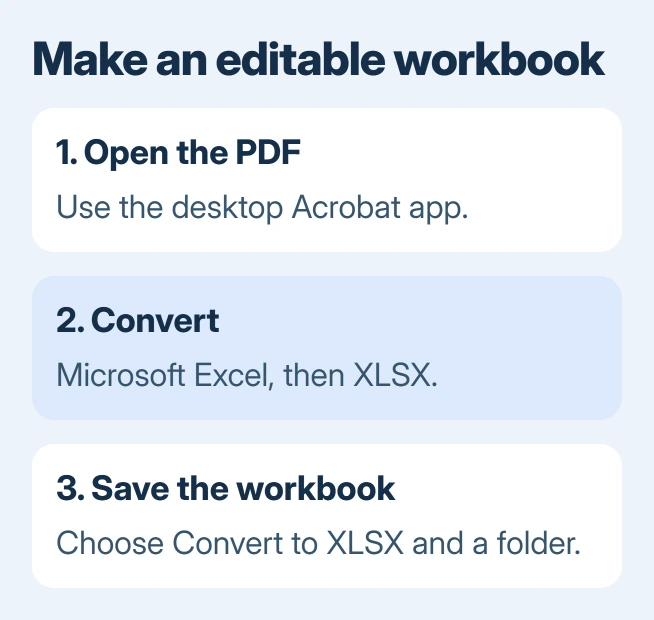
Select Convert to XLSX. In the save dialog, choose a folder, give the workbook a recognizable name, and select Save. Keep the source PDF beside it so you can compare the exported information with the original.
These are the current labels in Adobe's desktop conversion instructions. An older Acrobat interface can show Tools > Export PDF, followed by Spreadsheet > Microsoft Excel Workbook.
Don't rename a PDF with an .xlsx ending. That changes its name without converting its contents, so Excel still can't read it as a normal workbook. Use the export command and open the file that command creates.
If you were looking for Excel's own import tool instead, the Power Query PDF import steps cover that separate route. Acrobat export doesn't depend on Excel having a From PDF connector.
Choose the worksheet layout before converting
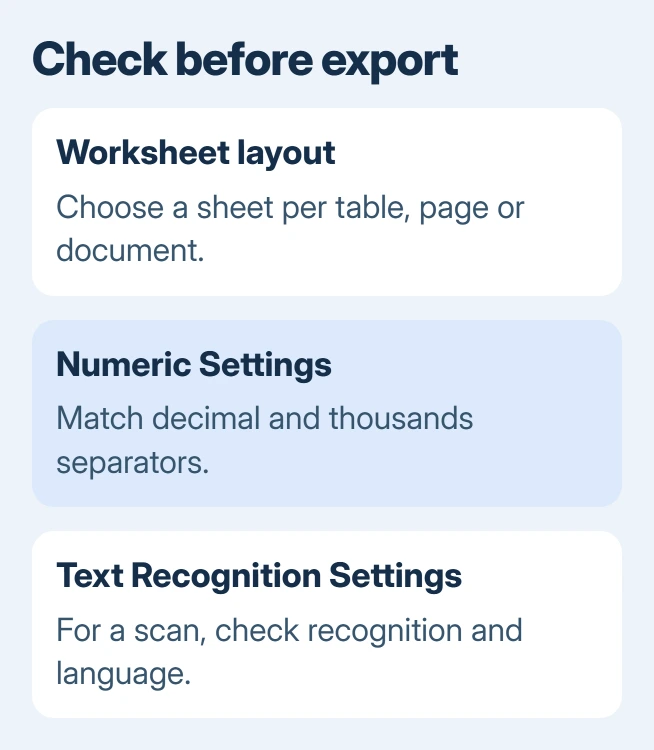
In the current Acrobat Convert panel, select Microsoft Excel, choose XLSX, and open Settings. These settings control how Acrobat arranges the workbook and reads the text.
Under Excel Workbook Settings, you can split worksheets by table, by page, or keep the document together. Match this to how you'll use the data, rather than assuming a PDF page should always become one sheet.
For a report with separate tables on each page, the per-table choice can make them easier to work with individually. For a single report spanning several pages, compare the whole-document result with the page-based result.
Either layout can need some cleanup. Check page headers, wrapped descriptions, and repeated column headings. Compare each table across its page breaks to make sure all the rows came through.
I'd convert one representative report before doing a large group of files. A page containing headings, long descriptions, and totals shows more about the export quality than a short page of plain numbers.
Select OK to accept the preferences, then finish the conversion. If the result isn't useful, return to the source PDF and change the worksheet option. Save the second export under a different name for comparison.
Set number separators and scan recognition
In the same Settings dialog, check Numeric Settings. Choose the decimal and thousands separators used in the source document. A comma can separate thousands in one report and mark a decimal in another.
Check an amount whose meaning is clear, such as a printed total, rather than guessing from a small value. Compare that exact amount after conversion. This catches a separator mistake before it spreads into calculations.
For a scanned PDF, open Text Recognition Settings, turn on text recognition, and select the document's language. Text recognition, often called OCR, reads letters and digits from a picture so they can become editable data.
A scan can turn a zero into a letter or split one amount across cells. Review account numbers, dates, negative amounts, and the first and last row of each table. Correct the export against the PDF before using it for decisions.
If a number is stored correctly but only looks rounded, check Excel's decimal display controls. Widening a column or showing more decimal places is a different repair from correcting a digit that OCR read incorrectly.
Keep columns of codes and account numbers separate from amounts. A product code or account number isn't something to total. Compare leading zeros and long identifiers with the source before keeping Excel's automatic number formatting.
When Reader asks for a subscription
The free Reader app can display a PDF without giving you a free Excel export. A subscription prompt can therefore be an account or product limit rather than a damaged PDF or a broken Excel installation.
With an Acrobat Export PDF subscription, sign in to Reader using the account that has the service. Open All tools > Export a PDF, check the selected PDF, and choose the Excel conversion format from Export PDF To.
Select the conversion button for that format, then choose the save location. For scanned content, check Document Language and use Change if the wrong language is selected. Reader's export controls differ from the desktop Convert panel.
If your workplace manages the subscription, ask your administrator which Adobe account includes export access. Reinstalling Excel won't add a service missing from your Adobe account.
Avoid uploading a private work document to an online converter without checking your organization's rules. The desktop and Reader routes described here give you concrete settings to review without choosing an unfamiliar converter.
For Excel to PDF, start in Excel
When the starting file is already an Excel workbook, open it in Excel and save a PDF copy. On Windows desktop Excel, open File > Save As. Some versions label this Save a Copy. Choose the location and PDF file type.
Microsoft says the save dialog's Options control sets what will be published, such as selected sheets or the workbook. Choose which sheets to include, confirm the dialog, and save the PDF.
On Mac desktop Excel, open File > Save As. If the menu uses Save a Copy, choose that instead. Select PDF in File Format and check the worksheet or workbook options. Keep the Excel original for future edits.
Inspect the resulting PDF's page breaks and columns. If a table runs off the page, adjust the worksheet's print layout and export again. A PDF copy is meant to preserve the printable result; it doesn't replace the editable workbook.
If Acrobat still fails on a simple PDF, use Adobe Help Center's Acrobat support option. Include the app version, account plan, error message, and chosen export format. Before sharing a work file, ask how to send a sample safely.
The Short Version
Choose XLSX in Acrobat, check its layout and number settings, then compare the export with the PDF. Reader needs export access on your account. For the reverse job, save a PDF copy from Excel.
Checked November 15, 2026.
 If you have any business, I can build it online






