

A mouse glitching on Windows 10 often needs a cleaner sensor, fresh power or a direct USB connection. Start with those checks when the pointer jumps or stutters; changing pointer speed won't repair a connection that keeps dropping.
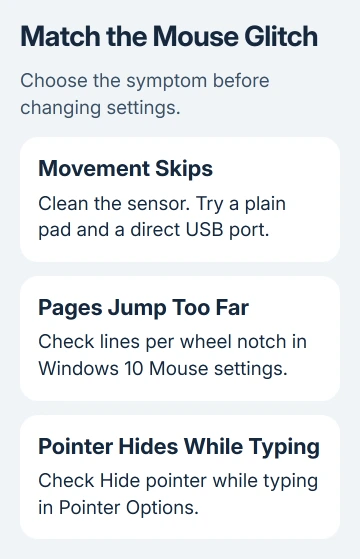
The symptom matters. A pointer that skips while you move the mouse, pages that overscroll and a pointer that disappears during typing need different fixes. Work through the matching checks rather than changing every mouse setting at once.
In this guide
1. Clean the sensor and reconnect the mouse directly
Disconnect a wired mouse or switch a wireless one off. Check the sensor opening underneath for dust or hair and gently clear loose debris. Try it on a plain mouse pad instead of glass, a shiny desk or an uneven surface.
Move the mouse slowly across the pad, then make a longer movement. Smooth movement on the new surface points to tracking trouble on the old one. If it still skips, check the power and connection next.
For a wired mouse, unplug its cable, wait briefly and use a different port directly on the PC. Bypass the dock or hub for this comparison. Check the cable for damage, especially where it enters the mouse.
For wireless mice that use a receiver, unplug the USB adapter, wait about 10 seconds and reconnect it directly. A receiver is the small adapter that came with the mouse, not a Bluetooth pairing control.
Microsoft says to begin with connections, power and the sensor. If a direct port fixes it, reconnect the hub only to check whether the problem returns there.
I'd do this before reinstalling anything. It takes a minute and keeps a damaged cable or dirty sensor from turning into a long software repair.
2. Restore wireless power and the correct connection
Fit fresh batteries or fully recharge a rechargeable mouse. Check that its power switch is on. If your mouse can switch between computers, use the maker's instructions to choose the channel paired with this PC.
Don't assume a charging cable also carries mouse input. Some wireless models use that cable only for power. Use the supported receiver or Bluetooth connection unless the manufacturer lists wired operation.
For Bluetooth, open Start > Settings > Devices > Bluetooth & other devices. Check whether the mouse is listed and Bluetooth is enabled. A receiver-based mouse doesn't need to appear in that Bluetooth list.
If the Bluetooth mouse isn't connecting, follow its instructions to enter pairing mode. Use Add Bluetooth or other device > Bluetooth to select it. Keep a working touchpad or keyboard available before removing an existing pairing.
When the mouse reconnects, move it and try several clicks. If only the wireless model stutters while a wired mouse works normally, follow its maker's connection steps rather than changing Windows' scrolling controls.
Repeated disconnect sounds are a separate symptom from uneven movement. The USB mouse disconnecting checks cover a device that keeps leaving and rejoining Windows.
3. Match speed and scrolling settings to the complaint
Open Start > Settings > Devices > Mouse. These controls are in Devices on Windows 10. Windows 11 places them under Bluetooth & devices instead.
Use Cursor speed when the pointer moves consistently but covers the wrong distance. Change it a small amount, then try selecting text and clicking a small button before adjusting it again.
For pages that leap with each wheel notch, check Roll the mouse wheel to scroll. Choose Multiple lines at a time instead of One screen at a time, then adjust how many lines each notch moves.
The setting Scroll inactive windows when I hover over them lets the wheel move a window without clicking it first. Turn it off if scrolling a background window is the behavior you're trying to stop.
These settings change how far the pointer or page moves. If wheel notches alternate between forward and backward scrolling, compare another app and PC. A dirty or worn wheel needs more than a lower line-count setting.
If speed keeps resetting after sign-in or switching apps, check the mouse's profile software. The mouse sensitivity reset guide explains how app profiles and DPI buttons can change the feel.
4. Check pointer options for vanishing or sudden jumps
On the same Mouse page, select Additional mouse options, then Pointer Options. A pointer that vanishes only while entering text may have Hide pointer while typing enabled. Clear it if that behavior gets in your way.
Under Snap To, check Automatically move pointer to the default button in a dialog box. Clear that option if the pointer unexpectedly lands on a button whenever a dialog opens.
Select Apply, then try opening a dialog or typing again. If the pointer only disappears during typing or jumps when a dialog opens, check those options. For random skipping across an empty desktop, return to the hardware checks.
Enhance pointer precision changes how movement responds to hand speed. Compare slow hand movements with fast ones to check that difference. It isn't a repair for pauses, disconnects or failed sensor tracking on your desk.
5. Compare another mouse before updating drivers
Connect a known-working mouse to this PC, then try the suspect mouse on another computer. Try the same simple task, such as moving between desktop icons, so a game or one busy app doesn't skew the comparison.
If that mouse misbehaves on both computers, ask its maker about cleaning, supported software or replacement. If both mice fail only on this PC, check whether the keyboard and apps also hesitate during the pauses.
If the problem follows the PC, check Settings > Update & Security > Windows Update. Standard Windows 10 support finished October 14, 2025. The updates available now depend on your PC's support arrangement.
For a driver check, search Start for Device Manager, expand Mice and other pointing devices, and open the matching device's properties. On Driver, choose Update Driver and follow the prompts. A newer driver may not be available.
Use official downloads for your PC or mouse model. If it continues, tell its maker the model, connection type and Windows version. Tell them what happened on the second computer to help them decide whether the mouse or PC needs attention.
The Short Version
Clean the sensor, try a plain pad and reconnect directly. Restore wireless power, then adjust only the setting matching the symptom. Compare another mouse before working on drivers or arranging replacement.
Checked November 15, 2026.
 If you have any business, I can build it online






