

Canon PIXMA MX454 error 5100 can mean paper or packing material is blocking the cartridge holder. Cancel printing and turn the printer off, then use the MX450 series steps to clear the blockage and restart.
The fault is inside the printer, so start there rather than with Word or Wi-Fi. The MX454 also handles faxes. Save stored fax pages before any step that requires unplugging, because disconnecting power erases fax memory.
In this guide
1. Confirm 5100 and stop the print job
Check the full error number shown on the LCD or computer message. Confirm that it is 5100, then check the model label says MX454. The matching online instructions are in the MX450 series manual.
Press Stop to cancel printing, then switch the printer off. Canon says in its MX450 code 5100 procedure to start by canceling the job and turning the machine off before clearing material blocking the holder.
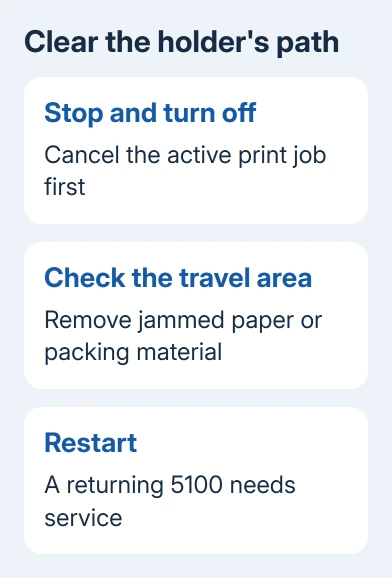
The holder moves the ink cartridges across the printer. FINE is the cartridge name used in this manual. Look for paper or remaining packing material in its travel area rather than treating 5100 as an instruction to buy new ink.
For another displayed number, use the Canon support-code guide to match it to the right procedure. A paper-feed warning or empty-cartridge message can appear during the same print job but needs its own response.
2. Choose the jam procedure that matches the paper
Look for a visible sheet at the paper output slot or transport unit. If the printer also reports a paper jam, follow the MX450 series instructions for that location. Don't start by removing covers that belong to a different PIXMA model.
For a sheet accessible at the output slot, the 1300 jam instructions describe pulling the paper slowly, holding it with both hands. Remove the sheet intact so scraps don't remain inside.
If paper tears, can't be removed from those openings, or remains inside, use the inside-machine procedure in the next section. A missing corner of the removed sheet is a reason to check for a remaining scrap before restarting.
When no paper is visible, check for packing material left after transport or setup. The 5100 steps cover packing material too. Remove only accessible material you can identify without dismantling the printer.
3. Clear an inside jam with the power disconnected
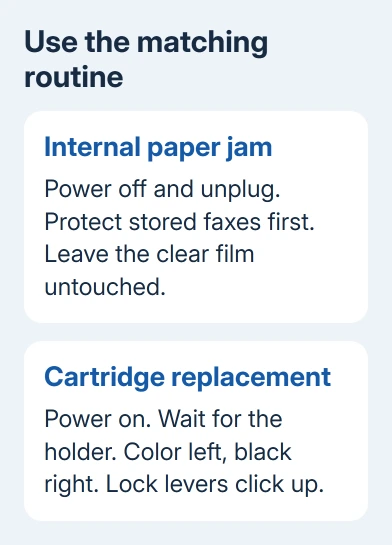
Finish sending or receiving faxes before unplugging. Print or preserve stored pages where possible; unplugging erases fax memory. If the fault prevents saving them, decide whether those pages matter before continuing.
With the machine off, unplug its power cord. Remove paper from the front tray and open the paper output cover. This is the procedure for an internal paper jam, not the powered cartridge-replacement routine.
The inside-jam instructions identify a clear film inside the printer. Keep hands and paper away from it; dirtying or scratching that film can damage the machine.
Check whether the sheet is under the cartridge holder. For this unplugged jam-removal procedure, the manual says you can hold the holder and slowly slide it toward either edge, whichever gives you better access to the trapped sheet.
Hold the sheet firmly and pull it out slowly. Unroll curled paper enough to remove it without tearing. Check beneath the holder and each side space for paper scraps, then close the cover and reload suitable paper.
If the holder won't slide gently or the paper won't come free, stop and arrange service. I'd stop at resistance rather than pull harder. These steps are for removing paper; forcing the jammed parts apart isn't part of the procedure.
4. Check cartridge locking if ink was just replaced
Use this section when 5100 began immediately after cartridge work and the holder can reach its replacement position. Keep the printer powered on for cartridge replacement, unlike the unplugged internal-jam procedure.
Open the front cover, the paper output tray, then the paper output cover. Wait for the holder to move to its replacement position. The head cover opens automatically; don't force it open by hand.
Check the cartridges are seated correctly. Use the left slot for color and the right slot for black. Each ink-cartridge lock lever should be pushed up until it clicks. Both cartridges must be installed for the machine to print.
The MX450 cartridge instructions show those positions and locks. Use the Canon ink-replacement guide if an actual replacement is needed, matching the cartridge to this model.
If the output cover has been left open for more than ten minutes, the holder can move to the far right and the Alarm lamp lights. Close the output cover, then open it again to restart the replacement-position routine.
5. Restart and check a simple print or copy
Close the covers, reconnect power if it was disconnected and turn the machine on. Check whether 5100 disappears before resending a large print job. After an internal jam, the old queued jobs may have been canceled and need printing again.
Print one ordinary page or make a copy using the printer controls. If the holder moves normally and the page completes, check the page for missing text or signs that paper is still catching before returning to a longer job.
If a copy works but Windows still can't print, treat that remaining computer connection problem separately. The Windows printer troubleshooter is relevant after the printer-side code has cleared.
6. Request repair if 5100 returns
If 5100 stays or the holder stalls, contact a Canon service center. Request an MX454 holder-movement check for code 5100. Say whether it started after transport, a jam or cartridge replacement.
Give the service center the full model, serial number and the checks you've tried. Mention stored faxes before further power-disconnection or transport instructions. Get a repair estimate before buying cartridges or parts for this code.
The Short Version
Clear paper or packing material blocking the holder. For an internal jam, protect stored faxes before the unplugged procedure. After ink replacement, check cartridge seating. A returning 5100 needs a repair assessment.
Checked November 15, 2026.
 If you have any business, I can build it online






