

Missing weather on Android can mean a removed widget or a forecast gone from Pixel's At a Glance. Restore a removed panel through the home screen's Widgets menu.
If the date remains but its forecast is gone, check At a Glance and location access. Those controls differ from a separate weather panel that you can move around the home screen.
Check which part disappeared first. Resetting the whole home screen would create more work when only one forecast needs restoring.
In this guide
1. Add back a widget that was removed
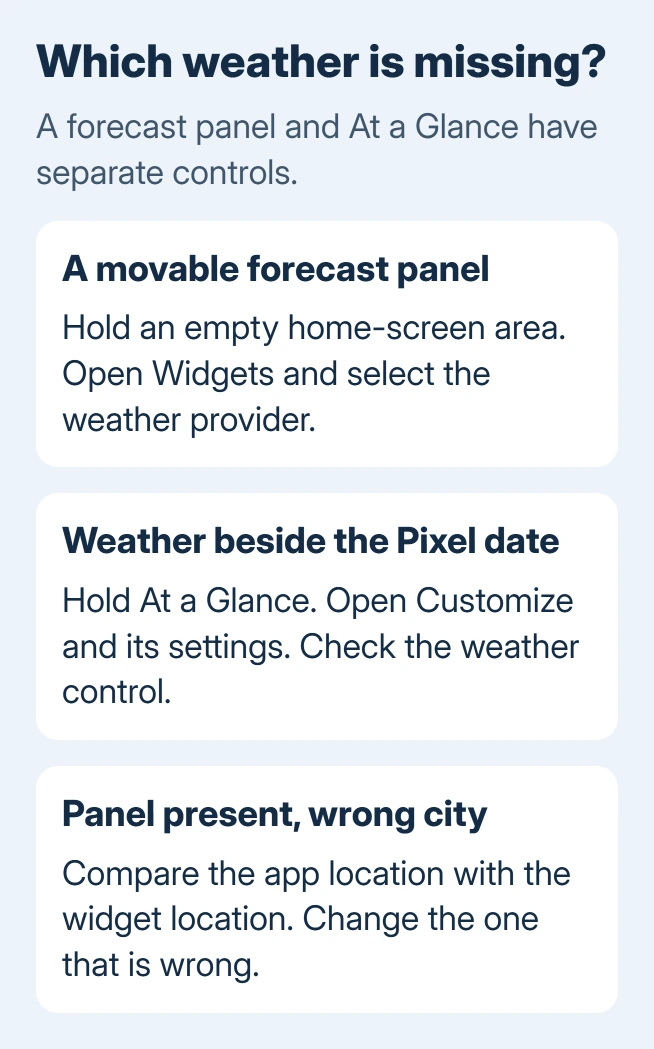
Hold a blank space on your home screen and choose Widgets. Find the app you used for the weather display. Expand that app's widgets, hold the one you want, and move it onto a free area of the home screen.
The Android widget instructions use that sequence. A widget is the forecast panel that stays on the home screen; the weather app icon is simply a button that opens the app.
Look through your other home-screen pages before adding a second copy. If the forecast was moved, moving it back to your main page is enough. Removing a widget doesn't normally uninstall the app that supplies it.
If the widget won't fit, choose another size offered in the picker or make space by moving an app shortcut. Some widgets can be resized after placement: hold the widget, release it, then drag the resizing handles when they appear.
If the weather app is missing from the picker entirely, continue to the app check. If the panel returns but shows the wrong city, skip to location settings rather than adding it repeatedly.
2. Choose the correct weather app on Galaxy or Pixel
On a Samsung Galaxy phone, hold an empty home-screen area, select Widgets, and find Weather. Choose a layout, tap Add if that button appears, and follow the setup prompts. The exact layouts depend on the phone's software.
Open the new panel once and finish any location choice it requests. If the panel is there but waiting for setup, finish that setup instead of adding another copy. Give it a city to display before changing other settings.
On a Pixel with the Pixel Weather app, look for that name in Widgets. On another Android phone, the app may be Google, your phone maker, or a weather app you installed yourself. Don't expect every phone to list Pixel Weather.
If the app no longer appears in the app drawer either, check whether it was disabled or uninstalled. Open Settings > Apps, find the app, and use Enable if that option appears. Install an absent app only from its recognized store listing.
I'd restore the app you already used before trying a different weather service. That keeps your saved locations and widget choices easier to compare.
3. Restore weather beside the date on a Pixel
On Pixel Launcher, the date and forecast at the top of the main home screen belong to At a Glance. They aren't the same as a separate weather panel you can drag around the screen.
Touch and hold the At a Glance area, choose Customize, then open its settings. Look for the weather control and turn it on if it's off. Options vary with the installed Android release and Google components.
Google says the full At a Glance experience is available on Pixel devices running Android 12 or newer. On many other Android phones, add its widget through Widgets > Google > At a Glance.
If the date remains but weather doesn't return, open the weather app and check its forecast and location. If that app also can't load weather, work on its permissions or connection next. Moving the date won't repair its data access.
Keep a separate weather widget on the screen while sorting this out if it gives you a usable forecast. That gives you a forecast while you work on At a Glance, without wiping the launcher or removing your home-screen layout.
4. Give the forecast access to the right location
Open Settings > Apps, choose your weather app, then Permissions > Location. Allow the access you want for a forecast that follows your phone. Also turn on Location in the phone's settings.
Current Android releases can offer approximate or precise location access. A forecast stuck on a nearby area may need more accuracy. A manually selected city can stay fixed instead of following the phone.
Open the weather app and compare its city with the widget's city. If the app is correct but the panel isn't, check the panel's own settings. Some weather widgets have a fixed location even when the app opens to your current location.
On supported Galaxy layouts, hold the weather widget and open Settings to review its location. Use the location controls shown there to choose the place you want. Menu names can differ between One UI releases and widget designs.
A similar-looking issue on an iPhone uses a separate control. The iPhone weather location instructions explain that widget's location selection; those steps don't apply to an Android long-press menu.
5. Check updating when the panel is present but blank
Open the weather app with a working internet connection, using either Wi-Fi or cellular data. If its forecast loads, check the home-screen panel afterward. If both views fail, changing the widget layout won't repair the connection.
Check the provider's app-store page for an update. On a Pixel, update the Google app as well if At a Glance is the affected part. When updating has finished, restart your phone and reopen the forecast.
On a Galaxy phone, use the update route offered for the built-in Weather app, which can involve Galaxy Store. A different app's Play Store update won't necessarily update Samsung's weather component.
If several Pixel widgets disappear together after a restart, use the Pixel widgets disappearing guide. That wider fault is different from a single missing forecast beside a date that still displays.
Report the missing control rather than resetting the layout
If Weather still isn't in Widgets even though the app is enabled, ask the phone maker or app developer whether it supports that widget. Include your model, Android release, provider and missing widget name.
For Pixel At a Glance, use the support options on its help page and explain whether the date remains, the weather app works, and other widgets survive a restart. That helps support tell a forecast fault from a home-screen launcher fault.
The Short Version
Restore a removed panel through Widgets. Check At a Glance when only the Pixel forecast is gone. Check the weather app, city, permissions and updates. Keep a separate working panel during a persistent At a Glance failure.
Checked November 15, 2026.
 If you have any business, I can build it online






