

Microsoft 365 Copilot works best when you give it a specific job and the material it should use. Open the Copilot app, check the signed-in account, then ask for a small result such as a summary or a draft based on one file.
Your signed-in account determines which features and files you can use. Personal subscriptions and work accounts with or without a Copilot add-on show different controls. Check the account when you can't find a control you need.
In this guide
Open Copilot with the intended account
Open the Microsoft Copilot app your organization provides, or use copilot.cloud.microsoft in a browser. Older m365.cloud.microsoft links may lead into the updated experience as the app's name and address change.
Sign in with the account connected to the work you want to do. Choose the workplace or school login for organizational material. For personal work, use the Microsoft account associated with your qualifying subscription.
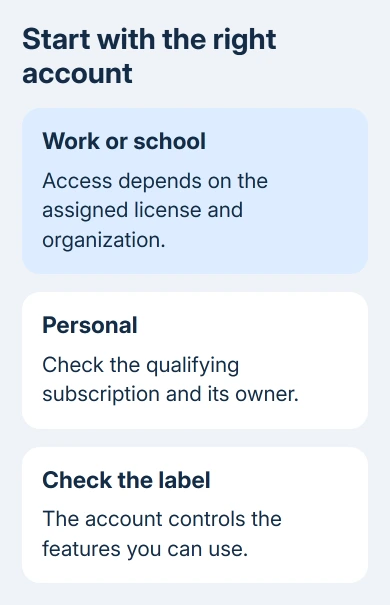
Read the account name before entering a prompt. Similar addresses can represent different account types, and the browser may remember an earlier login. Check that you're in the organization you meant to use.
With an eligible organizational account, inspect the license label on Copilot's home page. Current labels include Copilot Chat (Basic), M365 Copilot (Basic), and M365 Copilot (Premium).
Those labels tell you whether you have basic chat and limited app access or the full add-on features. Microsoft's license-checking instructions explain the current labels and the differences between account types.
Check personal subscriptions in the Microsoft account dashboard. For qualifying Personal, Family, or Premium plans, only the subscription owner gets desktop-app Copilot access. Other members don't get that access through the shared plan.
If the app shows a different layout, use the controls available in your account. The newer Home starting page is still rolling out, so a different starting screen doesn't by itself mean you installed the wrong app.
Choose Chat and give it one clear job
Choose Chat for questions, summaries, or drafts, using the newer Home page's navigation or prompt box. Cowork handles longer automated tasks when the license and organization permit it.
Start with something you can judge easily. For example, ask for a short meeting agenda, an explanation of a piece of text, or a summary of a file you already understand. A broad request to handle an entire project is harder to check.
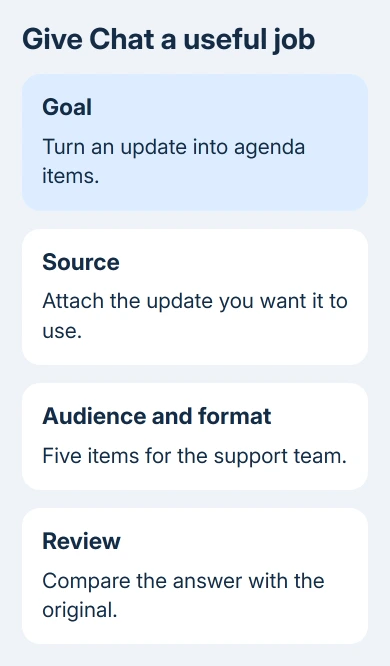
Say what you want, who it's for, which source to use, and how to format it. Write that as an ordinary request. A clear goal matters more than packing the box with instructions that repeat each other.
For example: Turn the attached project update into five meeting agenda items for the support team. Include decisions we still need to make, and use only that update.
That request tells Copilot what to produce, who will use it, and what information to rely on. If there is no attached file, attach the source for that task before expecting a response about it.
Select the send control and read the result. Check that it actually follows the requested format and source. A polished paragraph isn't useful when you asked for decisions and it supplies a general introduction instead.
Give Copilot the material the answer needs
Use the available file-attachment control when the task depends on a specific document. Choose the intended file and confirm it appears with the prompt before sending. Use a nonprivate sample while learning the controls.
A reference to a filename isn't the same as attaching that file or selecting a work source. If the result talks generally about the subject instead of your document, check the material you've given it before rewriting the whole prompt.
If your work account offers Work IQ, turning it on lets Copilot use organizational content you can access alongside web information. With it off, that chat uses the web without organizational work content.
Restricted files stay restricted when you turn this on. If the needed material isn't accessible to your account, ask its owner for access or use a document you're already allowed to open.
For a personal account, work from your own supported content and available attachments. Don't expect a personal login to search your employer's Teams meetings or organizational files simply because you know their names.
I'd begin with one document rather than a whole folder. A single source makes the comparison simpler. Look for missing sections before putting the answer into an actual report or message.
Refine the result in the same conversation
Keep the useful response and ask for a specific change. Ask for shorter agenda items, an extra column, a different audience, or a list of unresolved questions. State which part should stay so a rewrite doesn't discard it.
For example: Keep the five agenda items. Add the person responsible only when the update names someone; otherwise write unassigned. This tells the app how to handle missing information without inventing a person.
Compare names, dates, amounts, and commitments with the original material. Open any cited source that matters to the decision. Check even confident-sounding sentences, especially when the source doesn't contain the requested detail.
When you're happy with the answer, copy the needed content into your working document or use an offered app control. Review it there for formatting and meaning before sharing it with colleagues or customers.
For drafting directly inside a document, the Copilot in Word guide covers its draft and rewrite controls. Its controls create or revise text inside Word, while Chat can supply writing for you to copy elsewhere.
Match missing features to the account before repairing
If Copilot Chat opens but an app feature is missing, check the account label and subscription first.
For a feature your account doesn't include, check with your administrator or review your subscription. Troubleshoot a blank page or failed sign-in instead.
Have your administrator check the assigned Copilot license and any restrictions on that feature. Name the app and control you're trying to use, rather than asking whether Copilot is enabled in general.
An administrator can check Copilot add-on eligibility and assign seats when the required paid entitlement is missing.
For persistent blank-page or response problems, follow the Copilot loading repairs. Include whether it works in another supported browser and whether the problem follows the same signed-in account.
Contact workplace Microsoft 365 support or your personal subscription's support channel when the problem persists. Supply the account type, app, license label, error, and an example of the failed prompt without private information.
The Short Version
Confirm the selected account's license, then ask Chat to produce one result from a specified source in your chosen format. Refine the answer in the same conversation, verify its details, then move the useful content into your work.
Checked November 15, 2026.
 If you have any business, I can build it online






