

Copilot in Word can turn your notes into a draft or rewrite a passage you've selected. Open a document with an account that includes Copilot, describe the result you want, then review the proposed text before keeping it.
The key is whether you're adding new writing or changing what's already there. Put the cursor where new material belongs for a draft; select the actual words first when you want a rewrite.
In this guide
Start with the right document and account
Start with a new Word document or the existing file you're editing. Microsoft's drafting instructions explain which accounts can use these controls. An eligible subscription or Copilot license is required.
Signing into the separate Copilot app doesn't automatically add every Word feature to your account. Check the account shown in Word, especially when a personal subscription and a work account are both on the computer.
For a workplace account, review the Copilot add-on and user assignment before ordering another subscription.
For a task in the separate app, use Microsoft 365 Copilot Chat with the right account, source, and requested output before moving the answer into Word.
New editing experiences roll out gradually. The controls you see can depend on your license, organization settings, Word version, and platform: Windows, Mac, browser, or iPad.
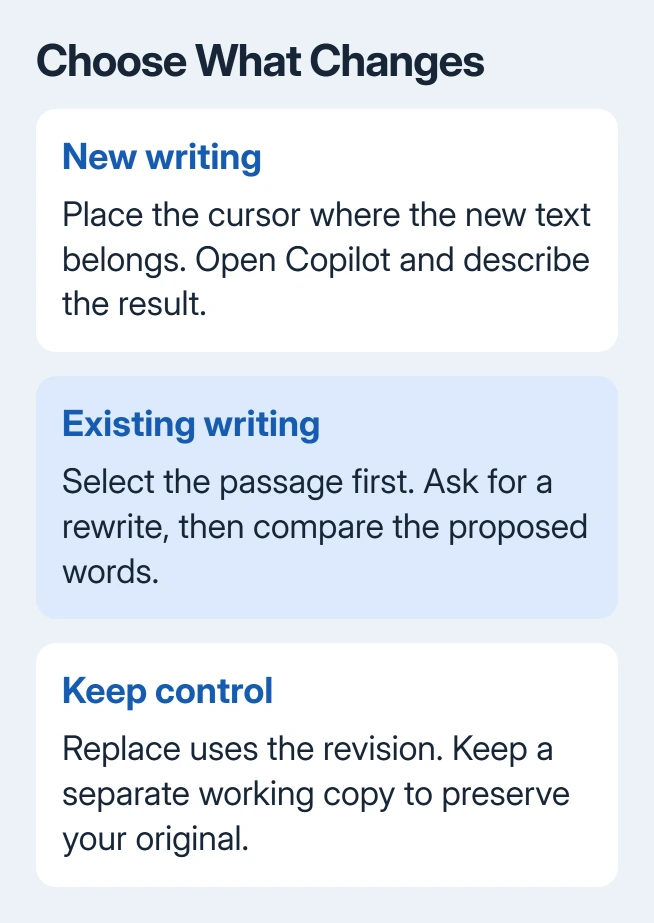
For an important file, make a working copy before your first attempt. That gives you room to compare a proposed rewrite with your own version without making the working file harder to review.
If Copilot isn't showing, go to the missing-controls section near the end. Repeatedly reopening the document won't add a feature that the signed-in account doesn't include.
To stop these features on a personal Mac installation, turn off Copilot in Word through the app's own Preferences.
Give the first draft a clear job
In a blank document, or at the point where new writing belongs, open Copilot. The current desktop instructions place this control in the bottom-right corner. Describe the topic, audience, tone, format, and approximate length.
For example, ask for a short email explaining a changed delivery date to a customer. Supply the actual date, what changed, and the action the customer needs to take. Those details give the draft something useful to say.
I'd start with a small, specific piece of writing rather than ask for a complete report at once. It's easier to judge a paragraph against your notes than to untangle a long draft built around the wrong assumption.
Select Generate. Read the result, then keep it, discard it, generate another version, or refine the request. If the tone is right but the facts are wrong, correct the facts in your instructions before asking for more polished wording.
Don't mistake a confident sentence for a checked fact. Compare dates, names, numbers, and promises with your notes before accepting them. A fluent draft still needs your decision about what belongs in the document.
When you're happy with the text, read the paragraphs immediately before and after it. The insertion should connect to those paragraphs, rather than introduce a second opening or repeat a point you've already made.
Add a section using material you already have
Open your file, then click where you want the new section to go. Ask for the missing section, such as a checklist after a procedure or a short introduction before a table.
State which parts need to remain unchanged. A request to add three preparation steps is clearer than a request to improve the document, which doesn't say what needs changing.
When reference files are available, type / and choose your file. Check the selected file before generating. The files Copilot can read depend on your account and permissions. Seeing a document title doesn't mean it can read the file.
Compare the result with your reference file. In particular, check whether a proposed action is actually in the source, whether a number belongs to the right period, and whether it copied a person's name correctly.
For an overview of a document rather than new writing, use the separate Word summary controls. That keeps a request for an overview separate from an instruction to edit the file.
Rewrite only the passage that needs changing
Select the sentence or paragraph you want to change. Choose Copilot from the mini toolbar, or open Copilot from the document. Choose Auto Rewrite, or describe the change you want.
For a customer notice, you might ask for simpler language while keeping the delivery date and contact details unchanged. For meeting notes, ask for complete sentences without adding decisions that weren't recorded.
Review the proposed revision before choosing Replace. To keep both versions, choose the option to insert the revision after the original. Regenerate requests another attempt. Choose the comparison option while you're deciding between them.
After accepting a revision, check that it changed the passage you meant to select. A good rewrite of the wrong paragraph still leaves the document wrong. Use Word's Undo control promptly if the change went beyond what you wanted.
If a revision keeps missing the point, reduce the selection to one paragraph and name the problem: too formal, unclear order, or unnecessary detail. One precise instruction is easier to assess than several competing changes.
Use the mobile controls for your device
On iPad, open a new or existing Word document and select Draft with Copilot on the document canvas. Enter a description of the writing you want and select Generate.
For an iPad rewrite, select the text first, then use Auto rewrite, another offered suggestion, or the prompt box. Move between the proposed versions with the navigation controls before choosing the wording you prefer.
On iPhone, open the document and select Draft with Copilot when it's available. For existing text, select the passage and tap Rewrite with Copilot. Enter the requested change and review the generated result.
Android phones have different controls: summary and chat depend on a work license for Microsoft Copilot. Use a supported desktop Word account for this drafting procedure. Android tablets aren't included in that mobile feature.
These mobile features may arrive at different times. Keep the Word app updated and check its signed-in account before comparing its buttons with a desktop example. Missing desktop-style controls don't mean the document is damaged.
When Copilot is missing or won't do the requested job
Check your subscription for Word Copilot access, install Word updates, and ask whether your organization restricts Copilot. If account trouble continues, the Copilot troubleshooting checks cover sign-in and missing access.
Copilot can work in the current document, but it can't create a separate new Word file for you. Open that new file yourself first. Then ask it to draft the content inside that document.
If an included feature still isn't available, give Microsoft 365 Support the account type, Word version, platform, and missing control. For a managed account, have your administrator review licensing and any organization restrictions.
The Short Version
Use a cursor position for new writing and a text selection for rewriting. Give Copilot the audience and facts, review its result, then choose whether to keep or replace the text. Check account access when controls are missing.
Checked November 15, 2026.
 If you have any business, I can build it online






