

On current Motorola phones, install a software update from Settings > System updates > Check for updates. Connect to Wi-Fi, charge the phone, then accept the package your own updater offers.
An update reaching another Moto first doesn't mean yours is broken.
Older models put the control elsewhere, and an Android upgrade is separate from an app update. Check your model details and current Android release before trying a reset to get a missing update.
In this guide
Find the update control on your Motorola
Open Settings > System updates > Check for updates. This is the route in the current moto g56 5G instructions. When the phone offers new software, open its details and follow the installation prompts.
The phone can also show an update notification. Tap that notification to return to the offered update. Dismissing the notification doesn't install the software; the Settings check lets you return to it later.
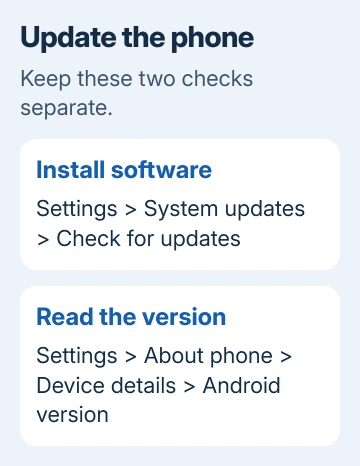
On older Motorola software, look under Settings > System > System updates. Some much older models use Settings > About phone > System updates. Follow the menus your particular Moto displays. The path depends on its software.
If neither route appears, search Settings for update. Choose the system update result, rather than an app's notification settings. Record the exact model from About phone if the search still doesn't produce an update control.
If the phone is frozen and you can't open Settings, use the Motorola restart instructions first. Installing software and getting a frozen phone to respond are separate tasks.
Read the version before comparing update announcements
On the current menu layout, open Settings > About phone > Device details > Android version. Some models show Android version directly inside About phone. Note the Android version and any security update date shown there.
Keep the full model name, not just Moto G or Edge. Those names cover several generations and regional versions. The year, model number, and carrier can change which update applies even when the phones look similar.
For a buying question about factory origin, check the Motorola country label rather than using its update region as the manufacturing country.
An Android version number tells you which major operating system is installed. A security update date tells you how recent its security fixes are. A new patch can change that date without changing the major Android number.
The Android update guidance also separates Android, security, and Google Play system update information. An app claiming to update the phone isn't a replacement for the system's own update control.
Write down the version before installing. After the restart, compare the same screen with that note. That's more useful than judging an update by whether the Home screen looks different; many patches make no obvious visual change.
Prepare the phone and complete the offered installation
Join a reliable Wi-Fi network and charge the battery before starting. Google's general advice is at least 75% charge. The updater can show its own power requirement. If it does, charge the phone to that level.
Save current work and check that important photos, contacts, and files have a backup. Plan the update around any calls, navigation, or time-sensitive sign-ins that need your phone.
Open the update check again. Read the offered package details, then select the button offered for downloading or installing it. Wording varies by model and update stage; a downloaded package can still need installation and a restart.
Give the phone time to complete that restart. A progress screen means installation is still underway, and repeatedly pressing the power button won't make the installation finish sooner.
Once the lock screen returns, unlock the phone and check the installed version. Then test the thing the update was meant to change, such as opening an affected app or checking a connection.
If the update hasn't fixed the problem, keep its package details for support.
Understand why another Motorola gets an update first
Motorola explains that the model, region, where the phone was sold, and carrier testing affect release timing. Even owners in the same country don't necessarily receive the package together.
Repeatedly checking can't move a phone into a different release group.
For alerts that keep interrupting you, identify Motorola Update Services and compare build numbers before muting anything.
A message that the software is current means no newer package is being offered to that phone through its updater at that moment. It doesn't promise that every Motorola runs the same Android release.
Check the update information for your country and exact model before assuming your phone has missed an upgrade. If there isn't a published release date, a date from another phone's announcement doesn't supply one for yours.
I'd keep a working phone on its supported update route. Borrowing another model's firmware to match an announcement adds a much bigger problem than waiting for the correct release.
For older hardware, the Android upgrade eligibility checks explain why being connected to the internet doesn't make a newer Android version available. A phone can reach the end of its supported upgrades.
Handle a download that stops or an update that isn't offered
Read the error before retrying. For insufficient space, open Settings > Storage and move old downloads elsewhere or delete unwanted files. Follow the updater's space requirement.
If a download stops, get the phone back on a stable connection. Android can make another download attempt in the coming days and send a notification when ready. Reopening the system update page also lets you see the current state.
If the phone runs normally but no package appears, don't factory reset it just to force a rollout. A reset removes personal data, while the model and carrier still determine which system package is offered.
For repeated installation errors, contact Motorola Support with the model number, carrier, current build, and exact error text. Ask whether that build has an available update for your region, or whether the error needs software repair.
Don't post the phone's IMEI publicly with those details. Support can request it through its private channel when identifying the device. A public screenshot only needs the error and version information that doesn't identify your phone.
The Short Version
Check System updates, accept your phone's own offered package, and verify the version after restarting. Different models and carriers receive updates separately.
For a failed installation, keep the error and build number for Motorola Support.
Checked November 15, 2026.
 If you have any business, I can build it online






