

An HP printer page showing PCL XL Error, Subsystem KERNEL, and IllegalTag points to a print-job processing problem. Restart the printer and PC, then check the driver for the exact LaserJet model.
Buying toner won't correct a printed job-language error.
The same message appears on different models, so don't install another printer's driver just because its error page looks familiar. Start with a simple print, then change the Windows driver or processing settings that apply to yours.
In this guide
1. Keep the error page and compare a simple document
Save the error sheet. Write down the printer model and printing app. Check whether every document fails. Keep any File Name, Line Number, or operator details printed with the error; they'll help support check the error.
Close the printing app and restart Windows normally. Turn the printer off, then turn it on and wait until it is ready. Send one small text document rather than resending a large batch of failed jobs.
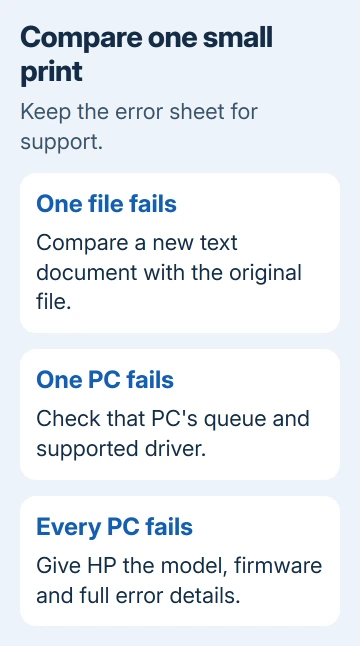
If that prints, retry the original document once. If only that file fails, focus on the document. If new text fails too, check the rest of the print setup. Keep both results when asking for help.
Try the same printer through another PC that already uses it. If it prints from the second PC, check the first PC's queue, driver, or app. Keep the existing network configuration while making this comparison.
If the printer also shows a separate panel code, use the HP error-code guide for that message. An E-code on the control panel needs different checks from a PCL XL error sheet.
2. Confirm the Windows version and installed driver
On the affected PC, open Settings > System > About and note Windows version and system type. Keep those alongside the full printer model, including its suffix. Similar printer names don't mean their drivers support the same models.
For Windows 11, open Settings > Bluetooth & devices > Printers & scanners, then select the affected queue. Open Printer properties and look on Advanced for the driver name. This is different from Printing preferences.
Windows 10 uses Settings > Devices > Printers & scanners > your printer > Manage > Printer properties. If a print server manages the queue, send the driver name and error sheet to IT before changing that shared setup.
Microsoft's driver installation guidance covers getting a supported package. Match your Windows version and system type rather than choosing the first download with HP in its name.
Record the driver currently in use. A successful installation isn't enough by itself: return to Printer properties afterward and confirm that the queue you actually print to uses the intended driver.
3. Install the supported package for the exact printer
HP recommends the available Basic PCL6 driver in its M227fdw IllegalTag procedure. Use that model's supported package rather than assuming PCL6 must always be replaced with PostScript.
Find the matching software through HP Support for your printer model. Confirm the operating system on the download page, run the supported installer, and follow its connection prompts.
Restart Windows if requested, then select the intended queue when printing.
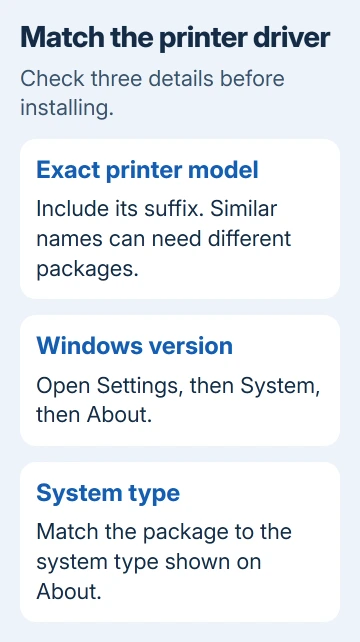
Other LaserJets can offer different driver families. PCL6, PCL5, and PostScript are different print languages, and you can't freely swap their drivers. Choose a package that supports both your printer and your Windows version.
After installation, print the simple document again, then the original file. If new text prints successfully while the original document fails, keep the working driver and continue checking that file or app.
Changing everything again hides useful progress.
I'd check the queue name in the print dialog at this point. A second queue can leave you sending the next job through the old driver even though the new installation completed successfully.
4. Check RAW processing and advanced features where available
On the M227fdw, the same HP procedure next checks Printer properties > Advanced > Print Processor. Select the appropriate HP processor when offered and set the default data type to RAW. Save and retry one document.
RAW names a Windows print data type. It isn't an instruction to edit a document or send commands to the printer. Leave settings outside that dialog alone while comparing the result.
If the error remains, the M227fdw instructions also try clearing Enable advanced printing features on the Advanced tab. Apply the change, then repeat the same print. Record that checkbox's starting state; undo an ineffective change.
These controls aren't present in every modern driver. A missing Print Processor button doesn't mean Windows needs a registry change. Return to the model's supported driver choices or give the queue details to the person managing it.
5. Recreate a faulty queue and check model-specific firmware
If the queue still fails, note the connection before removing its queue (its Windows print entry). In Windows 11, select it under Printers & scanners and choose Remove. Windows 10 uses Remove device on the corresponding printer page.
Restart the PC, return to that page, and use Add device or Add a printer or scanner, according to the version shown. Follow the supported installation route for the printer and check that the intended driver is selected afterward.
For a network printer, keep the computer on the network that can reach it. The printer connection checks help when the recreated queue can't connect, rather than producing an IllegalTag sheet.
Check firmware only against instructions for the exact model. Keep the printer powered during an offered firmware update and follow its connection requirements.
Another LaserJet's firmware file isn't a fix for a matching-looking error sheet.
If it still fails, send your model, driver name, Windows version, and error sheet to HP printer support. Ask which driver and firmware combination is supported for your model. Explain whether one document fails or every print job fails.
The Short Version
Keep the error sheet, compare a simple print, and verify the exact model's supported driver. The M227fdw has specific PCL6, RAW, and advanced-feature checks.
For other models, use their own instructions before changing driver families or firmware.
Checked November 15, 2026.
 If you have any business, I can build it online






