

Android crops wallpaper when the picture's shape differs from the screen. Reposition the original photo in the preview first. To show the entire image, add background space on a tall canvas and apply that new copy.
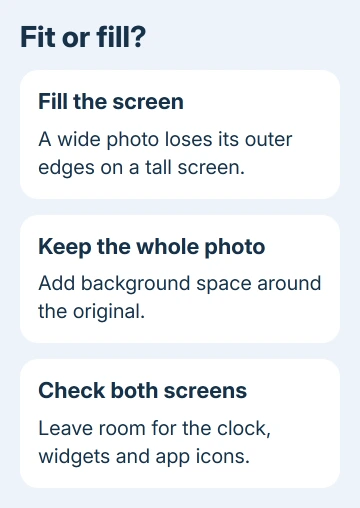
Filling the display and showing every edge are different choices. A wide group photo can't fill a narrow phone screen without either losing part of the photo or gaining empty space around it.
In this guide
Choose between filling the screen and keeping the photo
Open the original photo and decide which parts need to remain visible. For a portrait, that might be the person's face. For a group photo or a picture containing text, you may need every edge to stay inside the screen.
Cropping fills the screen by cutting off some of the picture. Adding background space keeps the complete picture visible but leaves an area of plain color around it. Choose the result you want before changing the file.
I'd keep the original and make a separate wallpaper copy. That gives you room to experiment without permanently trimming a photo you might want for printing or sharing later.
Avoid starting with an already cropped copy if the missing people or objects are still present in the original. The wallpaper editor can move the remaining picture around, but it can't bring back parts that were removed from the file.
Check both the Home screen and Lock screen previews. A clock, widgets, and app icons can hide parts of a photo even when the image itself fits. Leave some plain background where those controls sit.
Set the picture on a Samsung Galaxy
On your Home screen, press an unused area until its menu opens, then tap Wallpaper and style > Change wallpapers > Gallery. Select the original picture and tap Done to open the screen-selection controls.
Choose Home screen, Lock screen, or both, then tap Next. Position the important part by dragging the photo within the preview. Use the preview to judge the crop, rather than the small Gallery thumbnail.
Samsung's photo wallpaper instructions describe dragging the picture and using a pinch gesture to zoom in. A zoomed-in view shows less of the original, so zoom back out if part of the person or object you want is being cut off.
If the editor won't let you reduce the picture enough to show everything, stop trying to solve that with more zoom. Prepare a wallpaper copy with background space instead, then return to this picker.
On One UI 6.1 devices, the preview can offer Frame or Effect rather than the older filter controls. Those are appearance options. Check the actual framing again after choosing one, then tap Done to apply the wallpaper.
For the Lock screen alone, press and keep holding on the Lock screen; unlock when prompted. Tap Wallpapers > Gallery, choose the picture, adjust it, and tap Done. This route lets you see where the Lock screen clock sits over your photo.
Pick a photo on a Google Pixel
Press an unused spot on your Home screen and keep holding. Tap Wallpaper & style. Depending on the picker shown, tap More wallpapers to reach the photo choices, then Change wallpaper.
Choose Lock screen or Home screen when those tabs are offered. Tap Choose a photo and select the original image. Follow the available preview controls, then select Preview > Apply when the framing is right.
The current Pixel wallpaper controls let you select the screen separately. Check both previews when you want the same photo on both screens. The clock and Home screen icons cover different areas.
If the picker can't show the complete image, add background space using the next section. Picking the same wide original repeatedly won't change its shape. The new copy needs to include the extra space as part of the image itself.
For an animated background instead of a static photo, the Android GIF wallpaper guide covers that separate task. Changing a picture's framing doesn't turn it into a live wallpaper.
Add space when the entire picture must stay visible
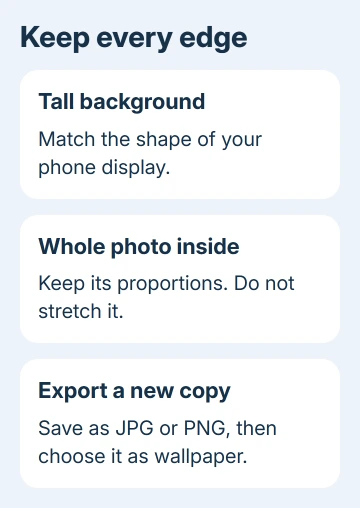
In an image editor, find canvas, background, or resize canvas. Choose a portrait canvas matching your display's shape. Pixel dimensions vary by model; Android phones don't share one wallpaper size.
Place the original picture on that canvas as a separate image layer. Keep the width and height linked to keep its shape, then shrink it until every edge fits. Don't stretch a wide image vertically; faces and circles will look distorted.
Choose a plain background color that works with the photo. Center the picture, or move it slightly to leave room for the clock. The extra area is intentional: it lets the phone fill the screen while keeping the original picture inside it.
Save the finished copy as a new JPG or PNG. Return to the phone's wallpaper picker and select that new file. Check the full preview before applying, including any text or people close to the sides.
The editor's control names vary, but the result is easy to check: open the saved copy in Gallery. It should already look tall, with the complete original picture surrounded by the background you added.
If it still looks wide with no surrounding space, the editor resized the picture rather than expanding its canvas. Reopen the project and change the background or canvas size, then export another copy.
Check the applied wallpaper on the real screen
Apply the file and inspect your Home screen. Swipe through your Home pages and lock the phone to inspect the Lock screen. A preview is useful, but the finished layout shows whether icons or the clock cover something important.
If only one screen looks wrong, edit that screen's wallpaper separately. Don't keep changing both when the other one already looks right. On a foldable phone, also check the display you actually intend to customize.
When the file isn't available in the picker, find the saved picture on Android and confirm that the editor exported it. A project saved inside an editor may still need a separate image export.
For unexpected cropping of a correctly exported image, tell the manufacturer your phone model, Android or One UI version, and which screen is affected. Include the original dimensions and describe what the preview cuts away.
The Short Version
Reposition the original photo in the wallpaper preview first. To keep the entire picture, place it on a tall background and export a separate copy. Apply that copy, then check both Home and Lock screens with their icons and clock visible.
Checked November 16, 2026.
 If you have any business, I can build it online






